Progress Report
NAVIGATION Reports > Progress Report
NAVIGATION QBR Report Builder > (add or edit a report) > Add > Progress Report
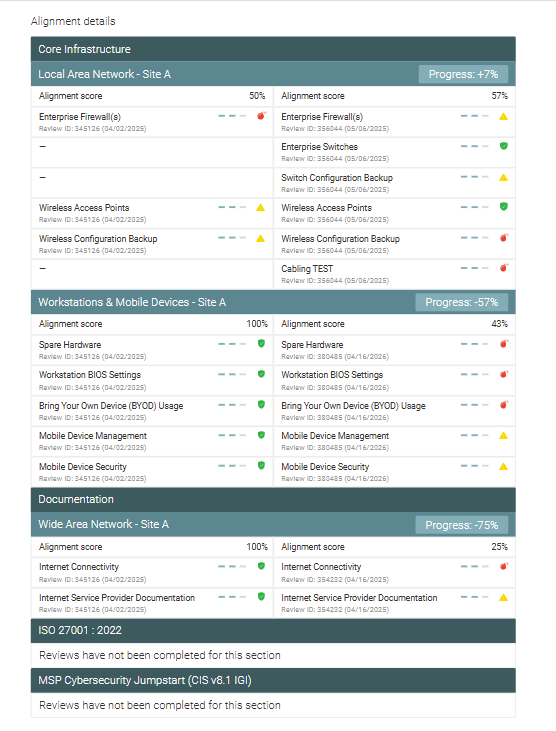
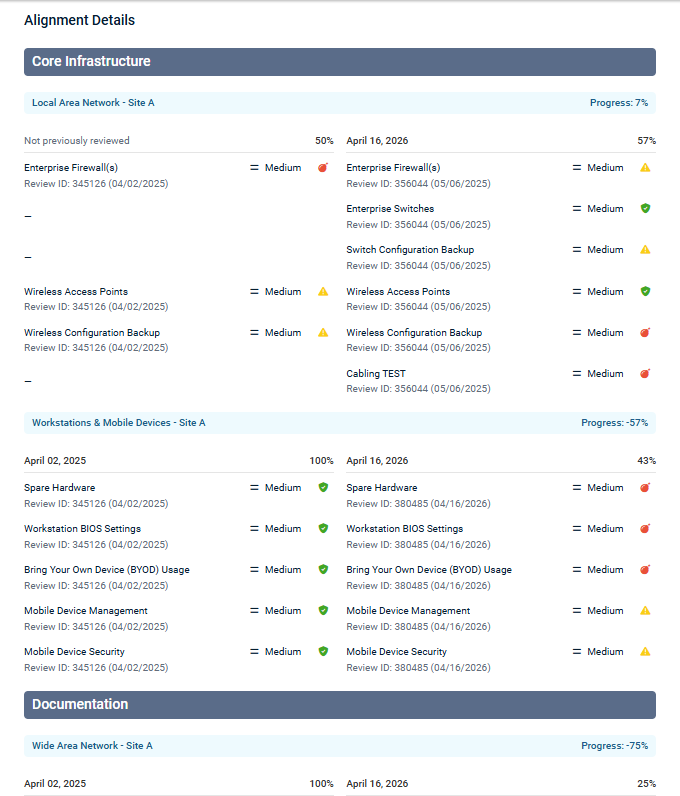
The Progress Report compares a client’s alignment results over time to measure progress and highlight improvements in their environment.
BEFORE YOU BEGIN Refer to Using the Standards Library and Customizing organization templates.
You can generate this report as a standalone PDF or as part of a QBR report. Refer to Using the QBR Report Builder.
Standalone Progress Report
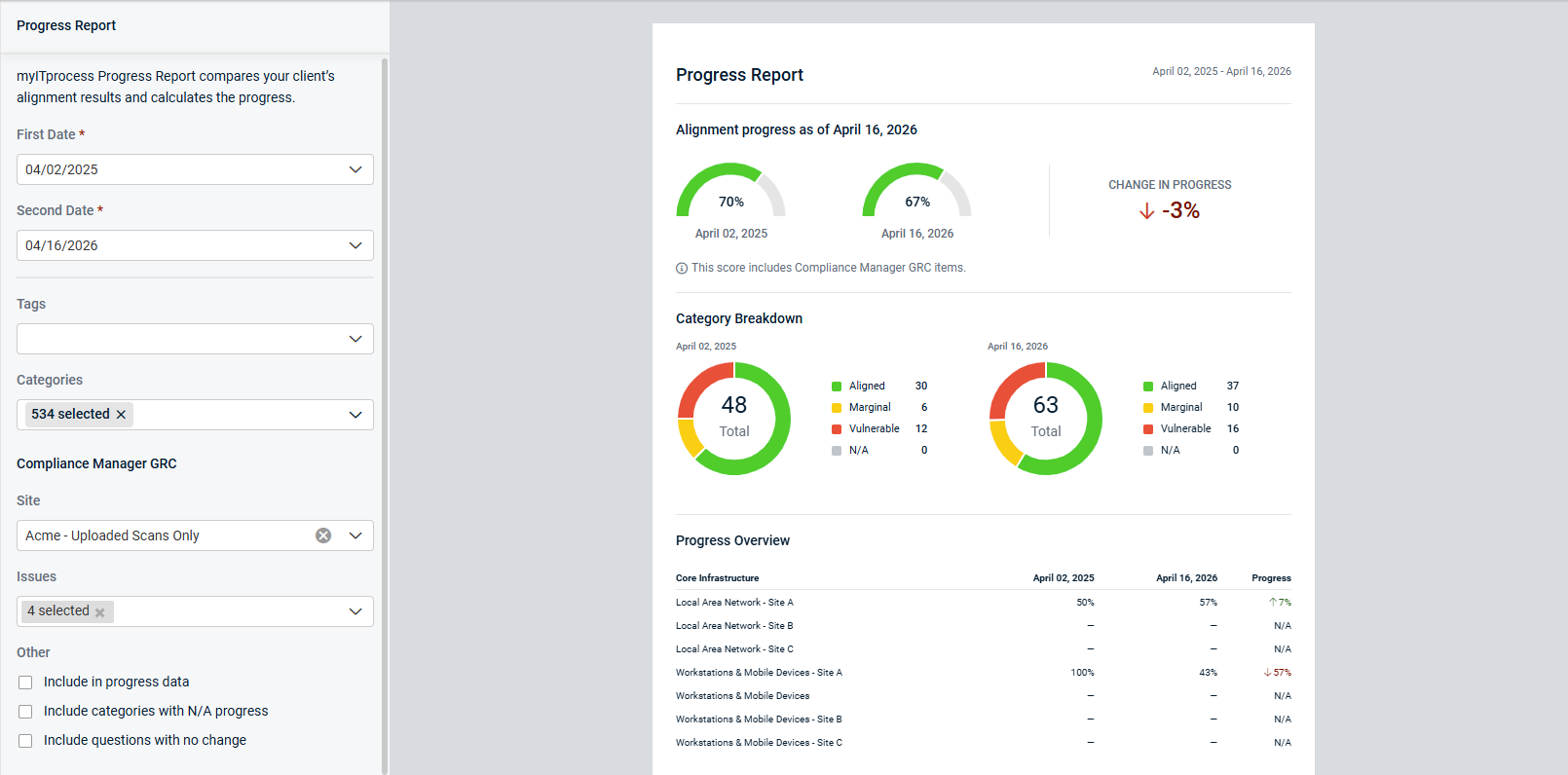
Progress Report in QBR Report Builder
Configuring Progress Report settings
On the Progress Report page or in the Progress Report section in the QBR Report Builder, configure the report using the following settings:
| Field | Availability by Report Type (if applicable) | Description |
|---|---|---|
| Organization | Standalone report only, as the organization is selected in the general QBR report settings | From the drop-down menu, select the client for whom you are generating the report. |
| First Date | From the calendar date selector, choose the earlier review date for comparison. Dates on which an alignment review was completed for the organization are marked with a green dot  . .NOTE A later setting provides you the option to include in-progress review data (not only data from completed reviews). Refer to Include in progress data. |
|
| Second Date |
|
From the calendar date selector, choose the later review date for comparison. The report compares results between the first and second selected dates. |
| Tags | QBR report only | The drop-down menu contains all active section and category tags. Refer to Managing Standards Library tags. To be able to include untagged sections and categories in the report, leave this field blank. To include only tagged sections and categories in the report, select the tag(s) you want to include. |
| Categories | The drop-down menu organizes categories by section. Select any number of categories to include in the report. Selecting a section checkbox (top-level) automatically selects all categories within that section, and category checkboxes can be individually cleared as needed. If a selected section or category has not yet been included in any reviews for the organization, the section or category appears in the report with a note that a review has not yet been completed for it. In the QBR Report Builder settings, the sections and categories available for selection are limited to those with the tag(s) selected in the Tags drop-down menu. If no tags are selected (or if you are generating a standalone report), all active categories are available for selection. |
|
| Compliance Manager GRC This section is visible only if the selected myITprocess organization is mapped to a Compliance Manager GRC organization. Refer to Compliance Manager integration. |
||
| Site | From the drop-down menu, select the relevant site from the Compliance Manager GRC organization to filter report data. | |
| Issues | From the drop-down menu, select any number of issues to include in the report. | |
| First Date | Standalone report only | From the calendar date selector, choose the earlier review date for comparison. |
| Second Date | Standalone report only | From the calendar date selector, choose the later review date for comparison. |
| More options/Other | ||
| Include in progress data |
|
Select this checkbox to include data from reviews that have not yet been completed (submitted by the vCIO). |
| Include categories with N/A progress |
|
Select this checkbox to include categories with no alignment progress between the selected first and second dates. |
| Include questions with no change |
|
Select this checkbox to show questions whose alignment scores have remained the same between the selected first and second dates. |
Generating the standalone Progress Report
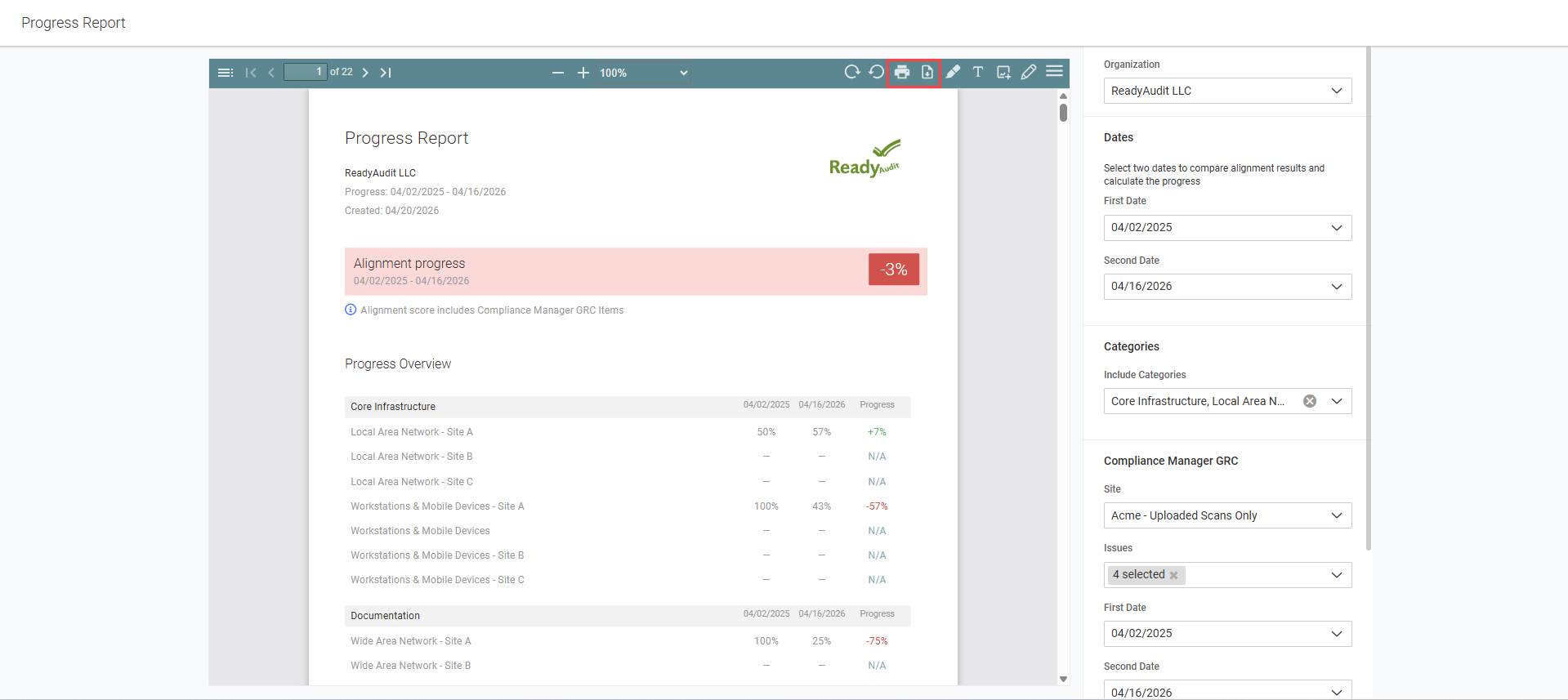
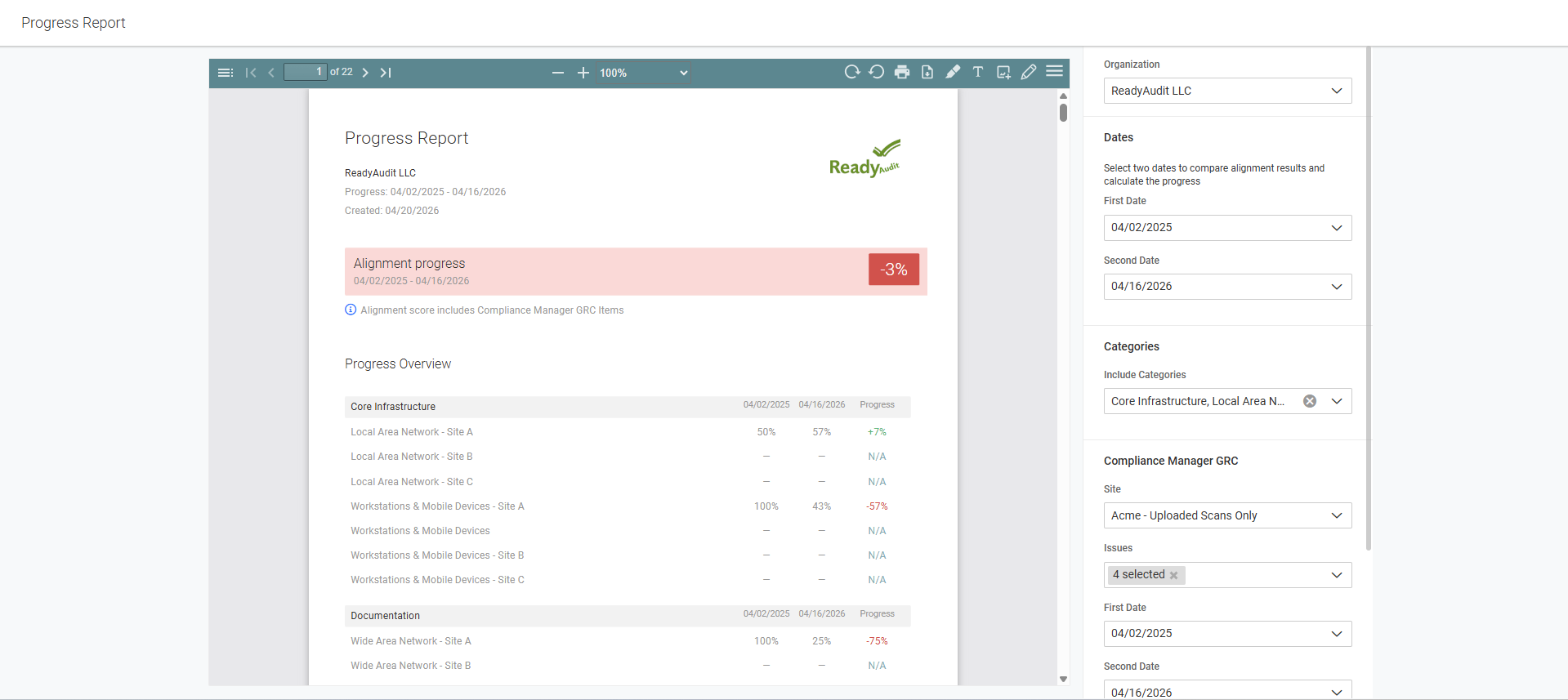
When you are ready to generate the report with your configured settings on the Progress Report page, click Build in the lower-right corner of the page.
The generated PDF is embedded on the page for your review, including a toolbar with markup and display options. If you use the toolbar to add images, text, markings, and so forth in the PDF, those elements will appear in the downloaded or printed PDF. To print the PDF or download it to the default download location on your device, click the print icon or download icon in the toolbar.