myITprocess API
NAVIGATION My Account > Account Settings > API Keys
myITprocess provides a REST API (Application Programming Interface) to enable programmatic access to information and operations available in the platform. The API is documented using Swagger and is accessible through Swagger UI, where you can view all available endpoints maintained by myITprocess. Swagger UI also allows you to review sample requests and preview endpoint behavior directly from your browser.
NOTE The API call limit is 50 requests per minute per IT provider.
API authentication in myITprocess
To authenticate API requests to myITprocess, you must generate an API key. The API key identifies your account and authorizes access to the API.
Complete the following steps in myITprocess to generate an API key:
- In the upper-right corner of the header, click your username (My Account) and select Account Settings.
- Click the API Keys tab.
- Click Add API key.
- In the API key name field, enter a descriptive name to help you identify how the key will be used (for example, the application or integration name).
- Click Generate.
- The API key field is automatically populated with a unique key. Click the copy icon
 to copy the key to your clipboard.
 - Store the API key in a secure location, such as a password manager or encrypted configuration file. Treat the key like a password, as it provides authenticated access to the myITprocess API.
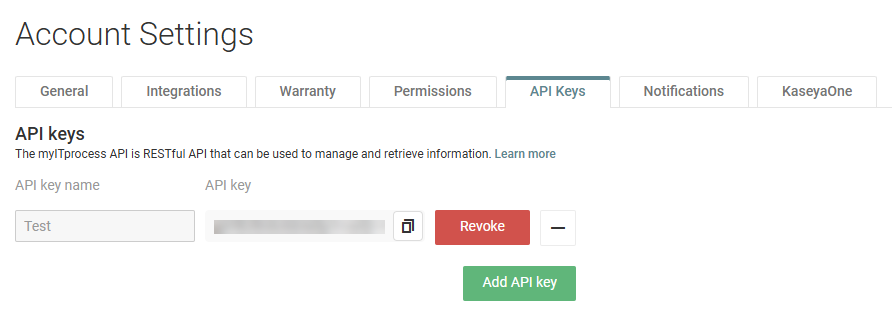
IMPORTANT Be sure to promptly copy the API key. The key is masked and no longer copyable after leaving this page and then returning to it.
Using the public API
To get started, navigate to the myITprocess Public API page in Swagger UI.
Authorizing your requests
Before you can interact with the API, you must authorize your session as follows:
- Click Authorize in the upper-right corner of the page.
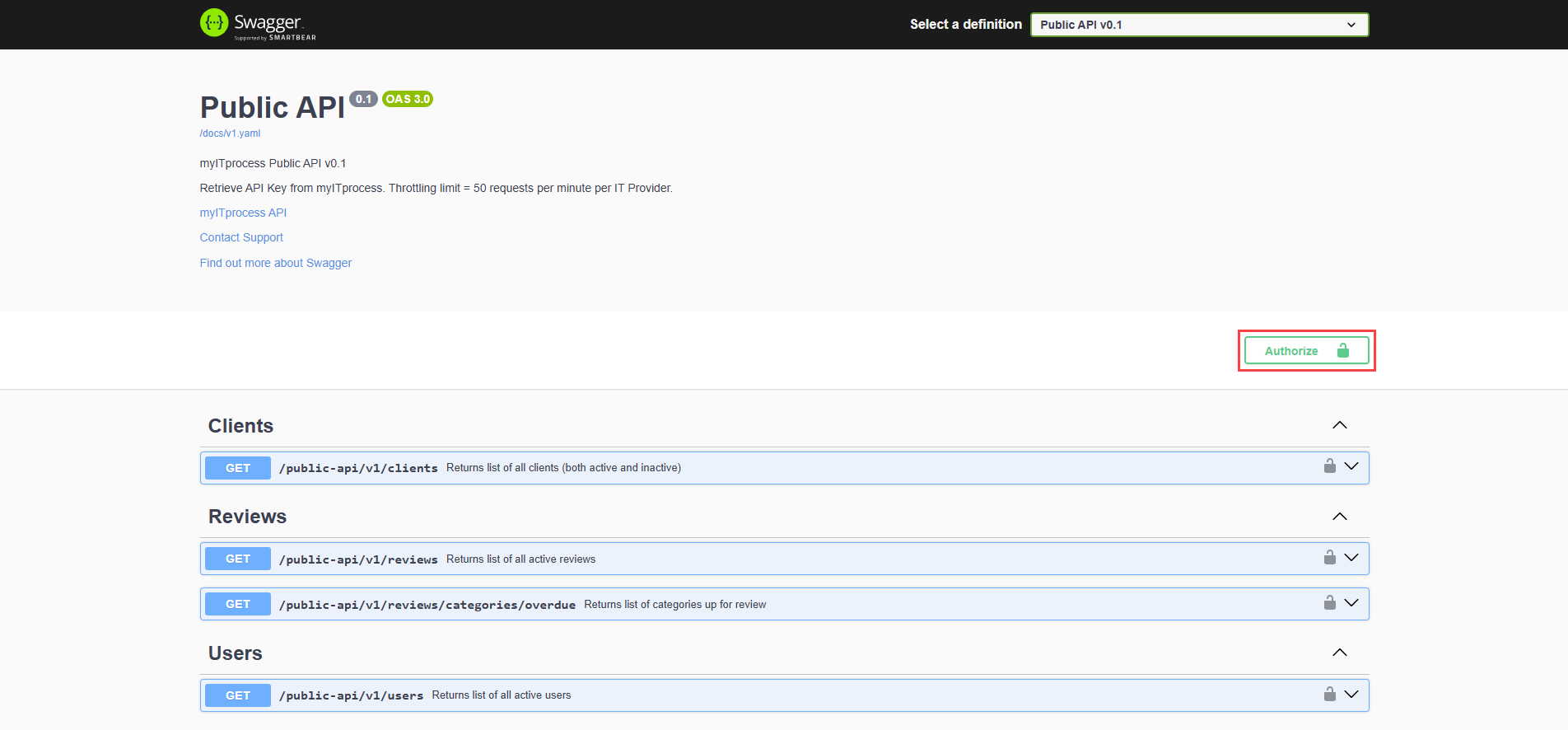
- Enter your API key generated in API authentication in myITprocess and confirm authorization.
Once authorized, Swagger UI allows you to explore and test available endpoints.
 Exploring endpoints
Each endpoint is listed with an expandable row. To view endpoint details, click the chevron icon in the applicable row.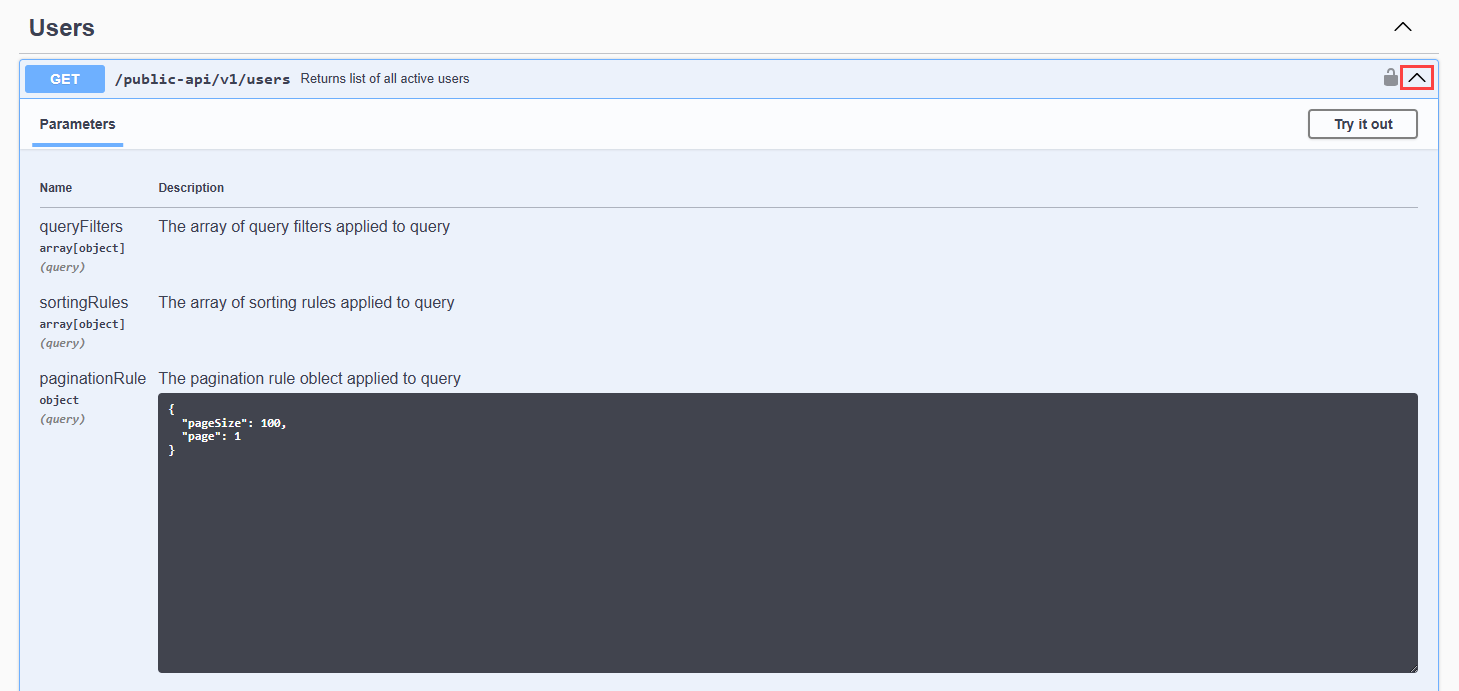
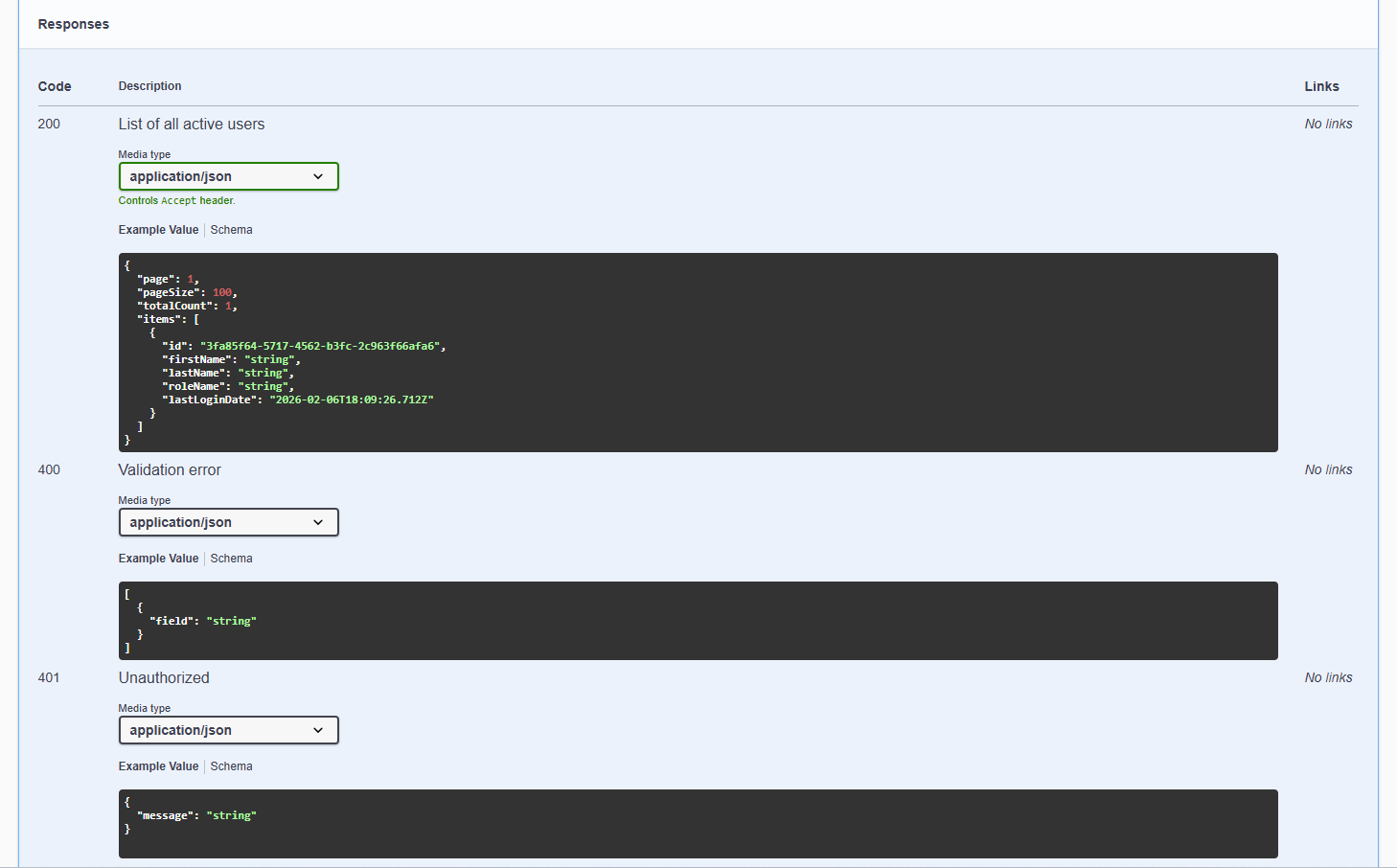
Swagger UI displays the available parameters, expected responses, and example values.
For each response, Swagger UI shows the following:
- The response code
- A description of the response
- Any related links (if applicable)
- An example response body
Previewing requests and responses
Complete the following steps execute an API call directly from your browser:
- Click Try it out for the desired endpoint.
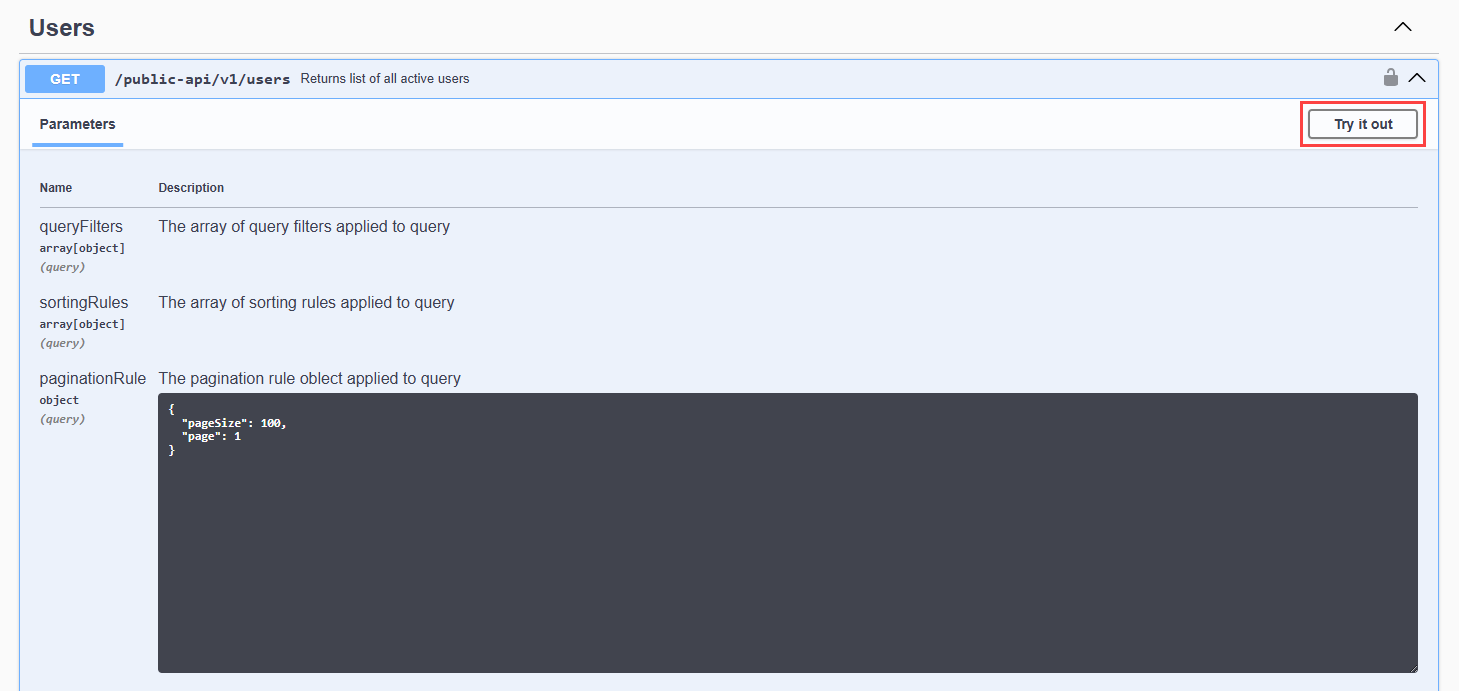
- Configure any required parameters.
- Click Execute.
Swagger UI displays the results of the request, including the following:
- The generated
curlcommand - The request URL
- The server response, including the response code and response details
This allows you to preview how the endpoint behaves before implementing it in your application.
Revoking an API key
Revoking an API key immediately disables it and prevents it from being used to authenticate API requests. A revoked key can no longer access the API, even if the key value is still known.
API key revocation is typically required in the following scenarios:
- The key may have been exposed or compromised.
- Access needs to be stopped temporarily.
- You want to rotate keys without removing the record.
Complete the following steps in myITprocess to revoke an API key:
- In the upper-right corner of the header, click your username (My Account) and select Account Settings.
- Click the API Keys tab.
- Click Revoke for the key you want to revoke.
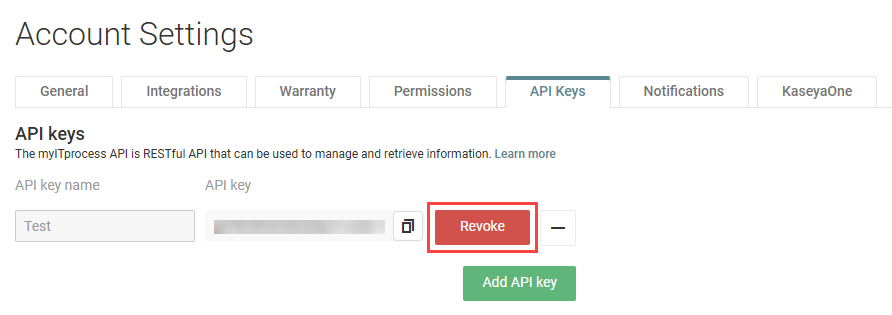
- In the confirmation pop-up window, click Revoke to revoke the key.
The key value is removed, but its record remains. A new, unique key value can be regenerated for the record as needed. The original key value remains invalid and cannot be used again.
Deleting an API key
Deleting an API key permanently removes it from the system. Once deleted, the key cannot be restored or reused.
API key deletion is typically required in the following scenarios:
- The key is no longer needed.
- An integration has been retired.
- You want to fully clean up unused keys.
Complete the following steps in myITprocess to delete an API key:
- In the upper-right corner of the header, click your username (My Account) and select Account Settings.
- Click the API Keys tab.
- Click the - icon for the key you want to delete.
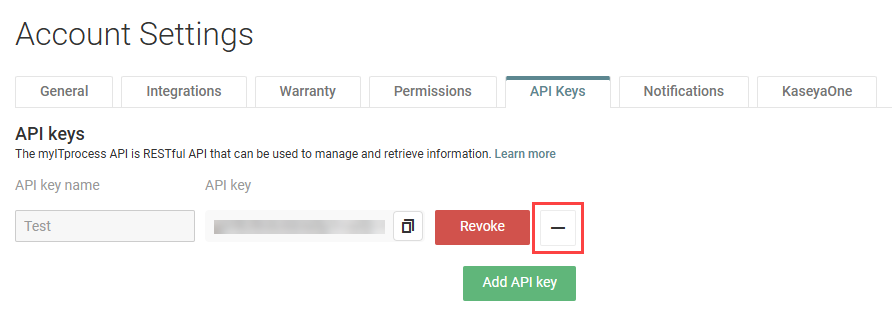
- In the confirmation pop-up window, click Delete to completely remove the record and key value from myITprocess.


