Fortinet integration
NAVIGATION My Account > Account Settings > Integrations > Connect Fortinet
The Fortinet integration syncs your Fortinet hardware to myITprocess, allowing you to track support contract coverage, warranty expiration, and device lifecycle information directly in the Device Warranty Lookup. Fortinet acts as the source of truth for device discovery, and serial number is used to match and enrich devices already syncing from IT Glue. For an overview of the Device Warranty Lookup and device lifecycle management, refer to Device Lifecycle Management overview.
Prerequisite
To connect the Fortinet integration, you need a FortiCloud API username and API password. The API user must have sufficient access across all three required FortiCloud scopes: Organization, IAM, and Asset Management. Credentials with access to only some scopes cannot be used to connect the integration.
How to...
 Connect the Fortinet integration
- In the upper-right corner of the header, click your username (My Account) and select Account Settings.
- Click the Integrations tab.
- Locate Fortinet in the list, and click Connect Fortinet.
- Enter your FortiCloud API username in the API Username field.
- Enter your FortiCloud API password in the API Password field.
- Click Connect.
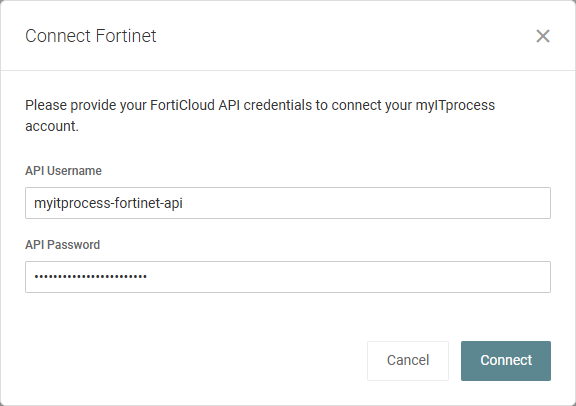
myITprocess validates your credentials against all three required FortiCloud scopes simultaneously. If all scopes authenticate successfully, the integration connects and a success notification appears. If validation fails, an error message is displayed and credentials are not saved:
- Incorrect Credentials: Displayed when all three scope validations fail. Verify your API username and password and try again.
- Insufficient access level: Displayed when one or two scopes fail. The API user does not have the required level of access across all three scopes. Contact your FortiCloud administrator to review the API user's permissions.
Map Fortinet accounts to organizations
After connecting the integration, map your myITprocess organizations to their corresponding Fortinet accounts so that devices sync and enrich correctly. Only organizations with an active account mapping receive Fortinet warranty data.
- In the upper-right corner of the header, click your username (My Account) and select Account Settings.
- In the left navigation menu, click Setup Organizations.
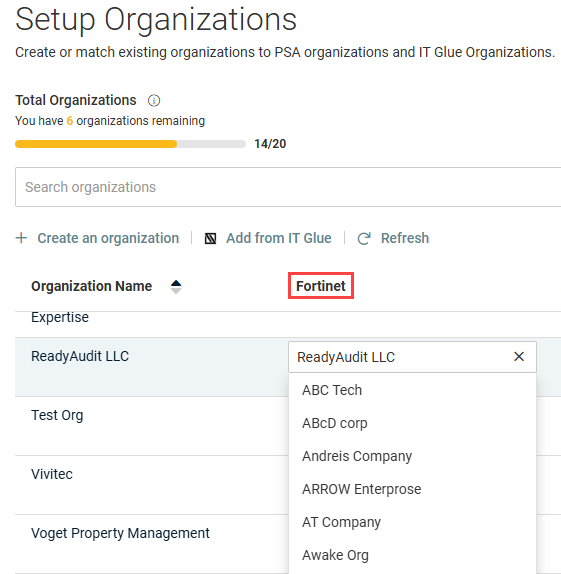
- A Fortinet column appears in the organization list. Organizations with names that match exactly between myITprocess and Fortinet are mapped automatically. For any remaining organizations, click the drop-down in the Fortinet column and select the corresponding Fortinet account manually. Each account displays its organization name and organization unit name to help distinguish accounts that share the same name across different units.
- Click Save.
Accounts that are not mapped are skipped during sync. Fortinet devices from IT Glue with an unmapped Fortinet organization display No Status for warranty. Mappings can be updated or removed at any time by returning to Setup Organizations.
For more information on organization mapping, refer to Performing organization mapping.
View Fortinet device details
Once the integration is connected and organizations are mapped, Fortinet devices appear on the Device Warranty Lookup page. Navigate to Home and click the Device Warranty Lookup widget, or go to Strategy > (select an organization) > Device Warranty Lookup.
After selecting an organization from the drop-down menu in the upper-left corner of the page, click a device row with Fortinet in the Manufacturer column to open its details pane. Clicking View in Fortinet or View in IT Glue opens the device record in the respective application.
NOTE As an external measure of security and credential isolation, third-party API data does not sync to IT Glue.
The Contracts tab in the device details pane lists all active support entitlements for the device, along with the last date for renewal. Each contract record displays the support type, support level, start date, and end date. The Contracts tab is hidden for devices that have no entitlement data from Fortinet.
Link Fortinet devices to review questions
Refer to Smart Insights: Suggested devices. Linked Fortinet devices are carried through to any recommendations derived from the question.
Create a recommendation for a Fortinet device
You can add Fortinet devices as assets when creating a recommendation from the Device Warranty Lookup page or the Strategic Roadmap. For full instructions, refer to Create a recommendation for a device in Device Lifecycle Management overview.
When adding assets to a recommendation, select Fortinet from the source drop-down menu and select the applicable devices from the list.
You can add any number of Fortinet devices to a single recommendation.


