SonicWall integration
NAVIGATION My Account > Account Settings > Integrations > Connect SonicWall
The SonicWall integration syncs your SonicWall hardware to myITprocess, allowing you to track warranty expiration, support status, and device lifecycle information directly in the Device Warranty Lookup. For an overview of the Device Warranty Lookup and device lifecycle management, refer to Device Lifecycle Management overview.
Prerequisite
To connect the SonicWall integration, you need a SonicWall API key. API access is determined by the access level configured in MySonicWall. To grant myITprocess full permission, the key must be generated by a MySonicWall Admin.
How to...
 Connect the SonicWall integration
- In the upper-right corner of the header, click your username (My Account) and select Account Settings.
- Click the Integrations tab.
- Locate SonicWall in the list, and click Connect SonicWall.
- Paste your SonicWall API key into the API Key field.
- Click Connect.
Map SonicWall organizations
After connecting the integration, map your myITprocess organizations to their corresponding SonicWall organizations so that devices sync correctly.
- In the upper-right corner of the header, click your username (My Account) and select Account Settings.
- In the left navigation menu, click Setup Organizations.
- A SonicWall column appears in the organization list. Organizations with names that match exactly between myITprocess and SonicWall are mapped automatically. For any remaining organizations, click the drop-down in the SonicWall column and select the corresponding organization manually.
- Click Save.
For more information on organization mapping, refer to Performing organization mapping.
View SonicWall device details
Once the integration is connected and organizations are mapped, SonicWall devices appear on the Device Warranty Lookup page. Navigate to Home and click the Device Warranty Lookup widget, or go to Strategy > (select an organization) > Device Warranty Lookup.
After selecting an organization from the drop-down menu in the upper-left corner of the page, click a device row with SonicWall in the Manufacturer column to open its details pane.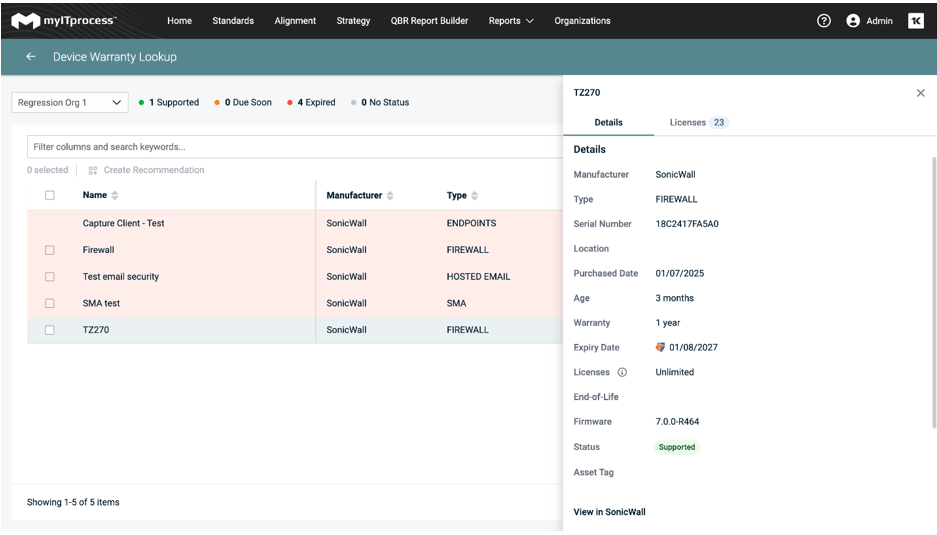
The following fields are specific to SonicWall devices:
- Purchased Date: Corresponds to the Registered On date in MySonicWall.
- Age: Calculated automatically based on the purchased date.
- Expiry Date: Corresponds to the Support Expiration date in MySonicWall.
- Status: Due Soon is applied based on the warranty threshold configured in Account Settings. Expired is applied when either the expiry date or the end-of-life date has passed.
- Licenses: The number of allocated seats for the device. For license type details, click the Licenses tab in the details pane.
- Firmware: The firmware version currently running on the device.
- End-of-Life: The date SonicWall announced end of support for the device, if applicable.
Link SonicWall devices to review questions
Refer to Smart Insights: Suggested devices. Linked SonicWall devices are carried through to any recommendations derived from the question.
Create a recommendation for a SonicWall device
You can add SonicWall devices as assets when creating a recommendation from the Device Warranty Lookup page or the Strategic Roadmap. For full instructions, refer to Create a recommendation for a device in Device Lifecycle Management overview.
When adding assets to a recommendation, select SonicWall from the source drop-down menu and select the applicable devices from the list.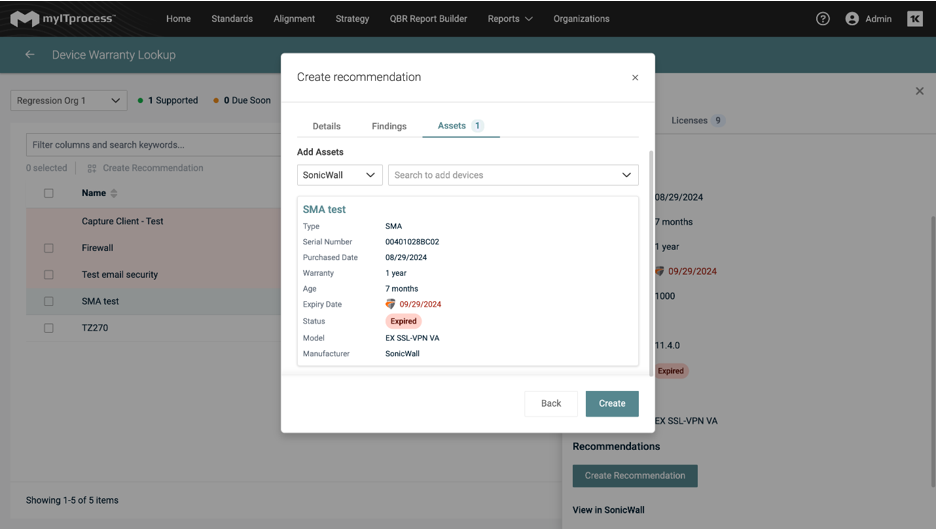
You can add any number of SonicWall devices to a single recommendation.


