Using organization groups
NAVIGATION Organizations > (click the three-dot menu) > Manage organization groups
PERMISSIONS Refer to User access to organization groups.
Organization groups allow you to segment data and control access to organizations among users in your account. You may wish to organize groups based on geographical location, industry, or other factors.
By default, all organizations are added to the built-in All Organizations group and cannot be removed from this group. You have the option to add each organization to one or more additional custom groups.
User access to organization groups
Users with the IT Provider Admin role have access to all organizations, and this access cannot be removed.
The All Organizations group is visible to all users by default. Users with roles other than IT Provider Admin can be removed from this group, which allows organization administrators (any user with Full access to the Organizations permission) to restrict user access to certain organizations. Users without access to the All Organizations group must be granted individual user access to the groups they should have access to.
NOTE Users with any custom role granting Full access to the Organizations permission retain the ability to add or remove themselves from the All Organizations group, even if another user removes them.
Organization groups page
From the Organization groups page, you can view and edit existing groups, add new groups, or archive groups.
For each group, this list displays the color code selected for the group, name of the group, number of organizations included in the group, and date on which the group was created. The All Organizations group includes the total number of active organizations.
Archived organizations are grayed out in the list and cannot be edited unless restored.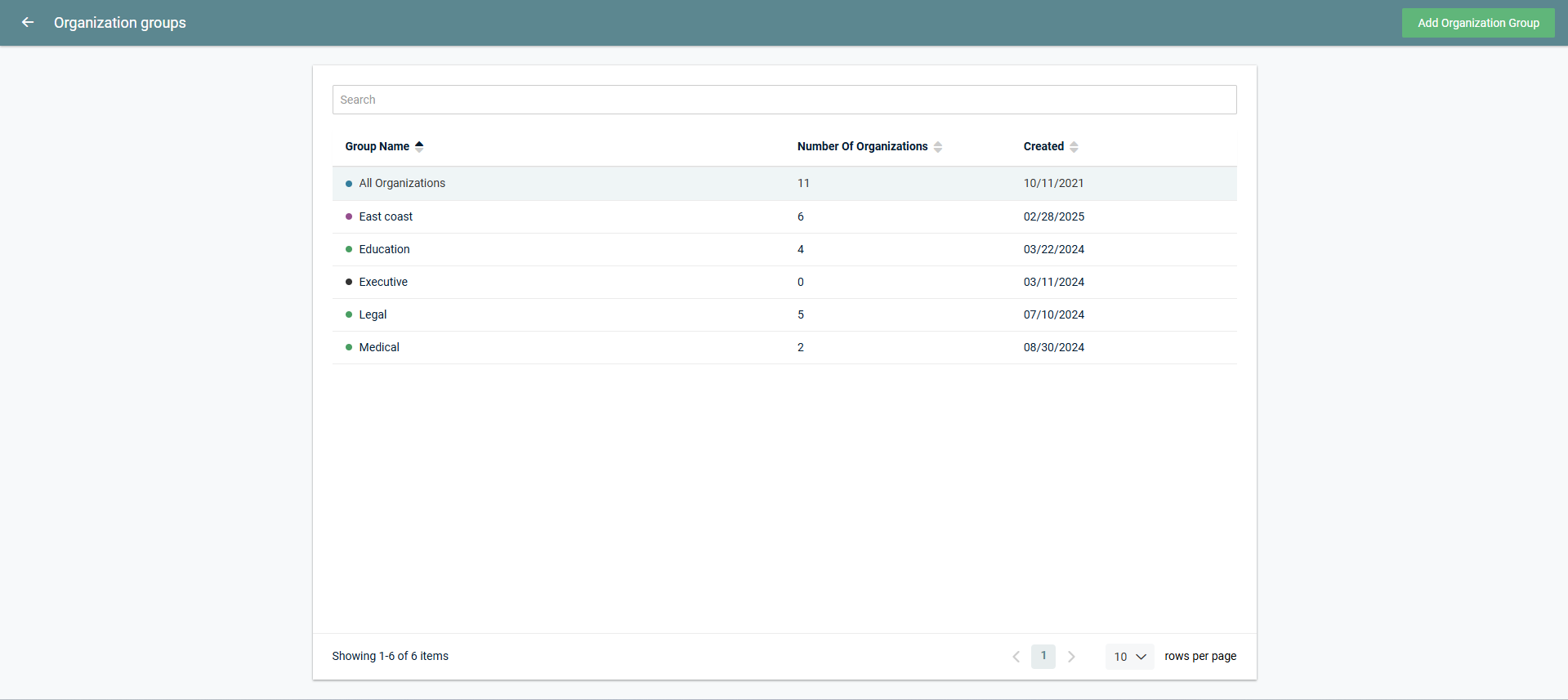
Searching and sorting
You can search for a specific group in the list by typing the name of the group in the Search bar at the top of the page. The results are narrowed as you type.
You can sort all columns in ascending or descending order.
You can select the number of results displayed per page and cycle through those pages using the pagination control in the lower-right corner of the page.
How to...
 Add an organization group
Complete the following steps to create a new custom group:
- In the top navigation menu, click Organizations.
- From the three-dot menu
 in the upper-right corner of the page, select Manage organization groups.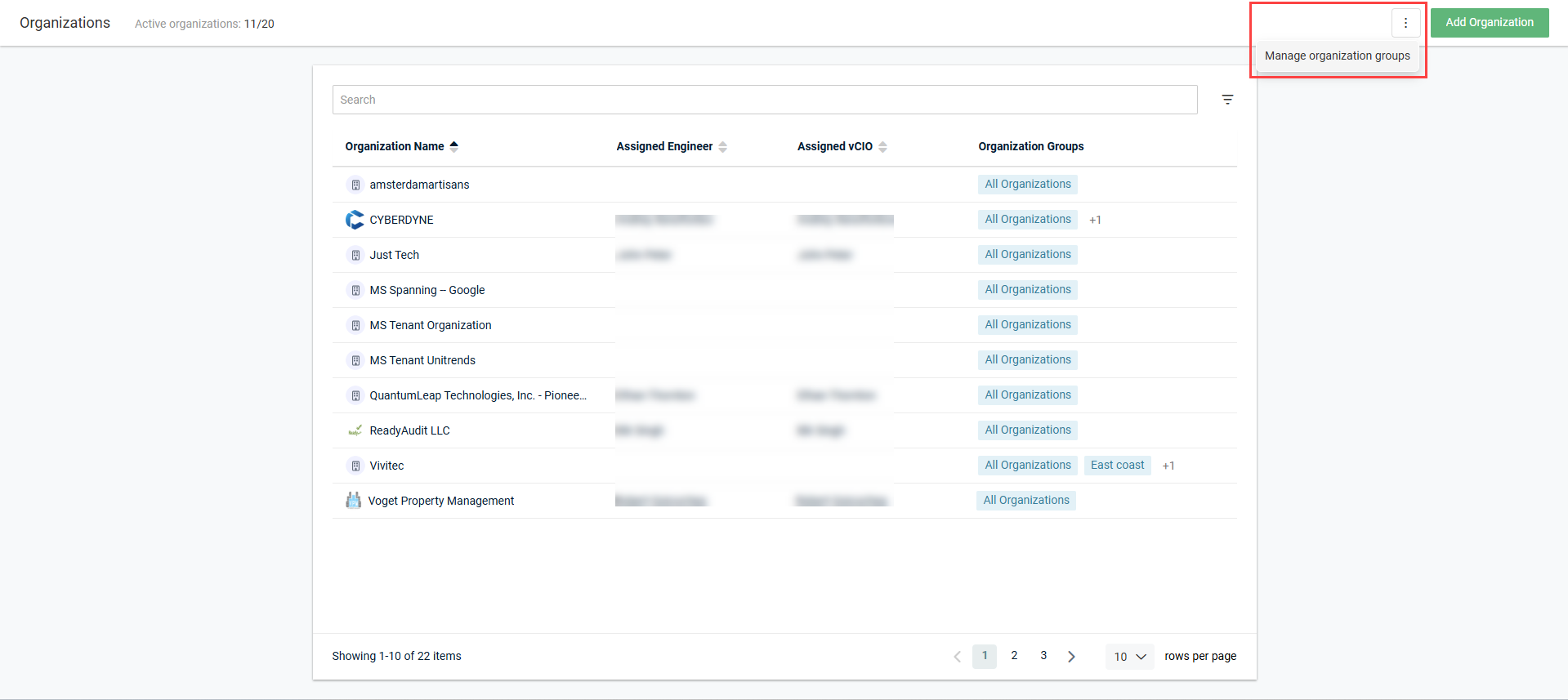
- On the Organization groups page, click Add Organization Group.
- Enter a name for the group.
- Select a color to denote the type of group.
- Optionally, enter a description of the group.
- Click Organizations to add organizations to the group. Select the checkboxes of the organizations you wish to include. To select all checkboxes at once, select the Select All checkbox (and then clear the checkboxes of certain organizations, if required).
To search for a specific organization to add, start typing the organization name in the search bar at the top of the pane. The results are narrowed as you type. - When finished configuring organizations, click the back arrow in the upper-left corner of the pane.
- Click Individual user access to add users to the group. Select the checkboxes of the users you wish to include. To select all checkboxes at once, select the Select All checkbox (and then clear the checkboxes of certain users, if required).
To search for a specific user to add, start typing the organization name in the search bar at the top of the pane. The results are narrowed as you type. - When finished configuring user access, click the back arrow in the upper-left corner of the pane.
- Click Add.
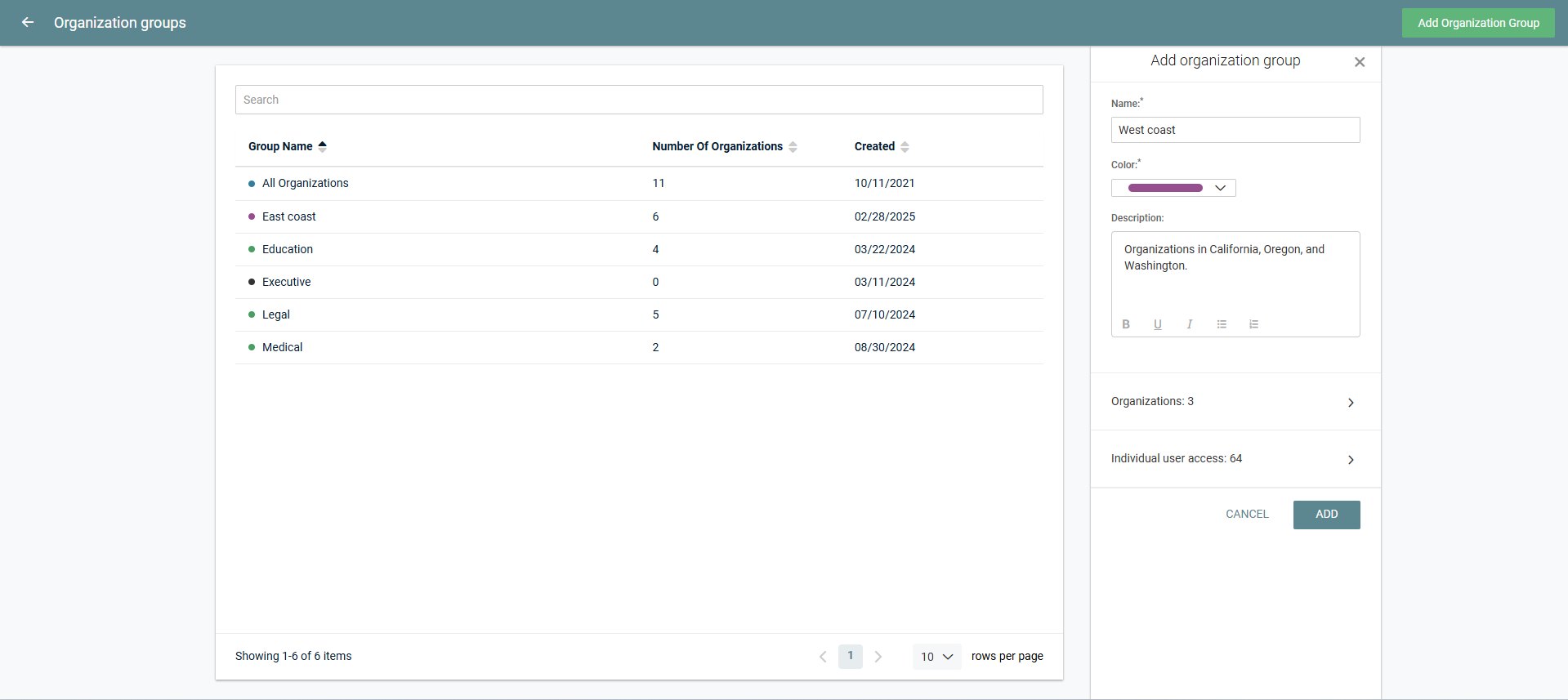
EXAMPLE You may wish to apply the same color to groups that represent a geographical location.
NOTE Users with the IT Provider Admin role have access to all organizations by default, as they cannot be removed from the All Organizations group. Deactivated users are grayed out in the pane and cannot be added to groups.
The group now appears in the list of groups on the Organization groups page.
Edit an organization group
NOTE For the All Organizations group, the name, color, and description cannot be edited, and no organizations can be removed. The only edit option for this group is to remove non-IT Provider Admin users who should not have access to all organizations.
Complete the following steps to edit a group:
- In the top navigation menu, click Organizations.
- From the three-dot menu in the upper-right corner of the page, select Manage organization groups.
- On the Organization groups page, click the row of the organization you wish to edit.
- From the three-dot menu in the upper-right corner of the Organization group details pane, select Edit organization group.
- Edit the details as required.
- Click Save.
Archive an organization group
NOTE The All Organizations group cannot be archived.
Once a group is archived, organizations are no longer considered part of that group, and individual user access to any organizations added to the group is not recognized.
Complete the following steps to archive a group:
- In the top navigation menu, click Organizations.
- From the three-dot menu in the upper-right corner of the page, select Manage organization groups.
- On the Organization groups page, click the row of the organization you wish to archive.
- From the three-dot menu in the upper-right corner of the Organization group details pane, select Archive organization group.
- In the confirmation pop-up window, click Archive to archive the organization group.
The group is grayed out in the list of groups on the Organization groups page but can be restored any time.
Restore an archived organization group
Un-archiving a group allows the organizations added to that group and individual user access to those organizations to be restored.
Complete the following steps to restore a group:
- In the top navigation menu, click Organizations.
- From the three-dot menu in the upper-right corner of the page, select Manage organization groups.
- On the Organization groups page, click the row of the grayed-out organization you wish to restore.
- From the three-dot menu in the upper-right corner of the Organization group details pane, select Restore organization group.
- In the confirmation pop-up window, click Restore to restore the organization group.
The group is no longer grayed out in the list of groups on the Organization groups page and can be edited as required.


