Strategic Roadmap reporting
NAVIGATION Strategy > (select an organization) > (select a starting year) > (click the menu icon  ) > Build report
NAVIGATION QBR Report Builder > (add or edit a report) > Add > Strategic Roadmap
This article explains how to generate a timeline report for the Strategic Roadmap. This report provides a four-quarter view of a client’s roadmap, helping you present planned initiatives over time.
You can generate this report as a standalone PDF or as part of a QBR report.
TIP Clients may request longer-term roadmaps (for example, 24 or 36 months). To accommodate this, generate multiple reports (one for each year) and present them together.
Standalone Strategic Roadmap report
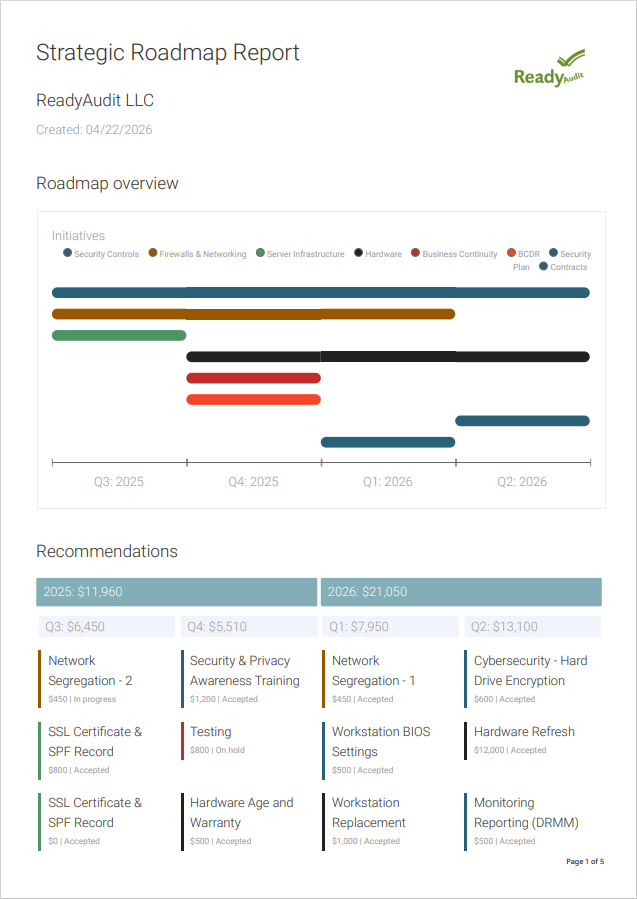
Building the standalone Strategic Roadmap report
Complete the following steps to configure and export a Strategic Roadmap report PDF for an organization from the Strategic Roadmap page:
- In the top navigation menu, click Strategy.
- From the drop-down menu in the upper-left corner of the page, select the organization you are creating the report for.
- Click the three-line menu icon in the upper-right corner of the page.
- Click Build report.
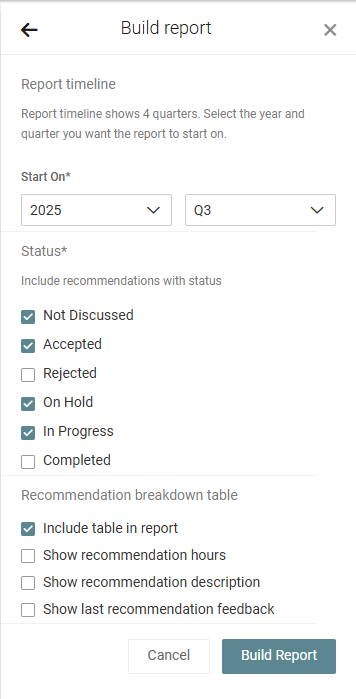
- From the Start On drop-down menus, select the calendar year and quarter the report should begin with.
- Select one or more recommendation statuses to filter which recommendations are included in the report.
- To control the level of detail included in the report, select or clear the following checkboxes:
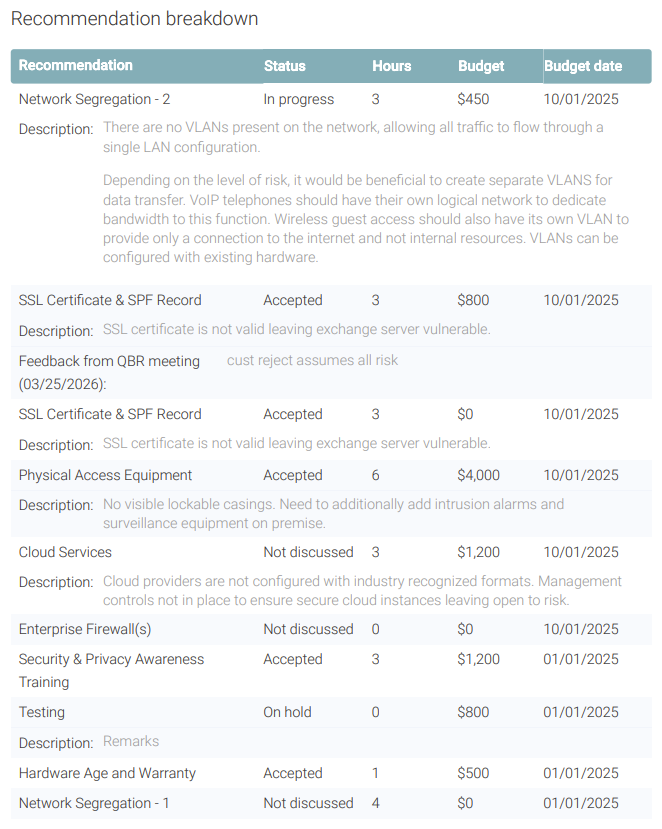
- Include table in report: Adds a table titled Recommendation breakdown, which lists the details of each included recommendation. The recommendation names, statuses, budgets, and budget dates are reflected by default.
You can include the following additional details in the table:- Show recommendation hours: Displays the hours for each recommendation.
- Show recommendation description: Displays the description of each recommendation.
- Show last recommendation feedback: Displays the most recent feedback associated with each recommendation.
- After configuring your selections, click Build to generate the report PDF, which is exported to the default download location on your device.
EXAMPLE If you select 2025 and Q3, the report will reflect data from Q3 2025, Q4 2025, Q1 2026, and Q2 2026.
NOTE These additional detail options are only applied if Include table in report is selected.
Strategic Roadmap report in QBR Report Builder
The Strategic Roadmap section in the QBR Report Builder allows you to present a four-quarter view of a client’s roadmap within QBR reports.
Refer to Using the QBR Report Builder.
Configuring the Strategic Roadmap section
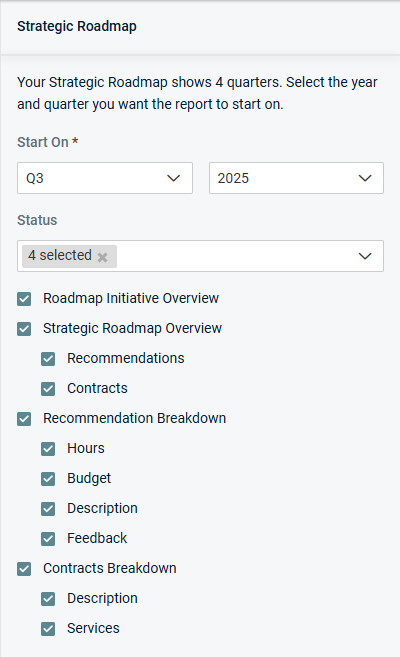
After adding the Strategic Roadmap section to a QBR report, use the following options to customize the data:
Start On
From the drop-down menus, select the quarter and calendar year the report should begin with.
EXAMPLE If you select 2025 and Q3, the report will reflect data from Q3 2025, Q4 2025, Q1 2026, and Q2 2026.
Status
Select one or more recommendation statuses to filter which recommendations are included.
Roadmap Initiative Overview
Clear this checkbox to remove the four-quarter initiative overview chart at the top of the report.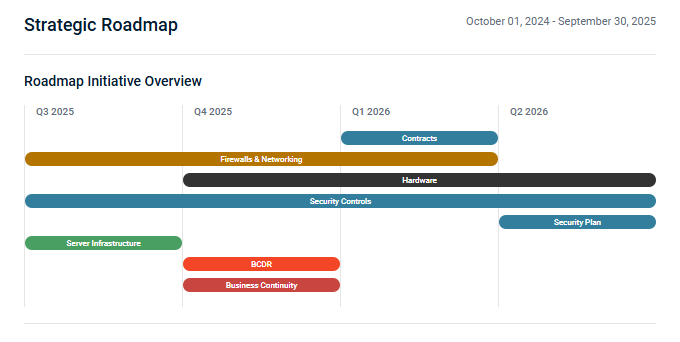
Strategic Roadmap Overview
Clear this checkbox to remove the four-quarter view of recommendations and/or contracts on the roadmap.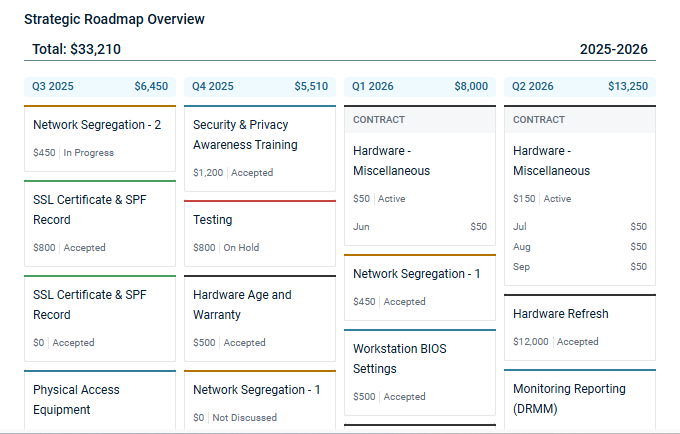
If you choose to include the Strategic Roadmap Overview section, you can select or clear the following checkboxes:
- Recommendations: Show or hide the tiles for recommendations with your selected status(es) in the timeline.
- Contracts: Show or hide the tiles for contracts (labeled as such to distinguish them from recommendations) in the timeline.
NOTE If you clear both additional checkboxes, the Strategic Roadmap Overview section is removed.
Recommendation Breakdown
Clear this checkbox to remove the Recommendation Breakdown section, which displays the details of each included recommendation. The recommendation names, statuses, and budget dates are reflected by default.
If you choose to include the Recommendation Breakdown section, you can select or clear the following checkboxes to show or hide those details in the breakdown: Hours, Budget, Description, Feedback.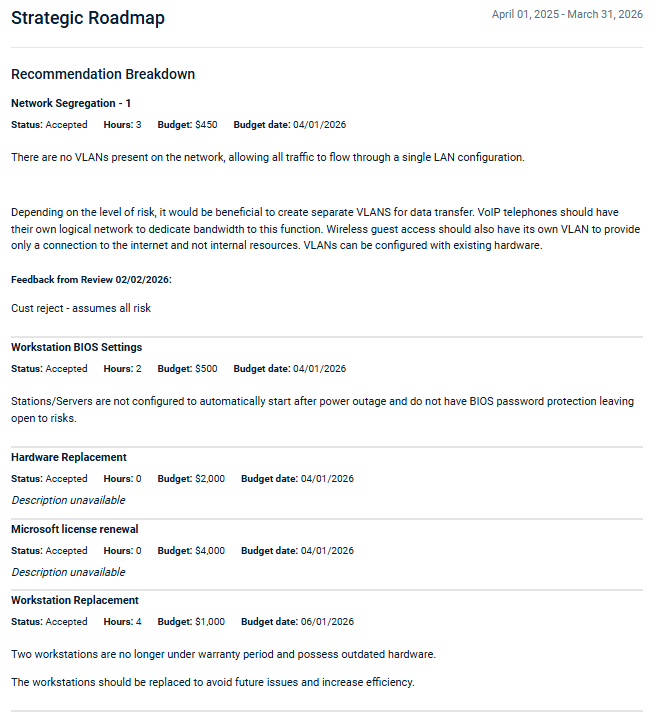
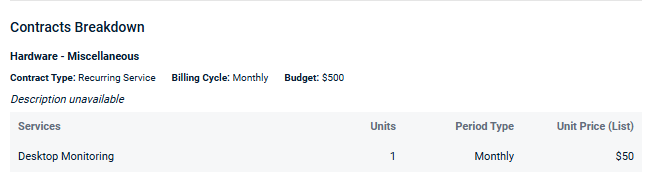
Contracts Breakdown
Clear this checkbox to remove the Contracts Breakdown section, which displays the details of each included contract. The contract names, types, billing cycles, and budgets.
If you choose to include the Contracts Breakdown section, you can select or clear the following checkboxes to show or hide those details in the breakdown: Description and Services.