Budget Report
NAVIGATION Reports > Budget Report
NAVIGATION QBR Report Builder > (add or edit a report) > Add > Budget Report
The standalone Budget Report provides a view of all budgeted items across your organizations, while the Budget Report section in the QBR Report Builder provides a view of budgeted items for the selected organization.
Standalone Budget Report
The data displayed on the Budget Report page is based on recommendations and contracts created for each client in the Strategic Roadmap.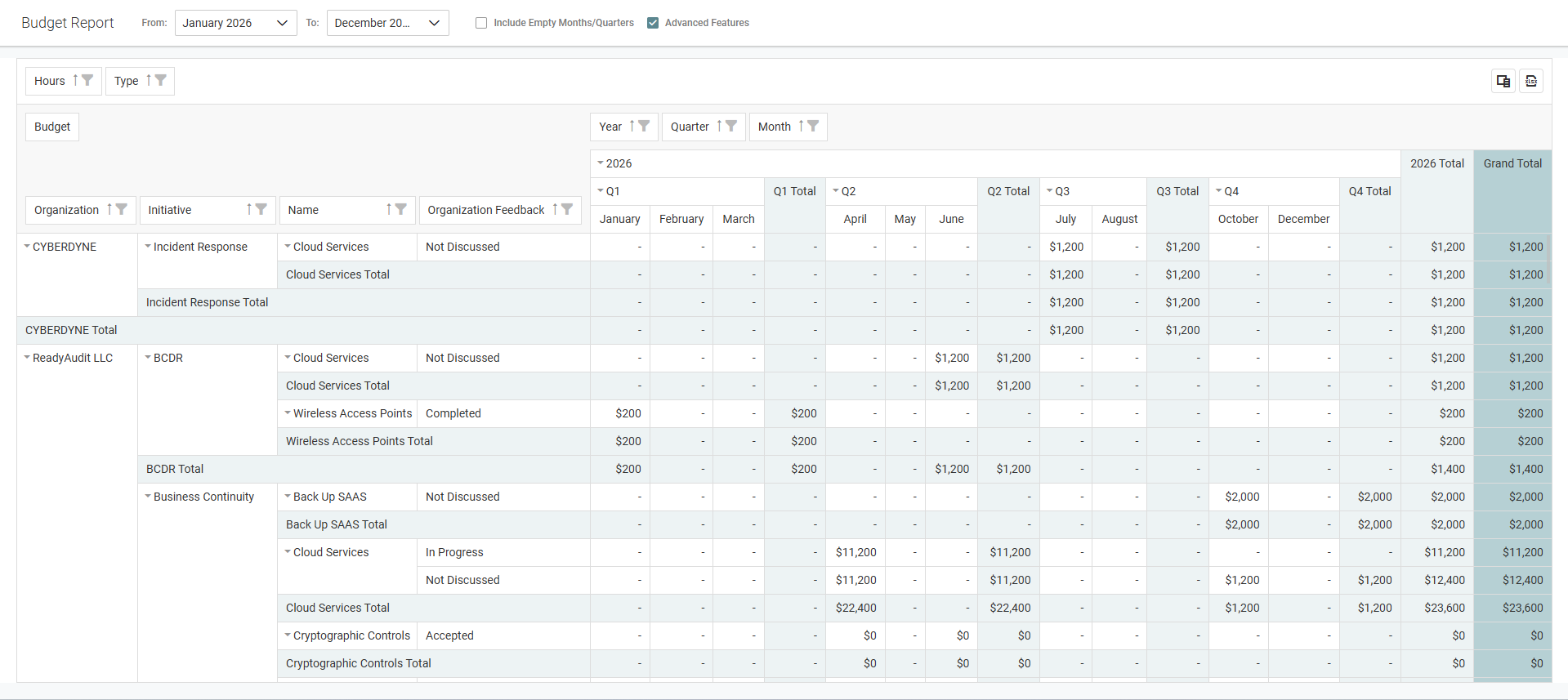
By default, the report displays data from January through December of the current year. You can adjust the timeframe by selecting a custom From and To month and year from the drop-down menus in the upper-left corner of the page.
NOTE Some organizations may not appear if they do not have recommendations or contracts within the selected timeframe.
Include Empty Months/Quarters setting
Selecting the Include Empty Months/Quarters checkbox at the to of the page displays all months and quarters for organizations that have budgeted items within the selected month/year timeframe, even if some periods do not have a budget. No budget is denoted by a hyphen -.
Advanced Features setting (pivot view)
Selecting the Advanced Features checkbox at the top of the page switches the report to a pivot table view, allowing you to do the following:
- Drag and drop fields to differently organize the columns or rows.
- Sort and filter columns.
- Customize how information is displayed using the following filters:
- Hours: Filter recommendations based on their assigned hours value.
- Type: Filter by recommendations and/or contracts. By default, both are displayed.
- Year: Filter by year (if the overall From and To selections in the upper-left corner of the page span multiple years).
- Quarter: Filter by quarter for the selected year(s), allowing you to compare specific quarters across years. By default, all quarters are reflected.
- Month: Filter by month for the selected year(s) and quarter(s). By default, all months are reflected.
After adjusting selections in any filter, be sure to click OK to apply the filtering to the report.
Clearing the Advanced Features checkbox returns the report to a simplified view without filtering or rearranging capabilities.
Field Chooser
Click the field chooser icon  to open the Field Chooser window, which allows you to configure all field selections (adding or removing certain columns or rows), sorting, and filtering from one location.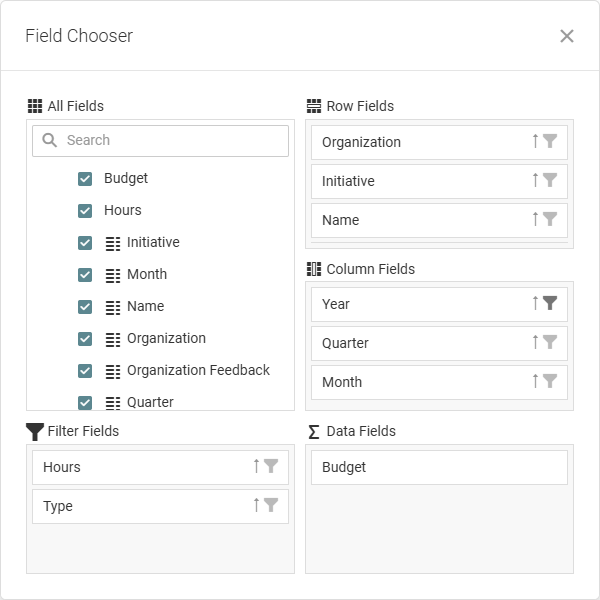
Exporting to Excel
Click the export icon  to download the Budget Report as a spreadsheet to the default download location on your device. The exported file reflects the current view of the report.
NOTE If rows are collapsed in the report, they will remain collapsed in Excel and cannot be expanded.
Budget Report in QBR Report Builder
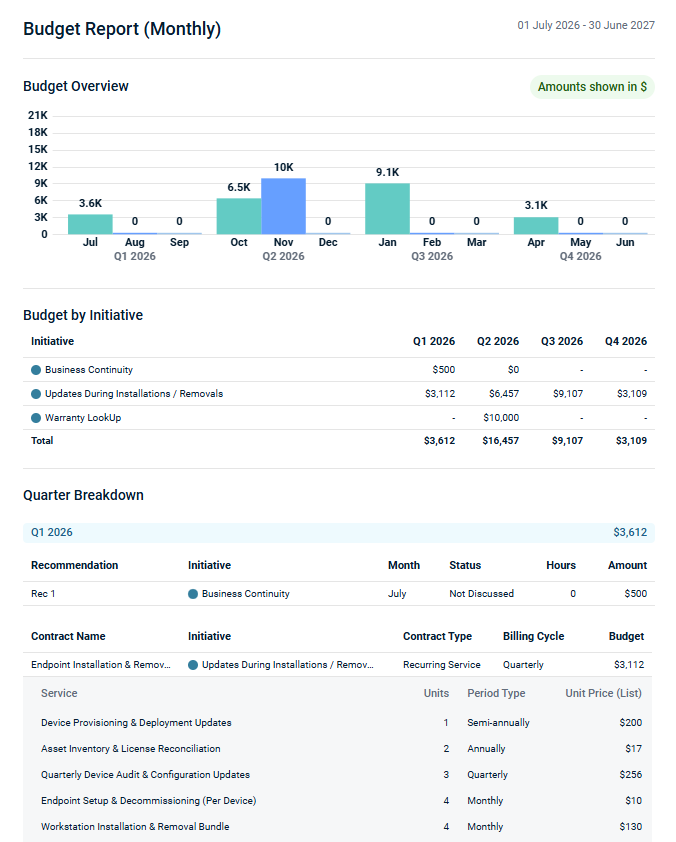
The Budget Report section in the QBR Report Builder allows you to present a budget view for an individual organization based on its Strategic Roadmap recommendations and contracts within QBR reports.
Refer to Using the QBR Report Builder.
Configuring the Budget Report section
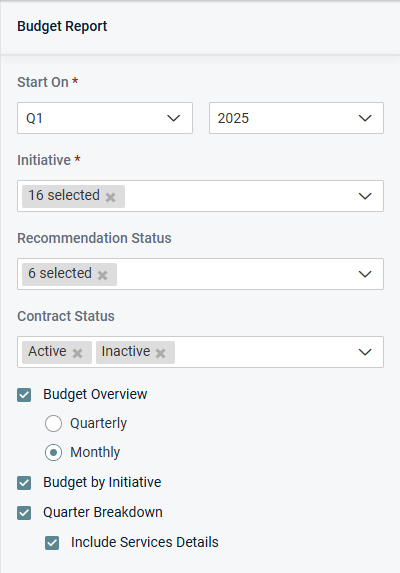
After adding the Budget Report section to a QBR report, use the following options to customize the data:
Start On
From the drop-down menus, select the starting quarter and year to reflect budget data for.
Initiative
Select one or more initiatives to include. By default, all initiatives are included.
Recommendation Status
Select one or more statuses to filter which recommendations are included. By default, all recommendations are included.
Contract Status
Select the applicable checkboxes to include Active and/or Inactive contracts, or clear both checkboxes to not include contracts. By default, all contracts are included.
Budget Overview
Select this checkbox to include a high-level summary of budget data displayed as a bar chart.
If you choose to include the budget overview, select Quarterly or Monthly to control how the bar chart data is displayed for the configured Start On timeframe.
Budget by Initiative
Select this checkbox to include a list of budget data grouped by initiative.
Quarter Breakdown
Select this checkbox to include a detailed breakdown of budget data by quarter.
The Include Service Details checkbox is applicable only if contracts are included in the data. Selecting this checkbox adds a section with a breakdown of the service details under each contract with services.