Adding and managing initiatives
NAVIGATION Strategy > (select an organization) > (select a starting year) > (click the menu icon  ) > Initiatives
This article explains how initiatives are used on the Strategic Roadmap page.
Initiatives are the highest level of organization in the Strategic Roadmap. They act as an umbrella (a common theme or objective) under which multiple recommendations or contracts are grouped. While recommendations are typically planned and tracked on a quarterly basis, initiatives can span multiple quarters or even years. This structure helps break down long-term strategies into manageable, time-based actions.
EXAMPLE Examples of initiatives include Business Continuity, Office Moves, Cybersecurity, Licensing Changes, and Policy Creation or Updates.
Initiatives are created and managed individually for each organization.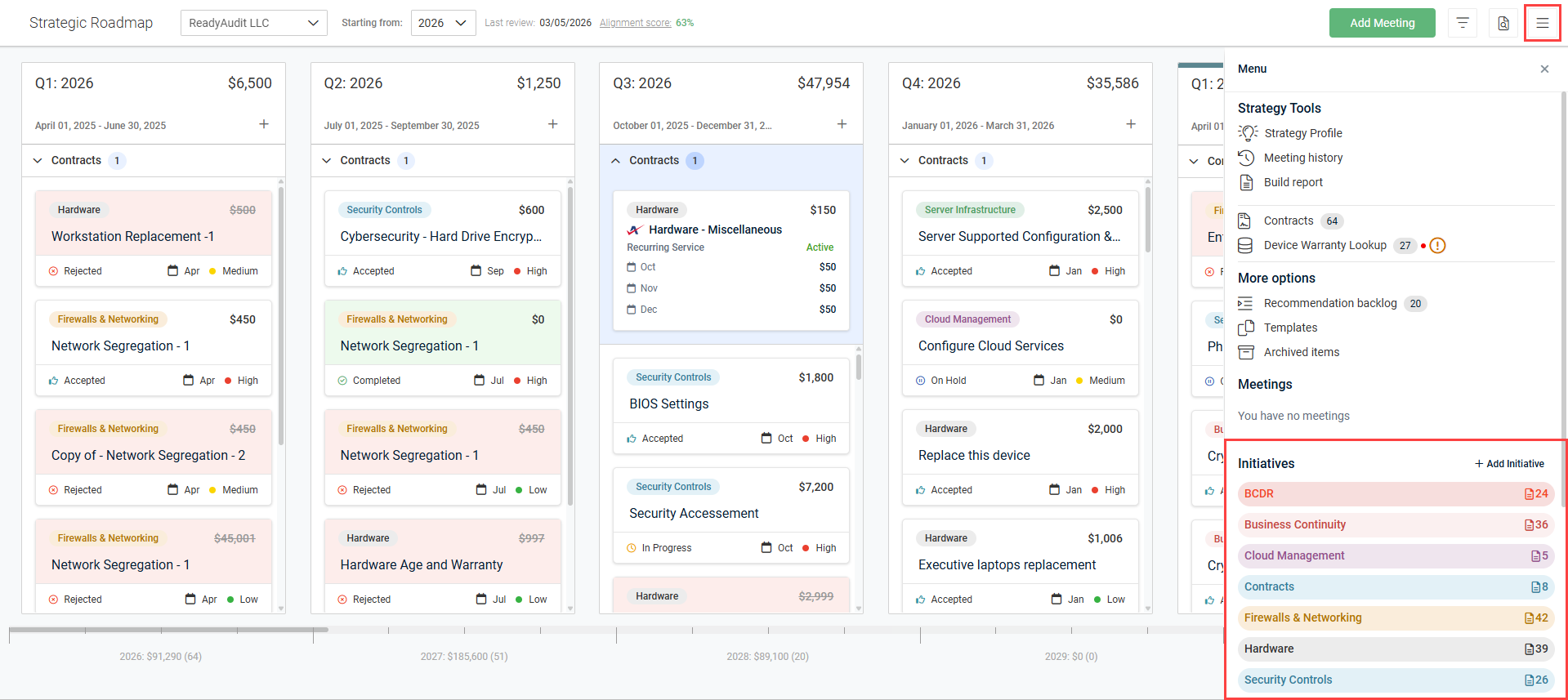
Adding initiatives
To add an initiative for an organization, complete the following steps:
- In the top navigation menu, click Strategy.
- Select the applicable organization and starting year from the drop-down menus in the upper-left corner of the page.
- Click the three-line menu icon in the upper-right corner of the page.
- In the Initiatives section, click Add Initiative.
- To create an initiative from scratch, keep New initiative selected. To create an initiative from an existing template, select the applicable template in the Template library section. Refer to Creating initiative and recommendation templates.
- Click Create.
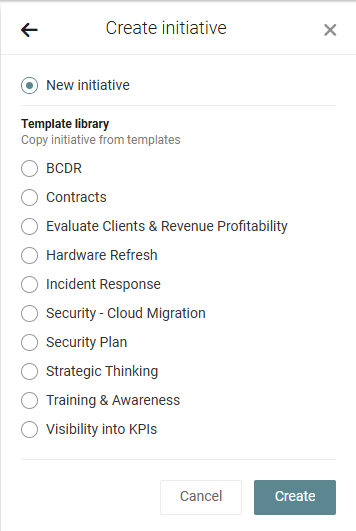
- If a template was selected, the fields are pre-populated with the template details. Configure or edit the initiative name, color, and description (optional) as needed.
- Click Create.
Viewing initiatives
To view the details of an existing initiative for an organization, complete the following steps:
- In the top navigation menu, click Strategy.
- Select the applicable organization and starting year from the drop-down menus in the upper-left corner of the page.
- Click the three-line menu icon in the upper-right corner of the page.
- In the Initiatives section, click an initiative.
- The Recommendations section lists all active and backlogged recommendations assigned to the initiative. The Contracts section lists all contracts assigned to the initiative, either added or not yet added to roadmap. Click Show more in either section to view all entries.
- Click Open next to an item to open the recommendation or contract and view all of its details.
You can edit or archive an initiative from the three-dot menu  in the upper-right corner of the Initiative pane.


