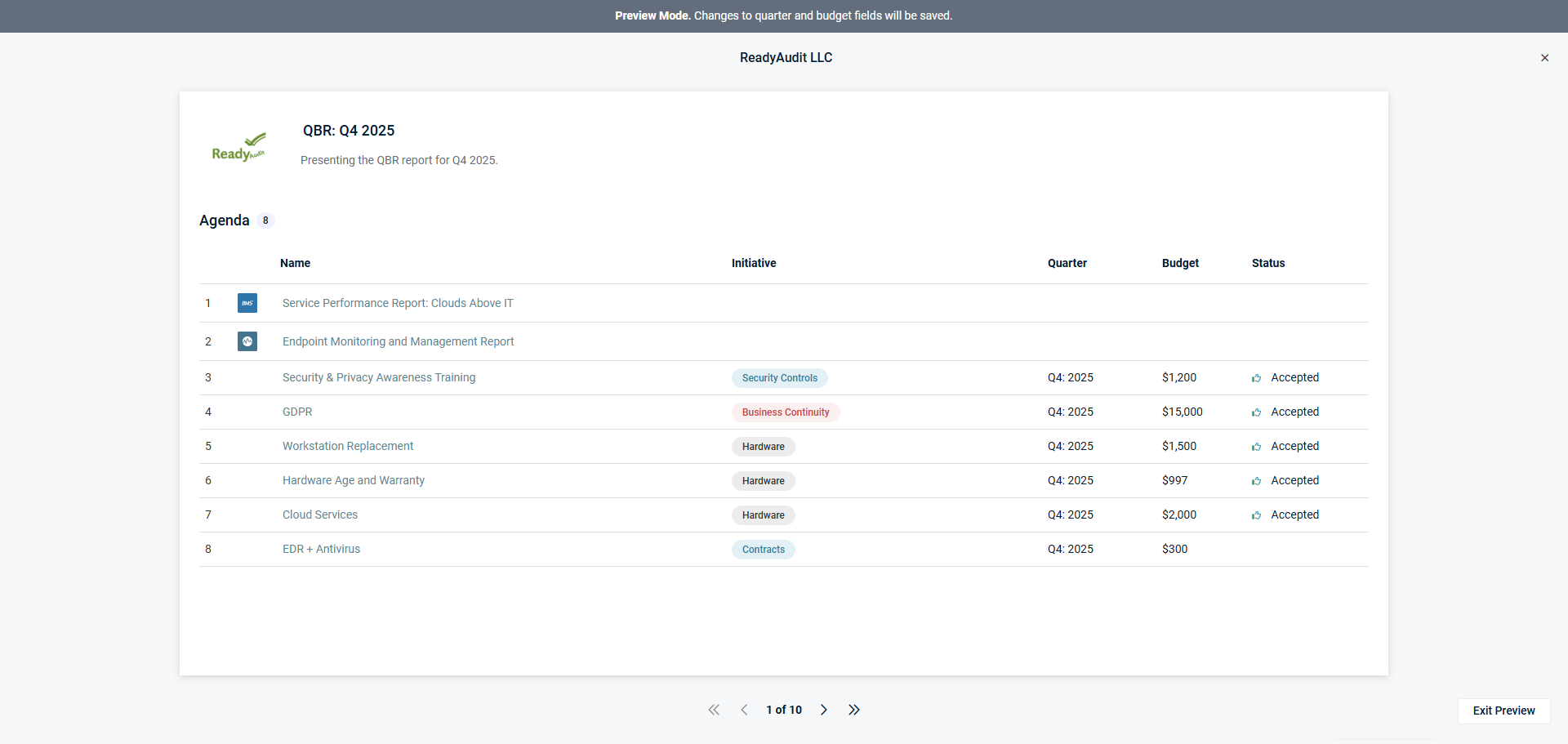
Previewing meeting presentations
NAVIGATION Strategy > (select an organization) > (select a starting year) > (click the menu icon  ) > (select a meeting) > Preview
Leveraging meeting preview mode allows you to do the following before starting a meeting presentation and officially completing your meeting:
- Prepare and practice for your meeting.
- Review your agenda.
- Make any modifications to both the dollar amount and the quarter in which a recommendation will be implemented.
Once your presentation begins, your roadmap is locked, and the meeting is marked Completed when you end it. Refer to Conducting meeting presentations.
To preview your meeting presentation, complete the following steps:
- In the top navigation menu, click Strategy.
- Select the applicable organization and starting year from the drop-down menus in the upper-left corner of the page.
- Click the three-line menu icon in the upper-right corner of the page.
- Click the meeting you want to preview and later present in the Meetings section of the pane that opens.
- Click Preview.
- Use the pagination controls at the bottom of the screen to cycle through slides in your presentation preview.
To return to your roadmap, click X in the upper-right corner of the page or Exit Preview in the lower-right corner of the page.