Conducting meeting presentations
NAVIGATION Strategy > (select an organization) > (select a starting year) > (click the menu icon  ) > (select a meeting) > Present
This article explains the meeting presentation mode. To learn how to create meetings in myITprocess, refer to Adding and managing meetings.
A meeting is ready for presentation once completed in the Strategic Roadmap. The presentation feature arranges recommendations into a slideshow format. The benefit of presentation mode is a clean, responsive look at recommendations, budget, and timeline.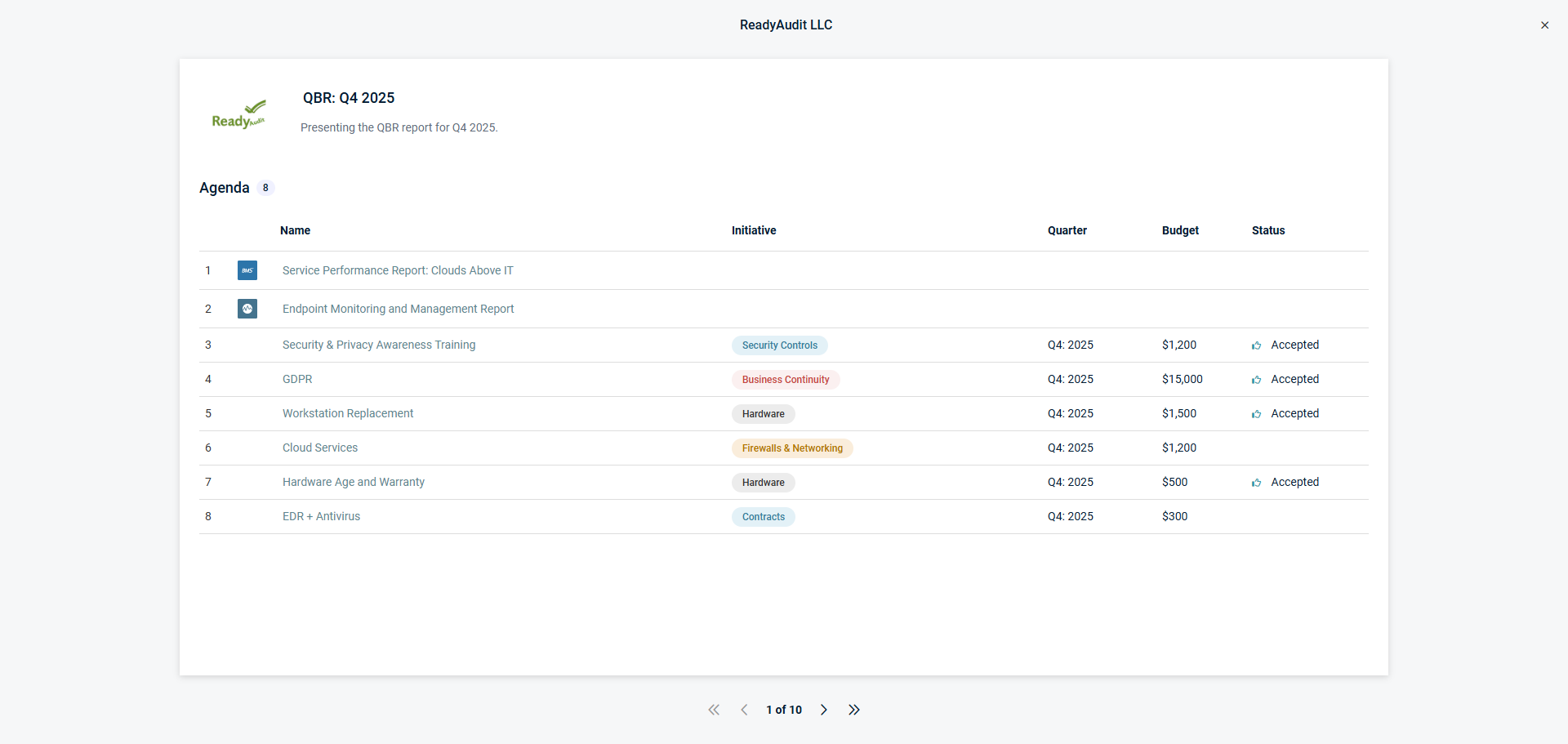
To begin a meeting presentation, complete the following steps in myITprocess:
- In the top navigation menu, click Strategy.
- Select the applicable organization and starting year from the drop-down menus in the upper-left corner of the page.
- Click the three-line menu icon in the upper-right corner of the page.
- Click the meeting you want to present in the Meetings section of the pane that opens.
- Once your presentation begins, your roadmap is locked, and the meeting is marked Completed when you end it. Click Preview to prepare for the meeting before starting the presentation. For more details about the benefits of using preview mode, refer to Previewing meeting presentations.
- Click Present.
TIP To present a meeting in full-screen mode in Google Chrome or Mozilla Firefox, press F11 on your keyboard.
Meeting agenda
The first slide of the presentation is the meeting agenda. The title, description, and list of recommendations, contracts, and/or reports from the agenda are displayed.
The following two methods are available for navigating the presentation:
- Click the arrows at the bottom of the page to cycle through the slides in the predetermined order.
- Click a specific recommendation, contract, or report for a direct link to that slide.
Actions available during the presentation
If findings are attached to an item, clicking View Initiative Findings allows you to view the topic of the review question, the date of the review, the review title, and its risk level.
If assets are linked to an item, you'll see the View Linked Configurations link, which shows details about any expired IT Glue configurations.
Presentation mode features a text area for organization feedback on each slide and options to record organization decisions. Accepted and Rejected are the default choices, and clicking Show more reveals additional options (On Hold, In Progress, Completed, and Not Discussed).
To reassign a recommendation or contract to another quarter or change budget values, use the drop-down menus and text fields. Changes are automatically saved. Altering data updates the Strategic Roadmap at the conclusion of the presentation.
Meeting recap and ending the presentation
The final slide of the presentation is the meeting recap, which lists all of the organization decisions that were recorded during the meeting. The accepted budget is listed underneath the agenda recap and totals the dollar amounts of the items that were accepted during that meeting.
On the final slide, click End Meeting to close out the meeting.


