Managing findings
NAVIGATION Strategy > (select an organization) > Findings pane 
NAVIGATION Alignment > (select a review with vCIO In Progress status) > View Findings
Findings link review questions and their answers to the Strategic Roadmap as supporting justification for recommendations. Refer to Adding and managing recommendations.
Each finding belongs to a single review, and findings from different reviews can support the same recommendation.
When the engineer submits their portion of a review, questions answered as No are automatically converted to unassigned findings.
NOTE Unassigned findings across all organizations are aggregated in the Findings widget on the home page dashboard. Refer to Findings in Navigating the home page dashboard.
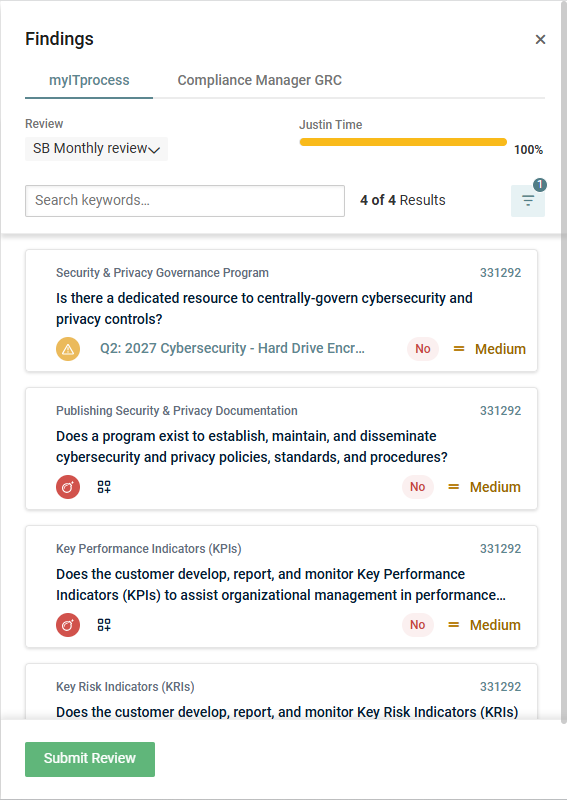
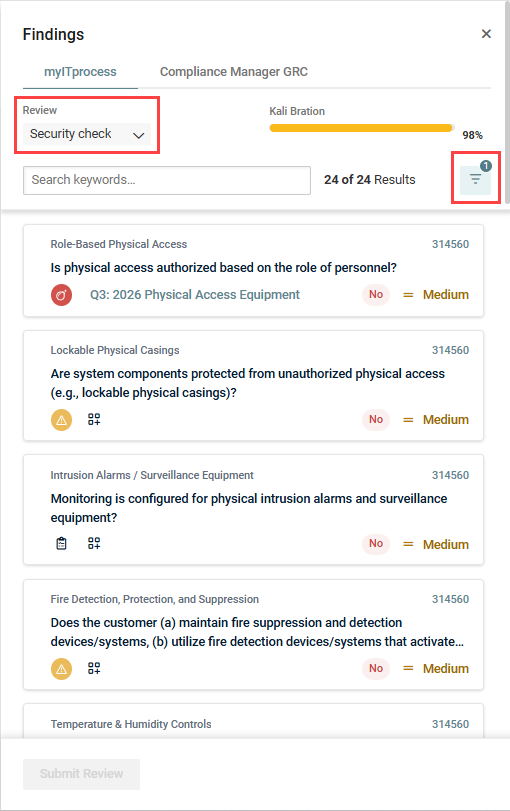
When you navigate to the Findings pane from the Strategic Roadmap for an organization, the pane defaults to the most recent review. Use the drop-down menu in the upper-left corner of the pane to switch to a different review.
When you navigate to the Findings pane directly from a review, the pane reflects findings for that review.
By default, only questions answered as No by the engineer are shown (unassigned findings). You can adjust the results as required using the filter menu  .
.
How to...
 Filter questions in the Findings pane
Use the Search keywords bar to search by question title.
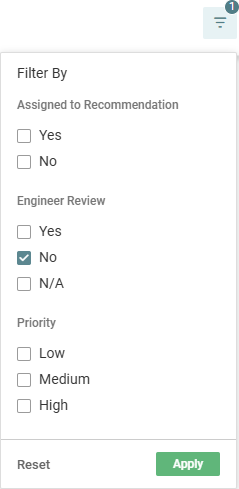
The following filters are available from the filter menu :
- Assigned to Recommendation: Filter by whether a question has been linked to a recommendation (Yes or No). By default, No is selected, showing only unassigned findings.
- Engineer Review: Filter by the engineer's answer (Yes, No, or N/A). To be able to view and evaluate all questions in the review from this pane, select all options.
- Priority: Filter by the priority level assigned to the question (Low, Medium, or High).
Click Apply to apply your filtering, or click Reset to clear all filters and return to the default view.
Evaluate questions from the Findings pane
Click a question card to open its detail pane.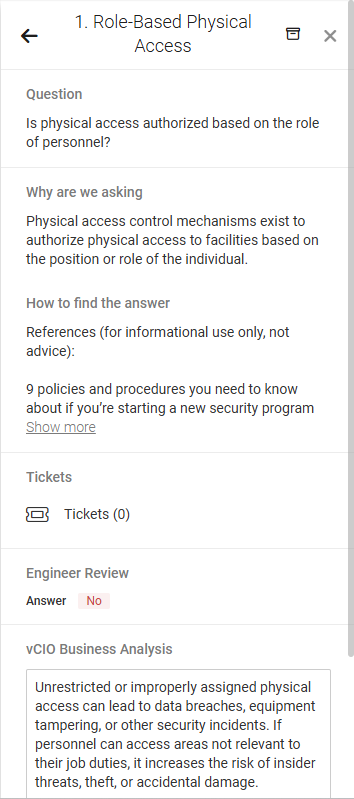
The pane displays the question details and action items covered in vCIO: Review process, including the following:
- View question details
- Create and manage PSA tickets for a question
- Add attachments to a question
- Add private notes to a question
- Add devices or flexible assets to a question
The Engineer Review section shows the engineer's answer and the engineer's technical analysis, if one was entered.
You have the option to enter notes in the vCIO Business Analysis field. Your entry is automatically saved.
To return to the Findings pane, click the back arrow in the upper-left corner of the pane.
To mark a question's alignment, click the Add Answer icon  in the question card and select a level from the drop-down menu: Aligned, Marginal, Vulnerable, or N/A.
| Alignment Level | Icon |
|---|---|
| Aligned |

|
| Marginal |

|
| Vulnerable |

|
| N/A |

|
To change the selected alignment marking, hover over the icon and click the X icon, and then select a new level from the drop-down menu.
Once marked, a finding is no longer considered unassigned, so it is therefore no longer reflected in the Findings widget on the home page dashboard or in the View Findings pop-up window in the review.
Assign a recommendation to a question from the Findings pane
To learn about assigning recommendations directly from a review, refer to Assign a recommendation to a question in vCIO: Review process.
Click the Assign Recommendation icon  in the question card to link the question to an existing recommendation on the Strategic Roadmap or create a new one. Select an existing recommendation from the list, or click Create Recommendation. Refer to Adding and managing recommendations.
After assignment, the quarter and name of the linked recommendation appear.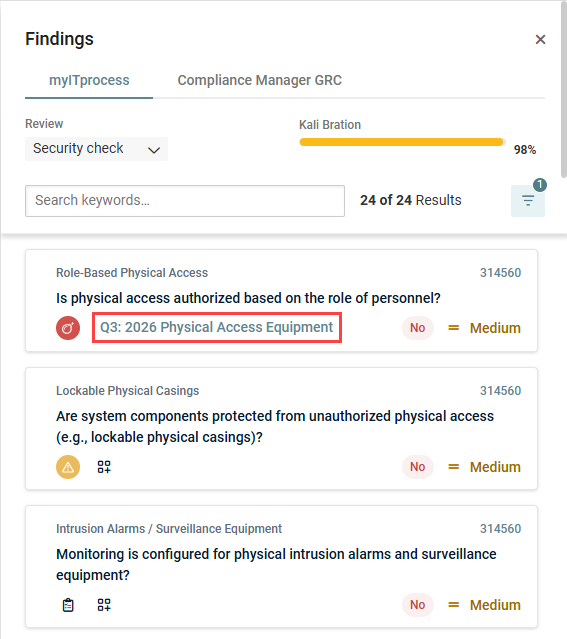
NOTE When creating a new recommendation, you can select from your recommendation templates to pre-populate the fields. Refer to Creating initiative and recommendation templates.
Now, when you open the linked recommendation on the Strategic Roadmap, the question card appears in its Findings tab.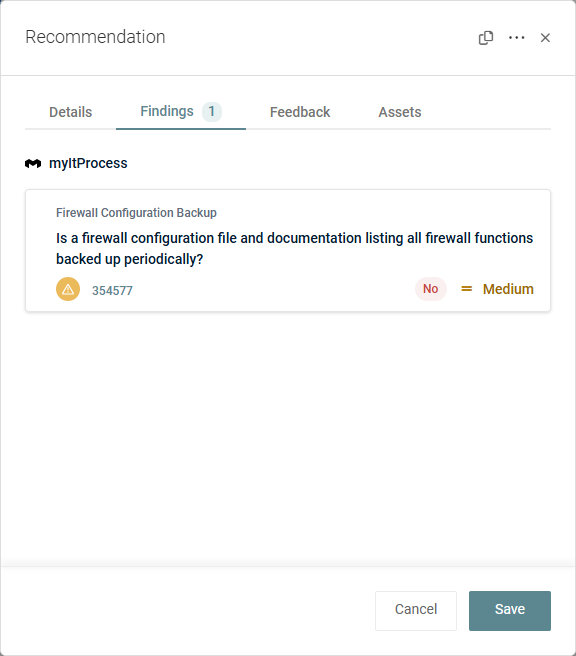
Once linked to a recommendation, a finding is no longer considered unassigned, so it is therefore no longer reflected in the Findings widget on the home page dashboard or in the View Findings pop-up window in the review.
Navigate to a question in a review from the Findings pane
Click the review ID link in the upper-right corner of a question card to navigate to that question in the review on the Alignment page.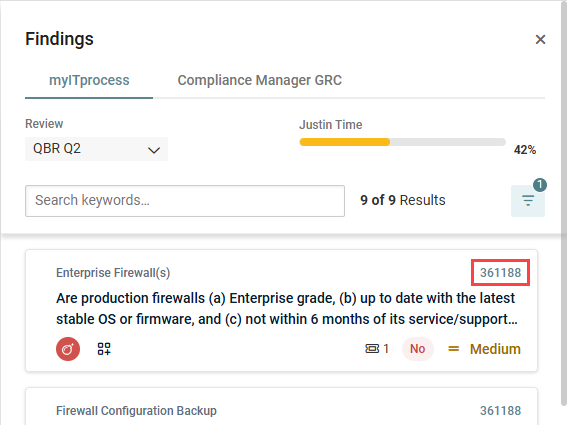
Archive a finding in the Findings pane
To archive a finding, click its question card, and then click the Archive icon  in the upper-right corner of the detail pane. In the confirmation pop-up window, click OK to execute the archiving.
Once archived, a finding is no longer considered unassigned, so it is therefore no longer reflected in the Findings widget on the home page dashboard or in the View Findings pop-up window in the review.
If the question did not have an alignment marking, it is automatically marked as N/A in the review. This allows the vCIO to submit the review with all questions answered, as required for review completion.
The question card is removed from the Findings pane since it no longer requires vCIO evaluation, but the question remains visible in the review on the Alignment page.
Send a finding back for review (restore a finding)
To send an archived finding back to the Findings pane for review by the vCIO, complete the following steps:
- In the top navigation menu, click Strategy.
- Select the applicable organization and starting year from the drop-down menus in the upper-left corner of the page.
- Click the three-line menu icon
 in the upper-right corner of the page.
 - In the More options section, click Archived items.
- From the drop-down menu at the top of the Archived items pane, select Findings.
- Underneath the finding you want to restore, click Send back for review.
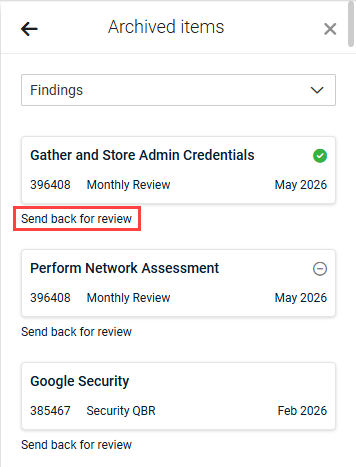
The finding is returned to the Findings pane for evaluation.
 : Aligned
 : Marginal
 : Vulnerable
 : N/A
: N/A
Track review progress from the Findings pane
The progress bar underneath the vCIO’s name displays the completion status of the vCIO’s portion of the review, based on the questions that have been answered with alignment markings. For full visibility of progress broken down by sections and categories, you can open the review on the Alignment page. Refer to Track progress in vCIO: Review process.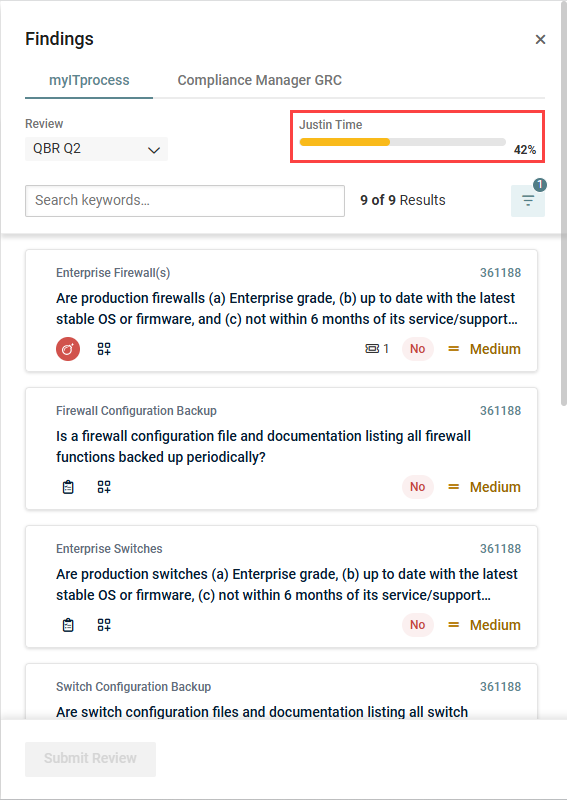
Submit a review from the Findings pane
Once all questions are evaluated for a review (progress bar shows 100%), you have the option to submit the review directly from the Findings pane. Click Submit Review in the lower-left corner of the pane. Submitting the vCIO portion sets the review status to Complete.