vCIO: Review process
NAVIGATION Alignment > My Reviews > (select a review)
NAVIGATION Strategic Roadmap > (select an organization) > Findings pane  > (select a review)
This article covers the vCIO's role in the alignment review process. Once the engineer submits their portion, questions they answered as Yes are automatically marked as Aligned on the vCIO review. Questions answered as No appear in the Findings pane on the organization's Strategic Roadmap as unassigned findings.
NOTE Reviews created prior to September 22, 2022 will not have questions automatically marked as Aligned on the vCIO review.
The vCIO review can be completed in one of two ways: directly on the Alignment page or via the Findings pane on the Strategic Roadmap. Refer to Managing findings and Auto-completion logic in reviews for more information.
Question actions
| Action | Instructions |
|---|---|

|
Add devices or flexible assets to a question |

|
Flag a question |

|
Create and manage PSA tickets for a question |

|
View question details |

|
Assign a recommendation to a question |
How to...
 Begin a review
From your notification emails
If Email me when a review is assigned to me is selected in your notification preferences, you receive the following emails as the vCIO assigned to a review:
New Review Assignment email
You receive this email when you are initially assigned as the vCIO for a review. The engineer must submit their portion of the review before you can begin your portion. Clicking the link in the email opens the review in myITprocess.
Review #[review ID] Ready for VCIO email
You receive this email when the engineer submits their portion of the review, indicating that the review now requires your evaluation. Clicking the link in the email opens the Findings pane for the review on the Strategic Roadmap.
Refer to Managing your email notification preferences.
From the Alignment page
To manually navigate to a review you are assigned to from within myITprocess, complete the following steps:
- In the top navigation menu, click Alignment.
- From the drop-down menu in the upper-left corner of the page, select My Reviews.
- Search, filter, and sort as necessary to find the applicable review. Refer to Searching, filtering, and sorting. To filter by reviews for which you are assigned as the vCIO, click the filter icon
 in the upper-right corner of the page and select your name from the vCIO drop-down menu.
 - Click anywhere in the row of a review to open it.
When you open a review after the engineer has submitted their portion, an Aligned Findings pop-up window appears. This message shows how many questions were automatically marked as Aligned and confirms that misaligned questions have been converted to unassigned findings. Click View Findings to go directly to the Strategic Roadmap Findings pane for the organization, or close the window to complete the review on the Alignment page.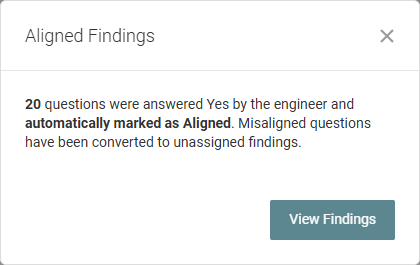
From the Findings pane
To manually navigate directly to the Findings pane for a review you are assigned to, complete the following steps:
- In the top navigation menu, click Strategy.
- Select the applicable organization and starting year from the drop-down menus in the upper-left corner of the page.
- In the upper-right corner of the page, click the findings icon .
- In the upper-left corner of the Findings pane, select the applicable review from the Review drop-down menu.
Filter questions
To learn about filtering when working on a review from the Findings pane, refer to Filter questions in the Findings pane.
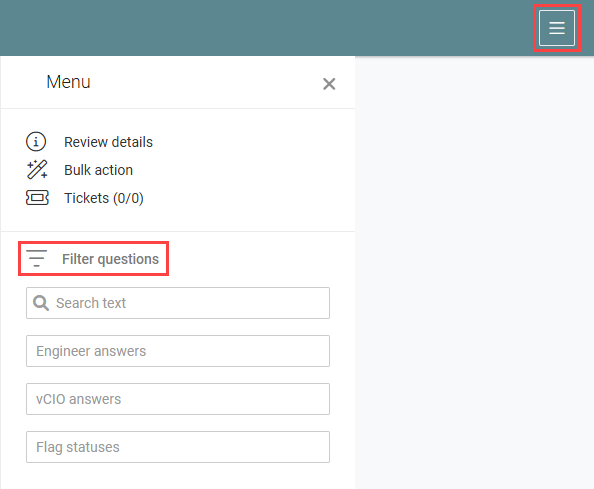
Narrow the question list by keywords, answers, or flag statuses. Refer to Filter options in reviews for more information.
Evaluate questions
To learn about evaluating questions when working on a review from the Findings pane, refer to Evaluate questions from the Findings pane.
Each question displays the engineer's answer and any technical analysis notes they entered. For each question, select an alignment level: Aligned, Marginal, Vulnerable, or N/A. You can optionally enter notes in the Business Analysis field to document the business impact of the finding.
NOTE If you are assigned as both the engineer and vCIO on a review, the edit icon for the engineer's answer does not appear.
If the question was answered in a previous review for the organization, the prior answer appears below the question text as a reference. Clicking the Previous answer link opens a pane with details.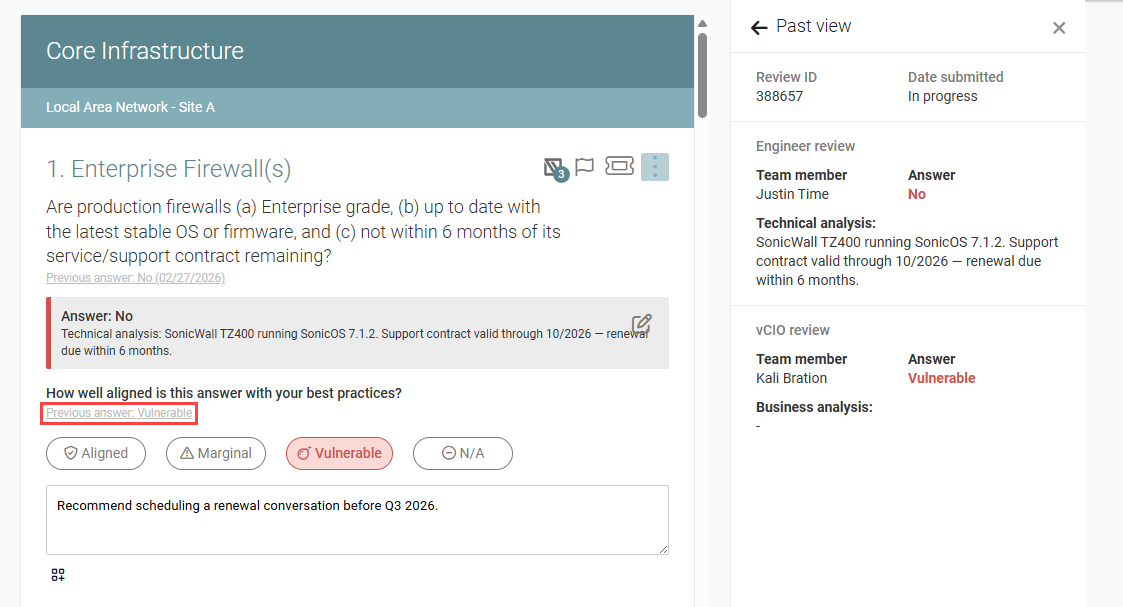
Bulk-apply alignment markings to questions
To apply an alignment marking to multiple questions at once based on the engineer's answers, click the three-line menu  in the upper-right corner of the page and then click Bulk action.
The Bulk action pane groups questions by engineer answer (Answer: Yes and Answer: No) and shows the count of questions in each group. Click an alignment level (Aligned, Marginal, Vulnerable, or N/A) to immediately apply that marking to all questions in the group.
Turn on the Use filter settings toggle to apply the bulk action only to questions currently visible based on your active filter selections.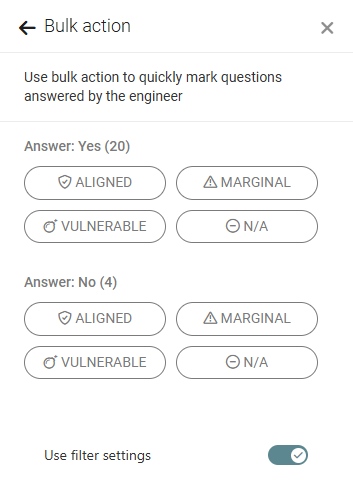
Assign a recommendation to a question
Click the Assign Recommendation icon at the bottom of the question section to link the question to an existing recommendation on the Strategic Roadmap or create a new one. Select an existing recommendation from the list, or click Create Recommendation. Refer to Adding and managing recommendations.
After assignment, the quarter and name of the linked recommendation appear.
Refer to Managing findings for more information and to learn how to manage findings and recommendations directly from the Findings pane.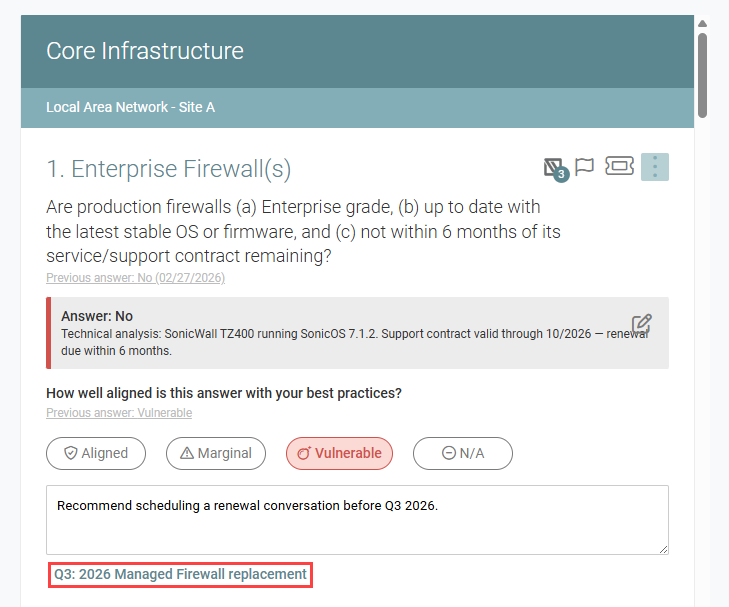
NOTE When creating a new recommendation, you can select from your recommendation templates to pre-populate the fields. Refer to Creating initiative and recommendation templates.
Add devices or flexible assets to a question
Click the assets icon to open the Assets pane, where you can view and manage all devices and IT Glue flexible assets linked to a question. For device-related questions, myITprocess automatically surfaces relevant hardware devices from the organization's internal inventory in the Suggestions tab, reducing the time needed to locate and link assets from external tools. For any question, including those without suggestions, you can manually search for and link any of the organization's synced devices or IT Glue flexible assets directly from the pane.
For more information, refer to Smart Insights: Suggested devices.
NOTE This option is also available from the three-dot menu  for a question.
Flag a question
Flagged questions are marked with a solid flag by the engineer to indicate items for discussion or follow-up.
To find flagged questions, click the three-line menu icon in the upper-right corner of the page and select Flagged from the Flag statuses drop-down menu.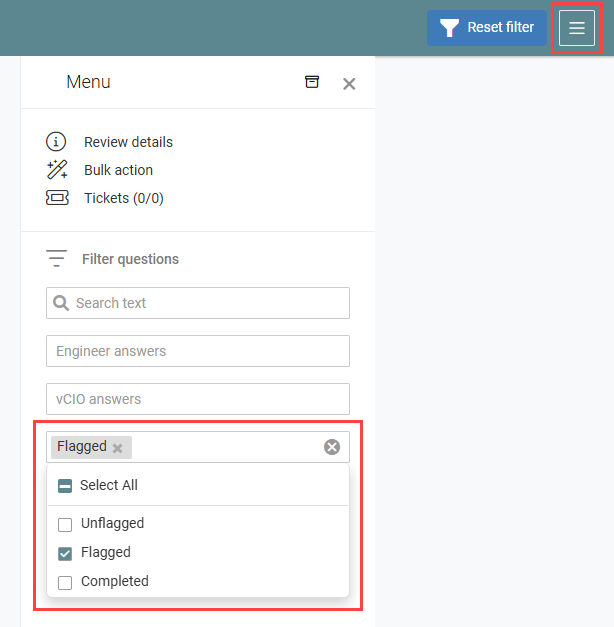
Once a flagged question has been addressed, click the flag icon and select Mark as complete. The flag turns green, indicating that the discussion item has been resolved.
Create and manage PSA tickets for a question
BEFORE YOU BEGIN For this option to show, the organization the review is for must be mapped to its matching organization in your integrated PSA tool. Refer to Performing organization mapping.
While you have the option to create PSA tickets for a review in its entirety, as described in Create and manage PSA tickets for a review, you also have the option to create PSA tickets for individual questions in a review.
These tickets can be sent to a dedicated board with the benefit of someone in centralized services or the support desk remediating that issue.
To create a PSA ticket for a question in a review, complete the following steps on the review page:
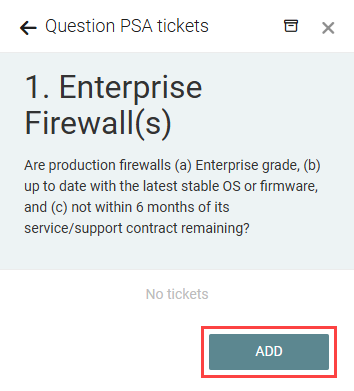
- Locate the question you want to create a ticket for, and click the ticket icon.
- Click Add.
- The Summary field for the ticket is automatically populated with the review question and can be edited. This field is limited to 500 characters.
- Optionally, enter a description that will appear in the ticket.
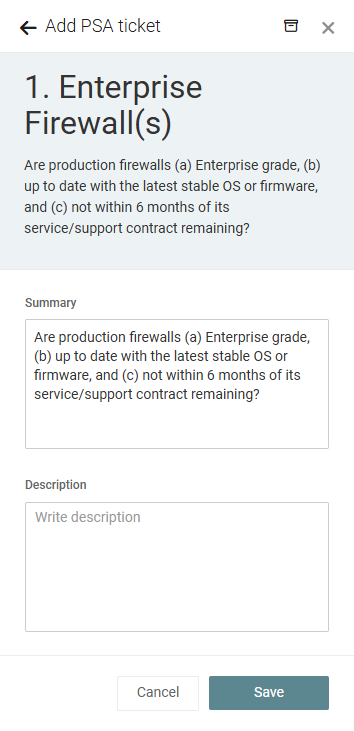
- Click Save to create the ticket.
NOTE You have the option to create more than one ticket for a single question. To do so, open the review, click the ticket icon for a question that already has one or more tickets associated with it, and click +.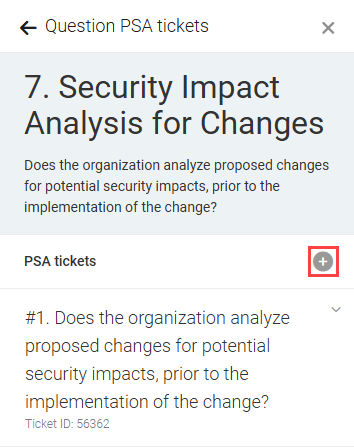
NOTE This option is also available from the three-dot menu for a question.
View question details
Click the three-dot menu icon to view the full details of a question, including the Why are we asking field and How to find the answer field values, if populated in the Standards Library. Refer to Add a question in Using the Standards Library.
View question history
Click the three-dot menu icon and then click History to see a list of every prior review for the organization that included this question. Each row shows the review's submission date (or In progress if the review has not yet been submitted by the vCIO/completed), the engineer's answer, and the vCIO's alignment marking. Clicking a row shows the review ID and submission date for that entry.
Add attachments to a question
Click the three-dot menu icon and then click Attachments to upload supporting documentation that can reinforce the severity of a question, particularly for out-of-alignment findings. Click and drag files into the upload box, or click Browse to locate them on your device.
File requirements
- Maximum 25 MB per file
- PNG, JPEG, Word (.doc or docx), or TXT
- Files names cannot contain symbols
NOTE Attachments do not appear in reports.
Add private notes to a question
Click the three-dot menu icon and then click Private notes to enter an internal message that can be viewed inside of a review. The engineer and vCIO can use this feature to communicate.
NOTE Private notes do not appear in reports.
Track progress
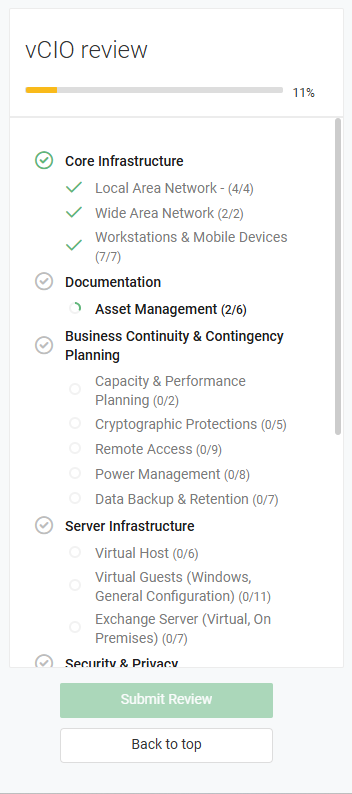
The vCIO review pane on the left side of the page shows your progress in each section and category. Questions are grouped by category. The value next to each category shows how many questions you have applied an alignment marking to out of the total (for example, Workstations & Mobile Devices (6/7)).
TIP Click a category in the pane to jump to it in the review.
Submit the review
Once all questions are evaluated (progress bar shows 100%), click Submit Review in the lower-left corner of the page. Submitting the vCIO portion sets the review status to Complete.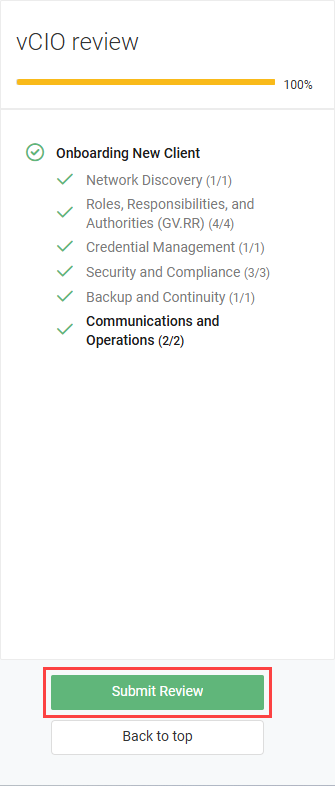
NOTE Once a review is submitted by the vCIO (completed), the progress bar changes to blue.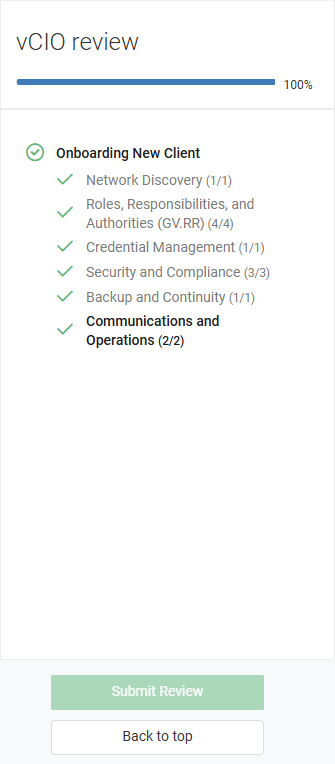
NOTE You also have the option to submit a completed review directly from the Findings pane on the Strategic Roadmap. Refer to Submit a review from the Findings pane.


