Setting up KaseyaOne Unified Login
NAVIGATION My Account > Account Settings > KaseyaOne
As of June 4, 2026, KaseyaOne Unified Login is automatically enabled for new myITprocess tenants.
KaseyaOne Unified Login allows you and your team to log in to modules directly from KaseyaOne. Each of your users needs to remember only one set of credentials to securely log in to all the modules you own.
This feature allows administrators to unify the login process across all instances by mandating KaseyaOne authentication for every user account. For greater flexibility, admins can tailor access by including users in an exception list, guaranteeing seamless access for technicians while meeting your business requirements.
Enabling this feature also syncs the Kaseya modules you own to myITprocess, allowing for seamless organization mapping and unlocking additional reporting options.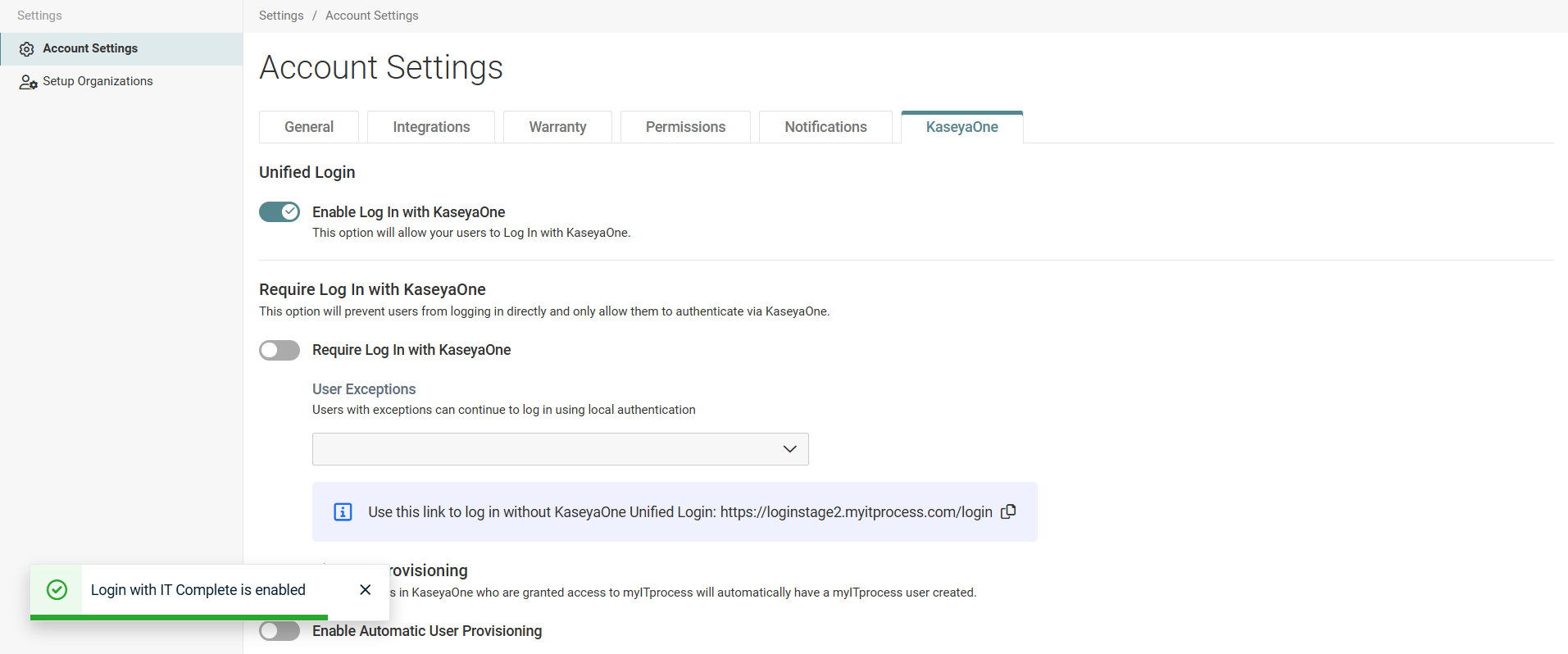
Prerequisite
You should have one of the standard authenticator apps, such as Microsoft Authenticator or Google Authenticator, either on your phone or as a browser extension to activate mandatory two-factor authentication (2FA).
Enabling Log In with KaseyaOne
Complete the following steps to enable KaseyaOne Unified Login for your myITprocess account:
- From the My Account drop-down menu in the upper-right corner of the myITprocess header, select Account Settings.
- Click the KaseyaOne tab on the Account Settings page.
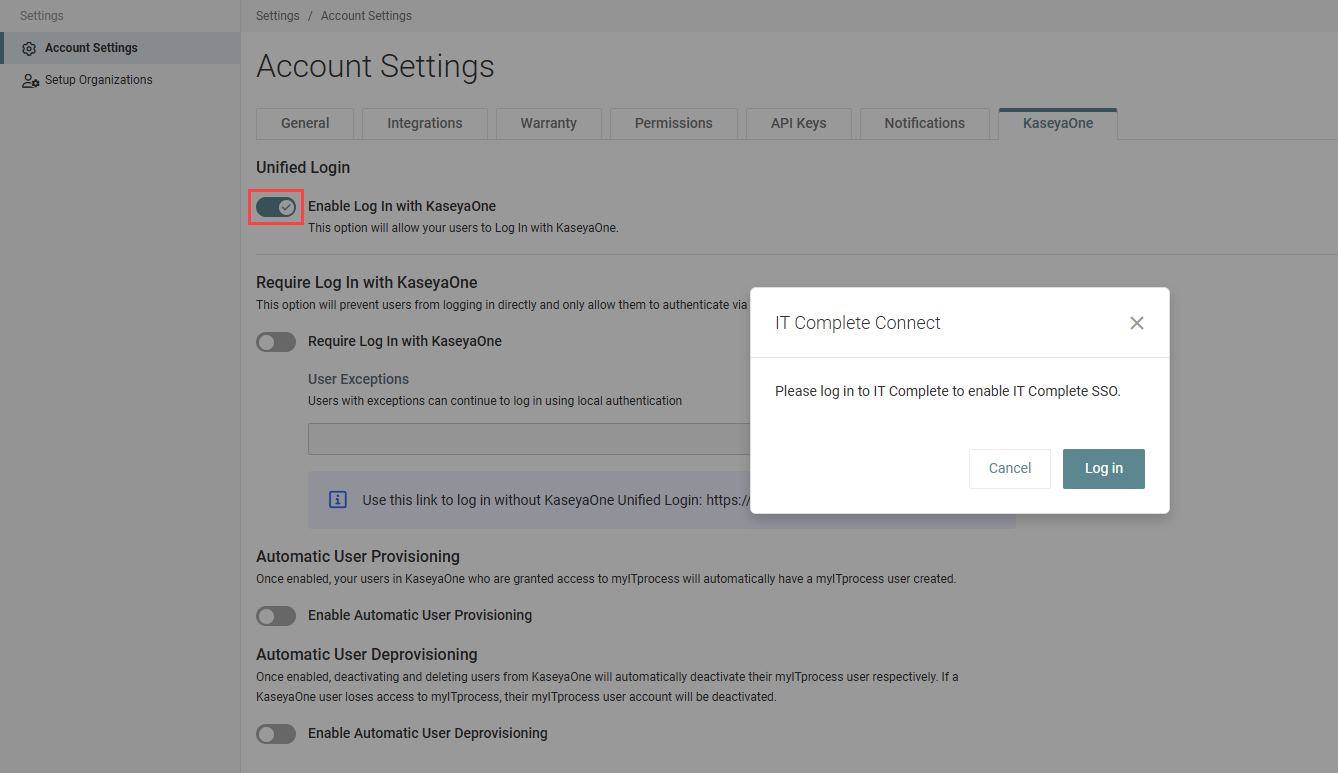
- In the Unified Login section, turn on the Enable Log In with KaseyaOne toggle.
- In the IT Complete Connect window, click Log In.
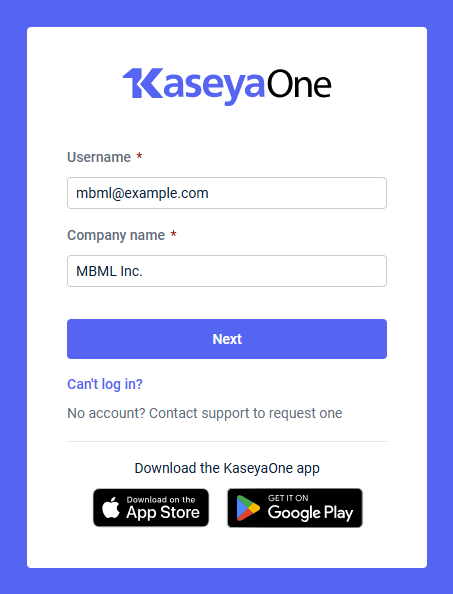
- Enter the username and company name of your KaseyaOne account.
- Click Next.
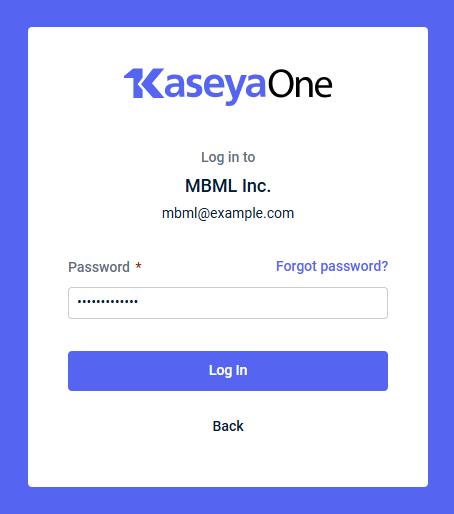
- Enter your KaseyaOne account password.
- Click Next.
- Enter the six-digit one-time code generated by your authenticator application.
- Click Verify.
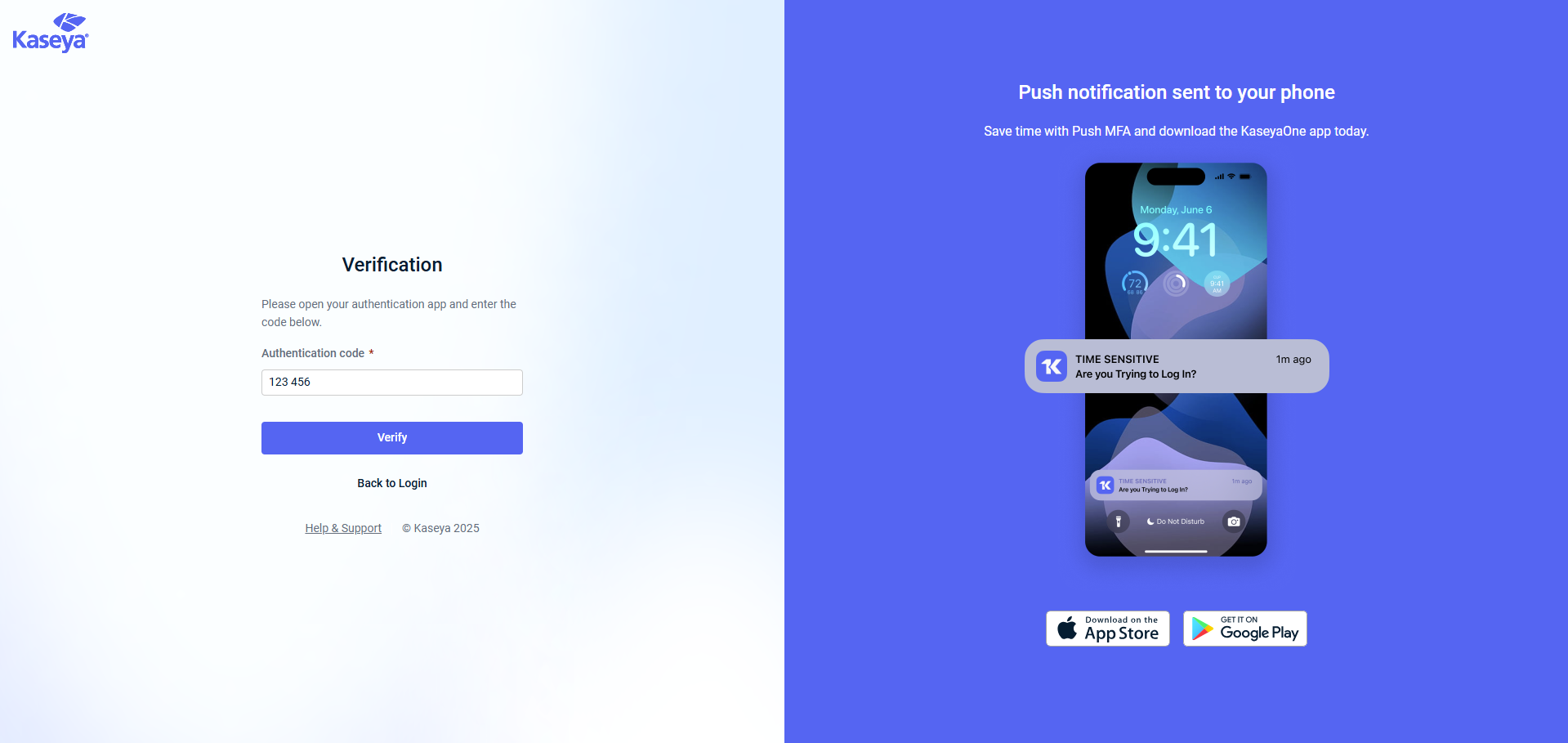
You are automatically redirected to the KaseyaOne tab in myITprocess with KaseyaOne Unified Login enabled. Users in your KaseyaOne account now have access to myITprocess through KaseyaOne.
Configuring additional KaseyaOne Unified Login features
Require Log In with KaseyaOne
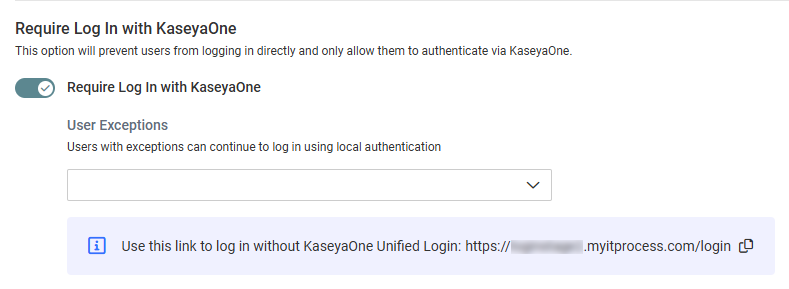
After turning on Enable Log In with KaseyaOne, you have the option to turn on this toggle to require all your users to log in with KaseyaOne Unified Login. Users are prevented from logging in to their user account directly and are forced to authenticate via KaseyaOne.
To exempt specific users from this global requirement, select those users from the User Exceptions drop-down menu.
TIP Copy and share your account’s direct-access myITprocess URL with users in the User Exceptions list. They can bookmark this URL and use it to log in directly without authenticating through KaseyaOne, although KaseyaOne authentication remains an option for all users.
Automatic User Provisioning
After turning on Enable Log In with KaseyaOne, you have the option to turn on this toggle to enable automatic myITprocess user account creation for all your users in KaseyaOne who are granted access to myITprocess. For details, refer to Enabling Automatic User Provisioning.
Automatic User Deprovisioning
After turning on Enable Log In with KaseyaOne, you have the option to turn on this toggle to automatically deactivate or delete myITprocess user accounts when the corresponding users are deactivated or deleted in KaseyaOne. For details, refer to Enabling Automatic User Deprovisioning.
Disabling KaseyaOne Unified Login
To remove the connection between your myITprocess account and KaseyaOne account, turn off the Enable Log In with KaseyaOne toggle.
This action removes all KaseyaOne Unified Login options for all users in the account and stops Kaseya module data from syncing to myITprocess.


