Restoring an archived section, category, or question in the Standards Library
NAVIGATION Standards > (click the filter icon) > Show archived > (hover over an item) > Restore
IMPORTANT Background findings are related to the Standards Library in the database. When you archive a section, category, or question in the Standards Library, all findings related to the items are also archived. This relationship cannot be recovered, even if the Standards Library item is unarchived.
For archival instructions, refer to Archiving a section, category, or question in the Standards Library.
Standards restoration behaves as follows:
- Restoring an archived section restores all of its child categories and questions.
- Restoring an archived category restores its parent section (if it was also archived) and all questions in that category. If other categories are currently archived, they are not unarchived.
- Restoring an archived question restores its parent category and section (if they were also archived). Other questions, even in the same category, remain unchanged.
Restored item(s) will once again appear in organization templates they were included in and in future alignment reviews for those organizations.
To restore an archived section, category, or question in the Standards Library, complete the following steps:
- In the top navigation menu, click Standards. In the drop-down menu in the upper-left corner of the page, Standards library is selected by default.
- Click the filter icon
 in the upper-right corner of the list.
 - Select the Show archived checkbox to populate archived standards in the list of results. Non-archived standards that adhere to your filter requirements also appear in the results. Archived standards appear in gray.
- Locate the item you want to restore, expanding sections or categories to view all nested items, if necessary.
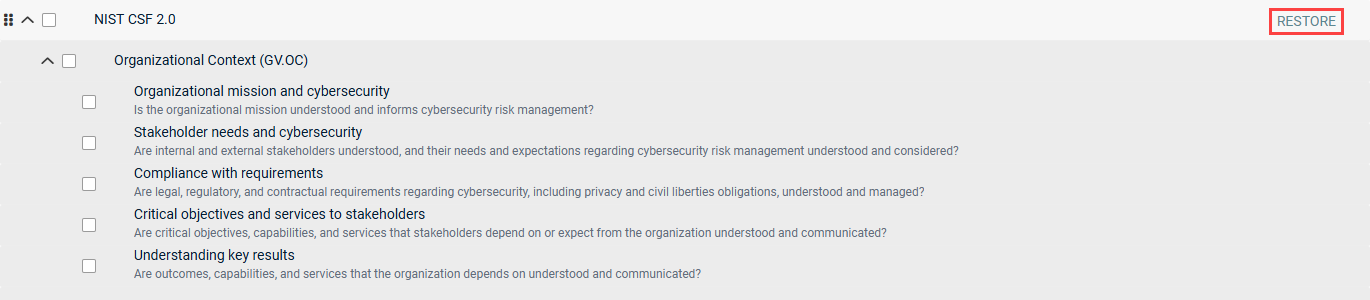
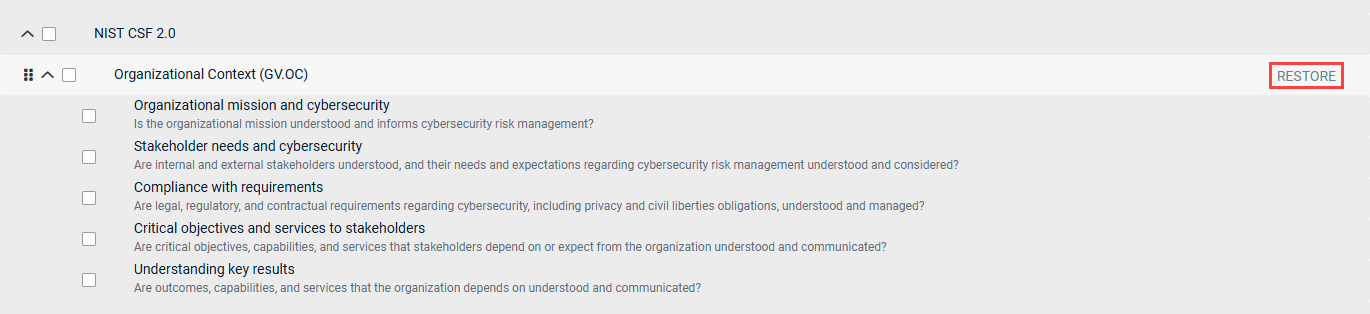
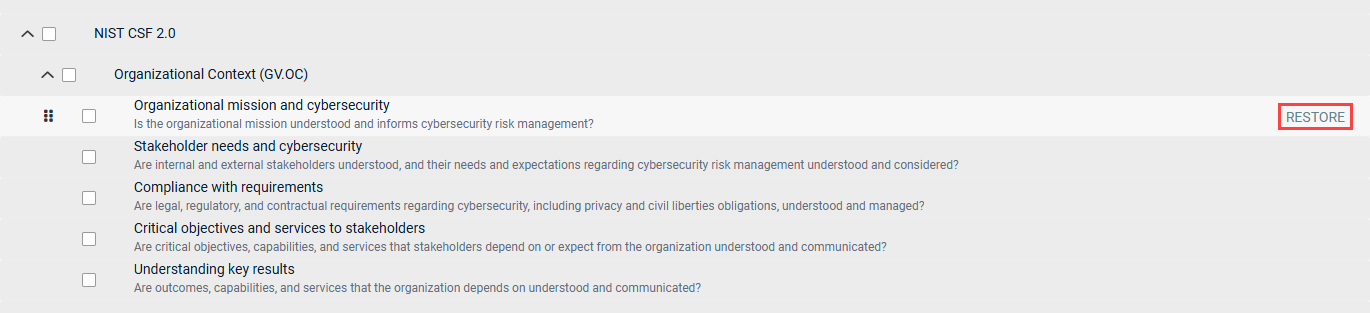
- Hover over the section, category, or question.
- Click Restore.
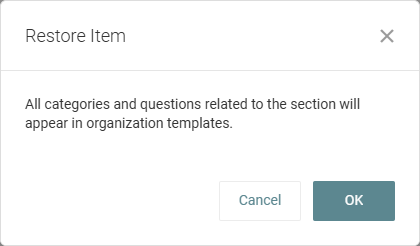
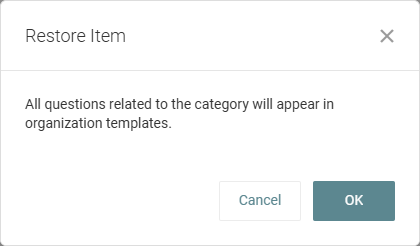
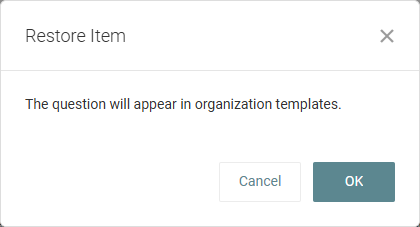
- In the confirmation pop-up window, click OK.
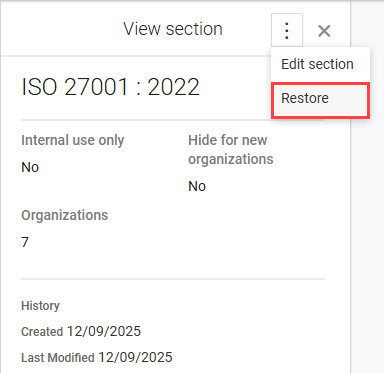
NOTE You can also restore an individual item by clicking the row of that item in the list to open its detail pane. From the three-dot menu in the upper-right corner of the pane, select Restore.