Using the Standards Library
NAVIGATION Standards
This article describes how to formulate sections, categories, and questions in the Standards Library with best practices in mind. For an overview of the Standards Library and its hierarchy, refer to About the Standards Library.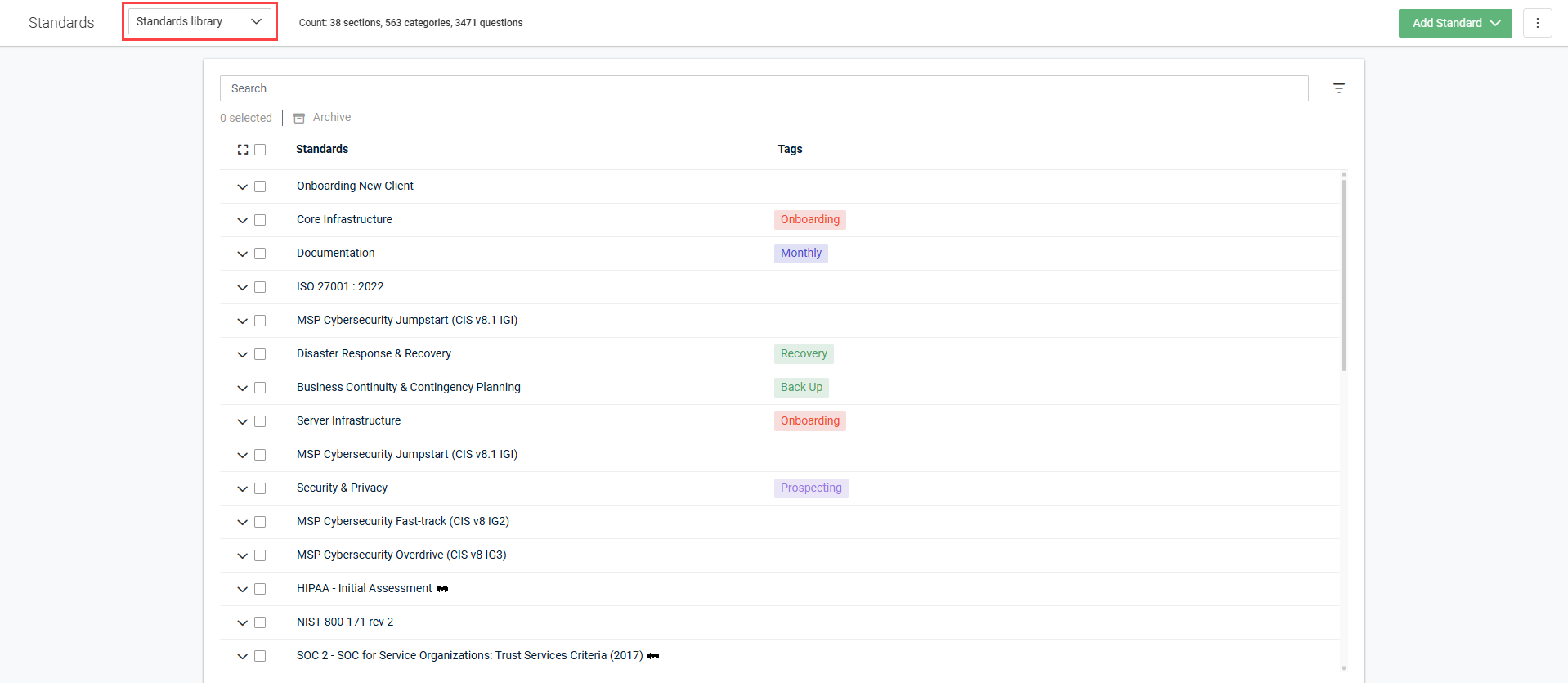
When it comes to adding and editing sections, categories, and questions in the Standards Library, keep the following in mind:
- Changes made in the Standards Library are reflected in organization templates, but these changes only affect new alignment reviews. Reviews that have already been opened or completed will not be modified. For more details, refer to How changes to the Standards Library are reflected in organization templates and reviews.
- Each section, category, and question has a unique ID and associated history. If an existing question is edited in a way that changes its meaning, the historical data associated with past reviews may become inaccurate.
- If a section, category, or question is outdated or no longer relevant, you should archive the item rather than overwriting it with different content. This ensures historical data associated with past reviews does not become unreliable. Refer to Archiving a section, category, or question in the Standards Library.
- Minor edits to existing section titles, category titles, question titles, question text, and question guidance — such as correcting grammar and improving sentence structure — are acceptable.
- If a brand new section, category, or question not already covered in an existing item is necessary, do not overwrite or replace existing items. Use the Add Standard, Add Category, and Add Question options to add new standards.
- Standards marked with the myITprocess logo
 have limited editing capabilities. Refer to Restrictions for myITemplates standards in Using myITemplates.
How to...
BEFORE YOU BEGIN Because organization templates inherit the structure of the Standards Library, be sure to create an organization template for each organization you want to be able to create reviews for. Refer to Create an organization template in Customizing organization templates.
TIP To quickly view or hide the full hierarchy of sections, categories, and questions while navigating the Standards Library, use the expand icon  or collapse icon
  in the upper-left corner of the list to expand or collapse all drop-downs.
 Add a section
Complete the following steps to add a section, the first tier of a standard, to the Standards Library:
- In the top navigation menu, click Standards. In the drop-down menu in the upper-left corner of the page, Standards library is selected by default.
- In the upper-right corner of the page, click the Add Standard drop-down menu.
- Select Add Section.
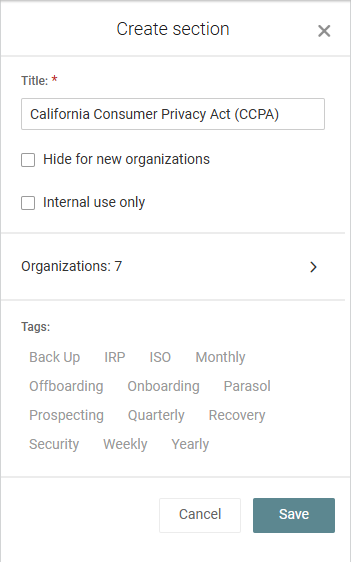
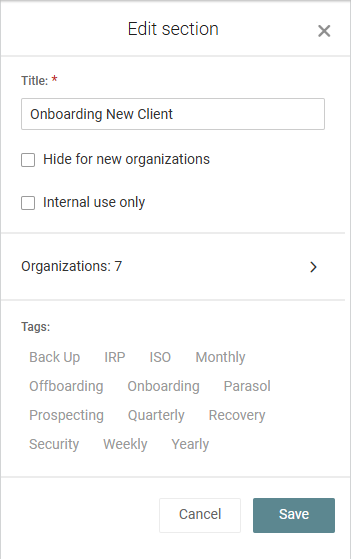
- In the Title field, enter a name for the section.
- Select the Hide for new organizations checkbox if you want to exclude this section in new organization templates by default. Refer to Customizing organization templates.
- Select the Internal use only checkbox if you want to hide this section on reports by default. Refer to Overview of internal-use sections, categories, and questions.
- By default, this section is included in the organization templates for all organizations. If required, click Organizations to select or clear organizations this section does or does not apply to, respectively.
To search for a specific organization, start typing the organization name in the search bar at the top of the pane. The results are narrowed as you type.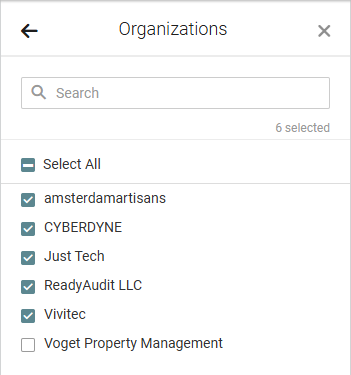
Click the back arrow in the upper-left corner of the pane when finished.
For more information, refer to Including or excluding sections and categories in organization templates. - Optionally, in the Tags section, click any number of tags to apply to the section, which you can filter by in multiple locations. Refer to Managing Standards Library tags.
- Click Save.
Add a category
NOTE You can add multiple categories to a section.
Complete the following steps to add a category, the second tier of a standard, to the Standards Library:
- In the top navigation menu, click Standards. In the drop-down menu in the upper-left corner of the page, Standards library is selected by default.
- In the upper-right corner of the page, click the Add Standard drop-down menu.
- Select Add Category.
- In the Title field, enter a name for the category.
- Optionally, define how often this area should be reviewed. Enter a value in the Remind Every field and select an interval from the drop-down menu. After this amount of time has elapsed, non-reviewed categories will show in the Categories widget on the home page dashboard and in the Overdue banner in the review creation form, where they can be automatically selected for inclusion in the review.
- From the Section drop-down menu, select the existing section this category will be nested under.
- Select the Hide for new organizations checkbox if you want to exclude this category in new organization templates by default. Refer to Customizing organization templates.
- Select the Internal use only checkbox if you want to hide this category on reports by default. Refer to Overview of internal-use sections, categories, and questions.
- By default, this category is included in the organization templates for all organizations. If required, click Organizations to select or clear organizations this category does or does not apply to, respectively.
To search for a specific organization, start typing the organization name in the search bar at the top of the pane. The results are narrowed as you type.
Click the back arrow in the upper-left corner of the pane when finished.
For more information, refer to Including or excluding sections and categories in organization templates. - Optionally, in the Tags section, click any number of tags to apply to the category, which you can filter by in multiple locations. Refer to Managing Standards Library tags.
- Click Save.
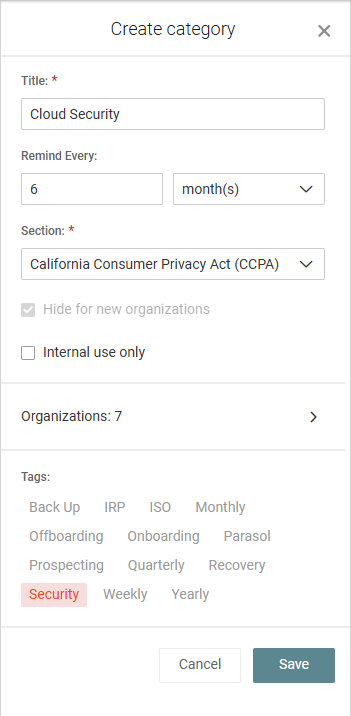
NOTE Frequencies are triggered based on when the vCIO submits their portion of the review.
NOTE This field is grayed out if the Hide for new organizations checkbox is selected in the section this category belongs to. In that case, this category (and any other categories in the section) are also hidden for new organizations by default.
Add a question
NOTE You can add multiple questions to a category.
TIP The Question Text, How To Find Answer?, and Why Are We Asking? fields support formatting such as bulleted and numbered lists as well as bold, italicized, and underlined text. This formatting is available to enrich presentation when a review is edited.
Complete the following steps to add a question, the third tier of a standard, to the Standards Library:
- In the top navigation menu, click Standards. In the drop-down menu in the upper-left corner of the page, Standards library is selected by default.
- In the upper-right corner of the page, click the Add Standard drop-down menu.
- Select Add Question.
- In the Title field, enter a name for the question.
- From the Priority drop-down menu, select a priority level, which affects scoring in the organization reports. Refer to How report scoring works.
- From the Section drop-down menu, select the existing section this question will be nested under.
- From the Category drop-down menu, select the existing category this question will be nested under.
- Select the Internal use only checkbox if you want to hide this question on reports by default. Refer to Overview of internal-use sections, categories, and questions.
- In the Question Text field, enter a question (yes/no format).
- Optionally, in the How To Find Answer? field, enter an internal process for finding the answer to the question.
- Optionally, in the Why Are We Asking? field, enter the business reasoning behind the question.
- Click Save.
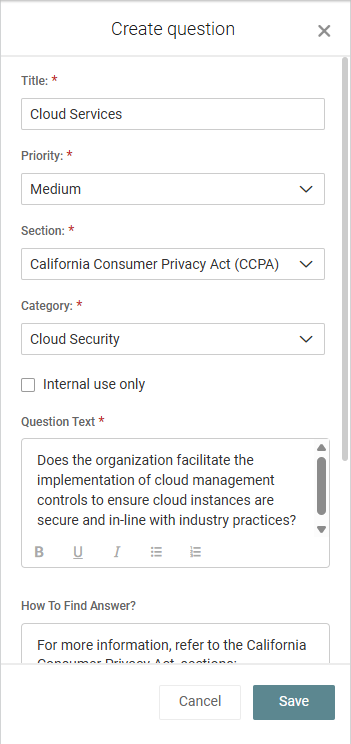
NOTE The title is the short name for the question. The actual question text is entered in a later step.
IMPORTANT Format questions so that answering Yes is the default (aligned) option and answering No would render a best practice out of alignment and require resolution.
Edit a section, category, or question
- In the top navigation menu, click Standards. In the drop-down menu in the upper-left corner of the page, Standards library is selected by default.
- If you want to narrow the list of standards shown, use the filter
 or Search bar. For full instructions and field definitions, refer to Filtering and searching in the Standards Library and organization templates.
 - Locate the section, category, or question you want to edit, expanding sections and categories to view nested items, if necessary.
- Click the row of the section, category, or question to open its detail pane.
- From the three-dot menu
 in the upper-right corner of the pane, select Edit section, Edit category, or Edit question.
 - Make any desired changes, and click Save.
Organize sections, categories, and questions
You can organize and group sections and categories in a review to improve the experience for engineers and vCIOs who are assigned to complete the review.
The structure of a review is determined by how items are organized in the Standards Library. If you would like to change the order of sections or categories in a review, update their placement in the Standards Library and then create a new review.
Moving a section also moves all of its categories and questions, moving a category to a new section also moves all of its questions, and moving a question to a new category does not move the question's previous section and category.
To reorder items in the Standards Library, complete the following steps:
- In the top navigation menu, click Standards. In the drop-down menu in the upper-left corner of the page, Standards library is selected by default.
- Click and drag a section, category, or question to a new position.
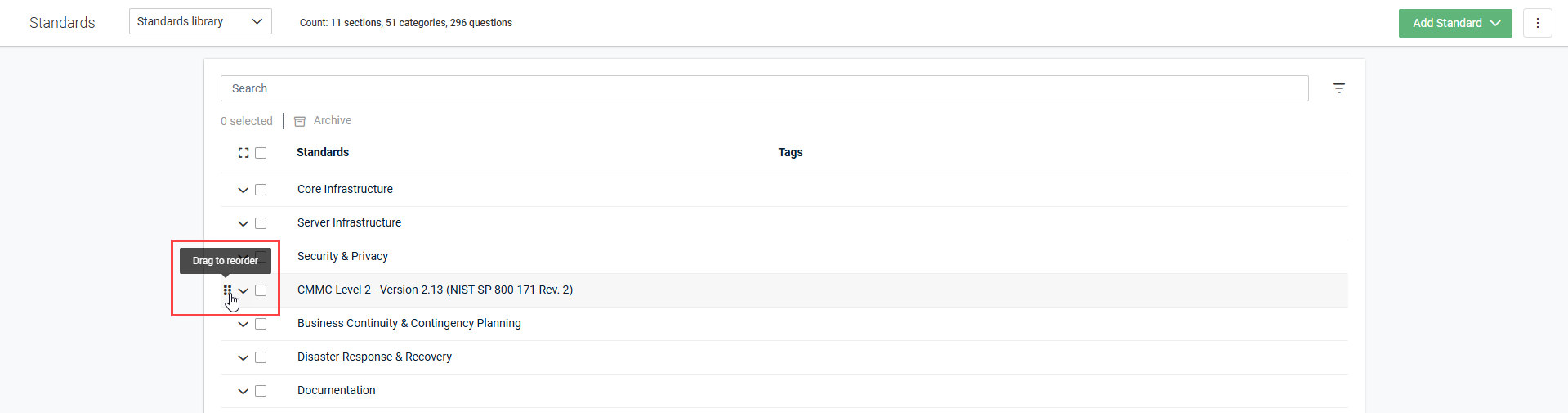
TIP To ensure the item is successfully moved to your desired location, ensure you are placing the item in the dashed drag-and-drop box that appears in the row you are dragging the item into.


