Adding and managing meetings
NAVIGATION Strategy > (select an organization) > (select a starting year) > Add Meeting
NAVIGATION Strategy > (select an organization) > (select a starting year) > (click the menu icon  ) > Meetings
The Strategic Roadmap allows you to plan, organize, and track client meetings efficiently. This article covers how to create and manage meetings, set an agenda, and review meeting history.
Adding a meeting provides the opportunity to develop an agenda for a strategy session. This feature streamlines your recommendations and initiatives into an easy-to-read and visually pleasing format. Polishing the details reduces complexity and keeps meetings on track.
To learn about presenting meetings, refer to Previewing meeting presentations and Conducting meeting presentations.
If your myITprocess account is integrated with Microsoft Outlook, refer to Microsoft 365 meeting sync: Outlook integration.
How to...
 Add a meeting
Complete the following steps to add a meeting in myITprocess:
- In the top navigation menu, click Strategy.
- Select the organization you are creating a meeting for from the drop-down menu in the upper-left corner of the page.
- In the upper-right corner of the page, click Add Meeting.
- Configure the details of the meeting you are planning:
- Title: Enter a name for the meeting.
- Meeting Type: Select the meeting type from the drop-down menu.
- Attendees: Optionally, enter the email addresses of required participants.
- Date: Select the meeting date.
- Start Time: Select the meeting start time.
- End Time: Select the meeting end time.
- Optionally, turn on the Microsoft Teams meeting toggle to generate a Microsoft Teams link for the meeting, which is added to the email invitation (if you opt to send one) and calendar event. For more details about this toggle, refer to Microsoft Teams link generation in Microsoft 365 meeting sync: Outlook integration.
- The Location field is removed if the Microsoft Teams meeting toggle is turned on, as the Teams meeting link serves as the location. If this toggle is turned off or grayed out, you have the option to enter an email address or other location in this field.
- Optionally, enter a description of the meeting purpose, expected outcomes, and any relevant context in the Meeting Details field. This text is included in the invitation email body (if you opt to send an email invitation) and calendar event.
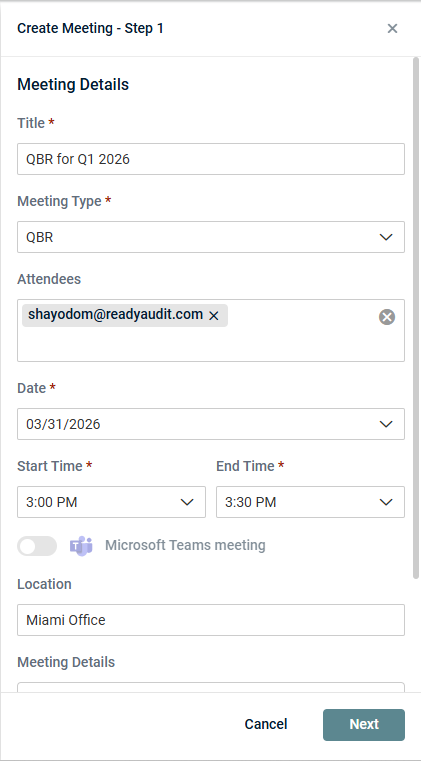
- Click Next.
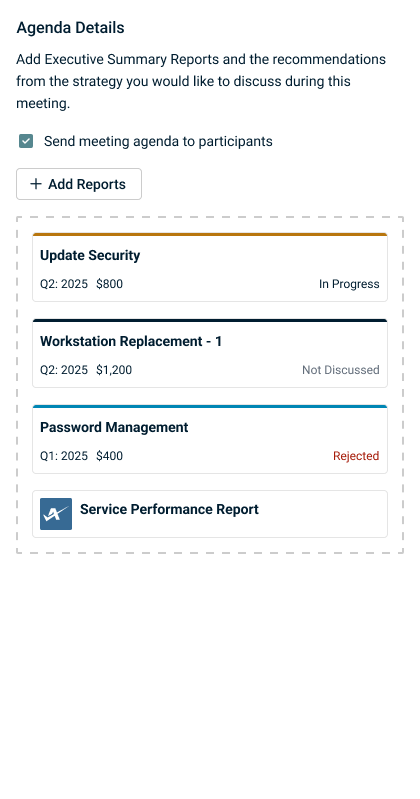
- Drag and drop recommendations or contracts from the Strategic Roadmap into the Agenda Details pane. You may wish to change the quarters you are viewing on the roadmap timeline by selecting a year in the Starting from drop-down menu in the upper-left corner of the page. The configured agenda is attached to the email invitation (if you opt to send one) and calendar event.
- If you have KaseyaOne modules synced to your account, the option to add module-specific Executive Summary reports to your agenda is available. Click Add Reports to select and configure any number of module reports you wish to add. Refer to Performing organization mapping and Add an Executive Summary report to a Strategic Roadmap meeting agenda.
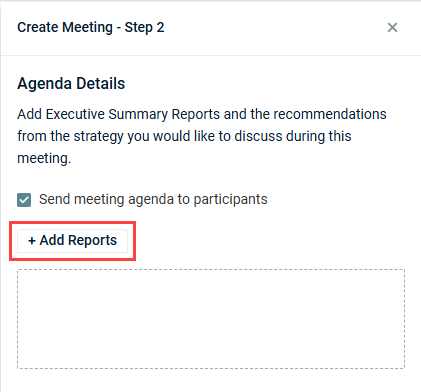
- If you don't wish to send an invitation for this meeting to configured attendees at this time, clear the Send meeting agenda to participants checkbox.
- Click Create to add the meeting in myITprocess.
NOTE This toggle is grayed out if the Outlook integration is not connected.
TIP To reorder items to reflect the desired presentation flow, click and drag the tiles in the agenda box.
A meeting invitation is sent to any configured attendees from noreply@myitprocess.com if the Send meeting agenda to participants checkbox was selected.
Print a meeting presentation
Complete the following steps to download a printable PDF of the meeting presentation:
- In the top navigation menu, click Strategy.
- Select the applicable organization and starting year from the drop-down menus in the upper-left corner of the page.
- Click the three-line menu icon in the upper-right corner of the page.
- Click the applicable meeting in the Meetings section of the pane that opens.
- From the three-dot menu
 in the upper-right corner of the pane, select Print Presentation.
A PDF of the presentation slideshow is automatically downloaded to the default download location on your device with individual pages for each slide.
Edit a meeting
NOTE Meetings that have already started or have been completed cannot be edited.
Complete the following steps to update meeting details:
- In the top navigation menu, click Strategy.
- Select the applicable organization and starting year from the drop-down menus in the upper-left corner of the page.
- Click the three-line menu icon in the upper-right corner of the page.
- Click the meeting you want to edit in the Meetings section of the pane that opens.
- From the three-dot menu in the upper-right corner of the pane, select Edit Meeting.
- Edit the meeting as required.
- Click Next.
- Edit the agenda as required.
- Click Save.
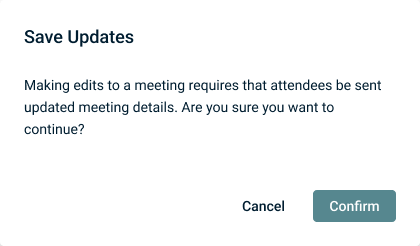
- In the pop-up confirmation window, click Confirm to send an updated meeting invitation to any configured attendees.
Download a meeting agenda PDF
NOTE An agenda can be generated only for upcoming meetings.
Complete the following steps to download a PDF of the meeting agenda:
- In the top navigation menu, click Strategy.
- Select the applicable organization and starting year from the drop-down menus in the upper-left corner of the page.
- Click the three-line menu icon in the upper-right corner of the page.
- Click the applicable meeting in the Meetings section of the pane that opens.
- From the three-dot menu in the upper-right corner of the pane, select Download agenda PDF.
A PDF of the meeting agenda is automatically downloaded to the default download location on your device.
Cancel a meeting
Complete the following steps to cancel a meeting:
- In the top navigation menu, click Strategy.
- Select the applicable organization and starting year from the drop-down menus in the upper-left corner of the page.
- Click the three-line menu icon in the upper-right corner of the page.
- Click the meeting you want to cancel in the Meetings section of the pane that opens.
- From the three-dot menu in the upper-right corner of the pane, select Cancel Meeting.
- In the lower-right corner of the pane, click Cancel Meeting.
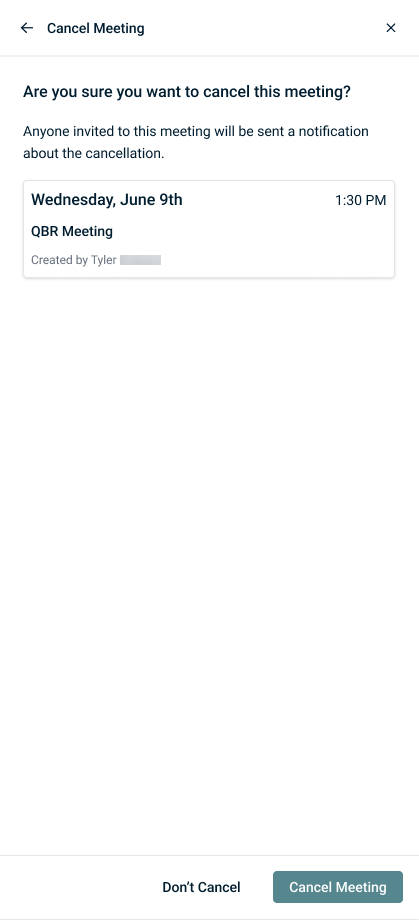
Cancellation emails are sent to any configured attendees.
View meeting history
The Strategic Roadmap Meeting History pane is where you can view a snapshot of previous meetings, who created them, and the dates on which they occurred.
Complete the following steps to view meeting history for an organization:
- In the top navigation menu, click Strategy.
- Select the applicable organization and starting year from the drop-down menus in the upper-left corner of the page.
- Click the three-line menu icon in the upper-right corner of the page.
- Click Meeting history.
The meeting history offers granular search/filter functionality to surface particular meetings. You can use the Search history box to search for meetings by title and the filters to filter results by meeting owner or date. Once a meeting is selected, the following two tabs are available:
- The Details tab shows the meeting details and agenda and includes the option to review the presentation.
- The Summary tab allows you to enter or view a personalized overview of the meeting, which is displayed in the summary PDF.
Download a meeting summary PDF
NOTE A summary report can be generated only for completed meetings and is not available for canceled meetings.
Complete the following steps to download a meeting summary PDF for an organization:
- In the top navigation menu, click Strategy.
- Select the applicable organization and starting year from the drop-down menus in the upper-left corner of the page.
- Click the three-line menu icon in the upper-right corner of the page.
- Click Meeting history.
- Search or filter for a meeting.
- Click the meeting you want to generate a meeting summary PDF for.
- If you would like to enter a personalized overview of the meeting to include in the summary PDF, click the Summary tab, enter an overview, and click Create.
- From the three-dot menu in the upper-right corner of the pane, select Download summary PDF.
A PDF of the meeting summary is automatically downloaded to the default download location on your device.
Delete a meeting
Deleting a meeting is useful in the following cases:
- You created a test meeting to review your presentation before meeting with your client, and you would now like to create the real meeting.
- You no longer need to reference or download history on a previous meeting, including the details, agenda, presentation, and summary.
Complete the following steps to delete a previous meeting you no longer need to manage:
- In the top navigation menu, click Strategy.
- Select the applicable organization and starting year from the drop-down menus in the upper-left corner of the page.
- Click the three-line menu icon in the upper-right corner of the page.
- Click Meeting history.
- Search or filter for a meeting.
- Click the meeting you want to delete.
- From the three-dot menu in the upper-right corner of the pane, select Delete.
- Once you click OK to delete the meeting, the meeting is removed from myITprocess and the history cannot be retrieved.


