Microsoft Security Posture reporting
NAVIGATION QBR Report Builder > (add or edit a report) > Add > Microsoft Security Posture
The Microsoft Security Posture section of the QBR Report Builder helps you present a client's Microsoft 365 security posture in a clear, executive-ready format. It shows the organization's Microsoft Secure Score, how the score has changed over time, how each security category is performing, and which improvement actions will have the greatest impact.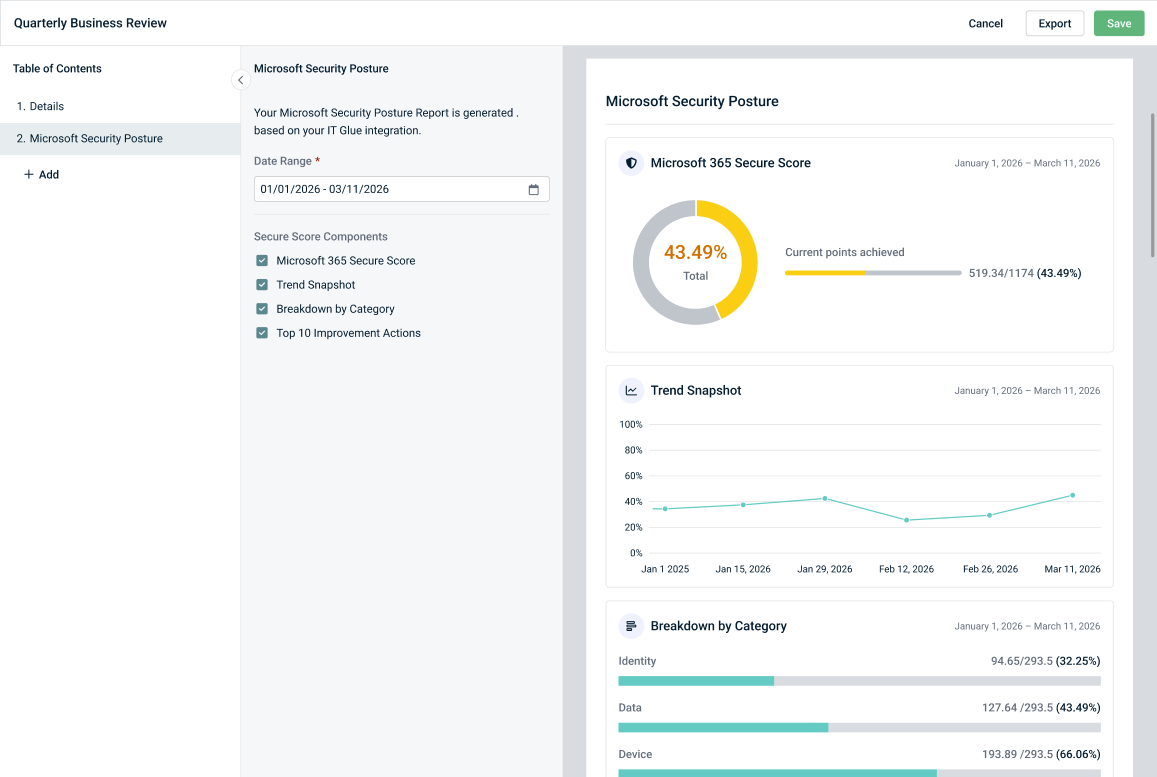
IMPORTANT The data in this section is derived from your IT Glue integration. myITprocess does not connect to Microsoft directly.
NOTE Secure Score data is refreshed on a schedule managed by IT Glue. QBR reports reflect the most recent data IT Glue has received from Microsoft.
Prerequisites
- An IT Glue account with Microsoft Secure Score data that is integrated with KaseyaOne. Refer to the instructions for gaining access to Microsoft Secure Score data in the IT Glue Help system.
- Enable KaseyaOne Unified Login to sync your IT Glue account to myITprocess. Refer to Setting up KaseyaOne Unified Login.
- Perform IT Glue organization mapping on the Setup Organizations page. Refer to Performing organization mapping.
Configuring Microsoft Security Posture settings
BEFORE YOU BEGIN To learn how to use the QBR Report Builder to create QBR reports, refer to Using the QBR Report Builder.
After adding the Microsoft Security Posture section to a QBR report, use the following fields to customize the data:
Date Range
From the calendar date selector, define the reporting period by selecting a start date and an end date.
For all components except Trend Snapshot, the section shows the latest data available within the selected date range.
EXAMPLE If you select January 1 to March 11, Trend Snapshot shows the score across the entire date range, while the other components show the data as of March 11.
Secure Score Components
Select or clear the checkboxes to add or remove the following widgets from the report, respectively:
Microsoft 365 Secure Score
The donut chart highlights the organization's current Secure Score as a percentage, and the progress bar beside it shows Current points achieved as an absolute value out of the maximum points available (for example, 519.34/1174).
The color of the donut chart and progress bar reflect the score:
| Score | Color | Rating |
|---|---|---|
| 80% to 100% | Green | Great |
| 40% to 79% | Yellow | Fair or moderate |
| Below 40% | Red | Low |
This widget reflects the latest data available within the selected date range.
Trend Snapshot
The line graph shows how the organization's Secure Score percentage has changed across the selected date range.
Breakdown by Category
This widget shows how the organization is performing in each Secure Score category, including Identity, Data, Device, and Apps. For each category, the bar chart compares Points achieved with the remaining Opportunity, along with the points achieved out of the points available and the percentage.
This widget reflects the latest data available within the selected date range.
Top 10 Improvement Actions
The table shows the 10 actions that would raise the organization's Secure Score the most, ranked from highest to lowest score impact. The table includes the following columns:
| Column | Description |
|---|---|
| Improvement Action | The recommended action to improve security. Long action names are shortened in the report. |
| Score Impact | The number of percentage points the action would add to the Secure Score if completed. |
| Status | The current status of the action as reported by Microsoft (for example, To address). |
| Category | The Secure Score category the action belongs to (for example, Device). |
This widget reflects the latest data available within the selected date range.
Exporting Microsoft Security Posture data in QBR reports
Once you finish configuring the Microsoft Security Posture section in the QBR Report Builder, you can export the report in PDF format as described in Save and export a QBR report.


