Performing organization mapping
NAVIGATION My Account > Account Settings > Setup Organizations
After establishing your integrations, you can use the Setup Organizations page to match organizations synced from those integrated applications to organizations in your myITprocess account. Organization mapping syncs data available in other Kaseya modules to your myITprocess account, making it available in features throughout the application, including Executive Summary, Device Lifecycle Management, and Backup Dashboard.
BEFORE YOU BEGIN Configure your desired integrations in the Integrations tab and KaseyaOne tab on the Account Settings page. For details, refer to Integrations in Configuring global account settings and Setting up KaseyaOne Unified Login.
Setup Organizations page
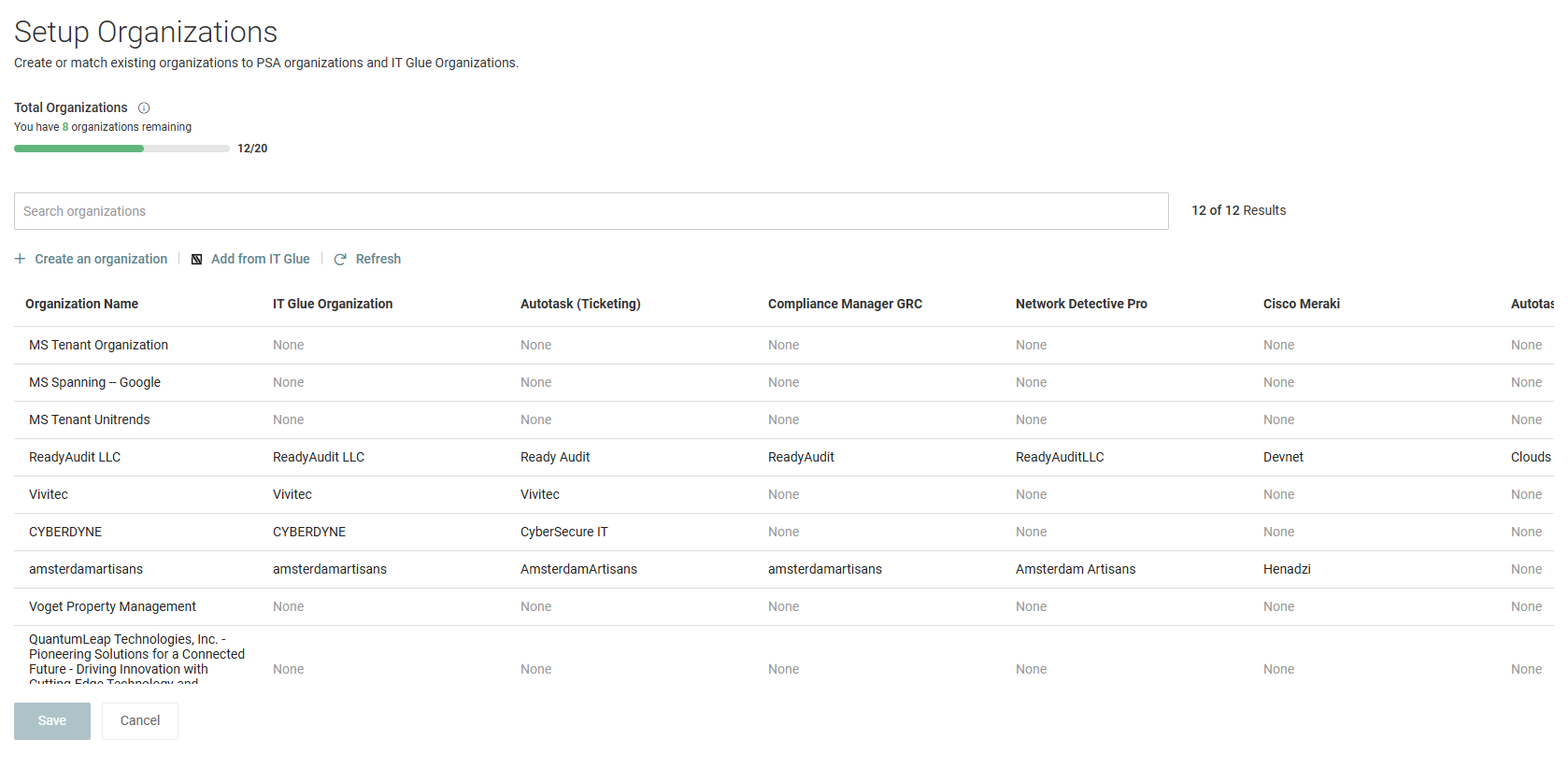
The list of organizations on the Setup Organizations page displays a column for each of your integrated applications, including any modules synced from KaseyaOne. Use the horizontal scroll bar at the bottom of the list to view all columns.
The first column, Organization Name, remains fixed when scrolling and contains all of your existing myITprocess organizations. You can search by this column by entering the name of a myITprocess organization in the Search organizations bar. The results are narrowed as you type.
How to...
 Create a new myITprocess organization to map
You can create myITprocess organizations from either the Organizations page or the Setup Organizations page, where you can conveniently configure all desired organization mappings across integrations.
NOTE After creating an organization from the Setup Organizations page, you can manage it from the Organizations page, where you can change its name, assign its engineer and/or vCIO, add it to custom groups, and more. Refer to Adding and managing organizations.
If your account has an organization limit, the Total Organizations section displays the number of organizations you have remaining out of your total number of available integrations. Hovering over the info icon  reveals your subscription details.
To create a new myITprocess organization from the Setup Organizations page, complete the following steps:
- Click Create an organization.
- In the Organization Name field, enter the name of your client's organization.
- In the lower-left corner of the page, click Create.
Create and map myITprocess organizations in bulk by mass-importing IT Glue organizations
BEFORE YOU BEGIN Configure the IT Glue integration from the Integrations tab on the Account Settings page. Refer to IT Glue integration.
The Add from IT Glue option allows you to import any number of your IT Glue organizations at a time into myITprocess.
IMPORTANT This feature is available only if you integrate IT Glue via the API and does not apply to IT Glue instances connected to myITprocess through your KaseyaOne integration. As a result, imported IT Glue organizations are reflected in the IT Glue Organizations column only.
Import behavior
For each IT Glue organization imported, one of the following scenarios occurs:
- If your myITprocess account does not contain an organization with the same case-sensitive name, a matching myITprocess organization is automatically created with the same name and mapped to the IT Glue organization.
- If your myITprocess account contains an unmapped organization with the same case-sensitive name, the IT Glue organization is automatically mapped to the existing myITprocess organization.
- If your myITprocess account contains a mapped organization with the same case-sensitive name, this mapping overwrites the existing IT Glue organization mapping.
NOTE This feature does not impact myITprocess organization mappings for other integrated Kaseya modules, nor does it map IT Glue organizations to those modules.
Steps
To import IT Glue organizations from the Setup Organizations page, complete the following steps:
- Click Add from IT Glue.
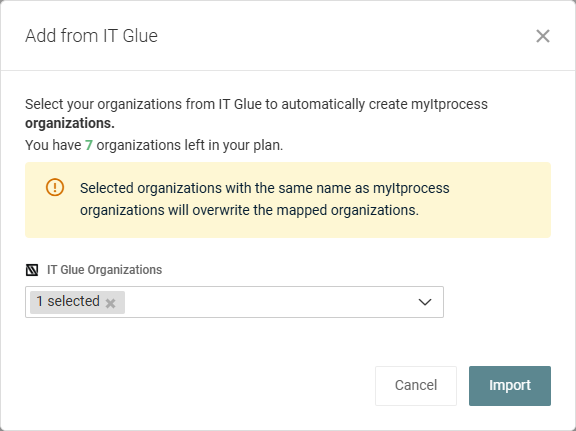
- From the drop-down menu in the Add from IT Glue pop-up window, select the checkboxes of the IT Glue organizations you wish to import. To select all checkboxes at once, select the Select All checkbox (and then clear the checkboxes of certain organizations, if required).
- Click Import.
- In the lower-left corner of the page, click Save.
NOTE Organizations that have already been imported are not displayed.
NOTE The number of IT Glue organizations you can import (based on how many myITprocess organizations you have remaining in your plan) is displayed, as importing IT Glue organizations will automatically create matching myITprocess organizations. Once you have selected the number of organizations you are permitted to create, the remaining checkboxes are grayed out.
Map synced organizations to myITprocess organizations
The Setup Organizations page allows you to match organizations synced from your integrated applications to organizations in your myITprocess account (Organization Name column).
To sync the latest lists of organizations from your integrated applications, click Refresh.
In the row of each myITprocess organization you wish to map, select the matching organization(s) from the drop-down menus in the applicable integrated application columns.
Click Save to implement your mappings. To clear selections before saving, click Cancel.
To remove individual mappings, select a drop-down menu and click X.
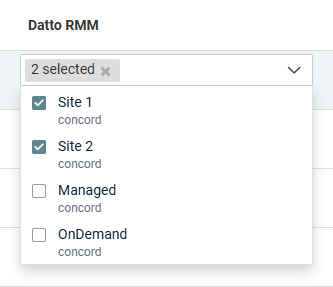
Mapping multiple Datto RMM sites
If Datto RMM sites are synced to myITprocess, you have the option to map multiple sites to a single myITprocess organization. To do so, select any number of Datto RMM site checkboxes from the Datto RMM drop-down menu for a myITprocess organization. Site‑specific views are available within meetings and QBR reports.