Importing and exporting Standards Library templates
NAVIGATION Standards > (click the three-dot menu  ) > Export template
NAVIGATION Standards > (click the three-dot menu ) > Import template
This article explains how to export your Standards Library and import updates using a spreadsheet.
To import new standards, you must first export your current Standards Library. After exporting, you can add new rows to the spreadsheet and then import the updated file. Only new items can be added during import; existing exported rows should not be modified.
Exporting the Standards Library template
To export a copy of your Standards Library, complete the following steps:
- In the top navigation menu, click Standards. In the drop-down menu in the upper-left corner of the page, Standards library is selected by default.
- From the three-dot menu in the upper-right corner of the page, select Export template.
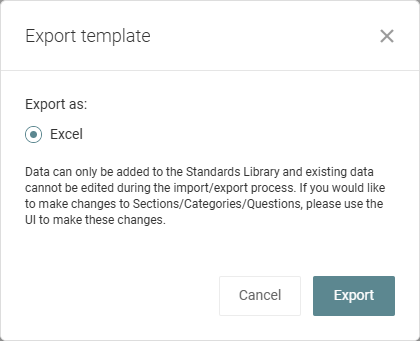
- In the confirmation pop-up window, click Export to download the Standards Library as an Excel file.
NOTE Standards that were added through myITemplates and display the myITprocess logo are not included in the export. Refer to Using myITemplates.
Guidelines for editing the exported file
Before making changes to the exported spreadsheet, review these guidelines:
General rules
- Follow the example structure shown in the exported sheet.
- Do not alter the default font or delete any existing exported data.
- Questions cannot be placed directly under a section. Every question must belong to a category.
- Changes to existing rows will cause errors during import. However, you can insert new rows within existing sections and add your own categories and questions.
ID column
- The ID column must remain in the spreadsheet.
- When adding new rows, leave the ID field blank.
- Entering new values or changing existing values in this column will cause errors during import.
- If you copy and paste existing rows to create new ones, clear the ID field for the new rows.
Other columns
- Name (specifically for questions): This value cannot exceed 100 characters.
- Question Text: This value cannot exceed 1,000 characters.
- Is Optional: For any new section or category, you must enter Yes or No in this column. Entering Yes hides that section or category in new organization templates.
- Archived: For any new section, category, or question, you must enter Yes or No in this column. Entering Yes archives that item in the Standards Library, but it can be surfaced and restored any time.
If you need clarification on the purpose of each column, the instructions for creating sections, categories, and questions within the user interface provide helpful context: Add a section, Add a category, and Add a question.
Importing an updated Standards Library template
After saving your updated spreadsheet (described in the preceding section) to your device, complete the following steps to import it as your new Standards Library:
- In the top navigation menu, click Standards. In the drop-down menu in the upper-left corner of the page, Standards library is selected by default.
- From the three-dot menu in the upper-right corner of the page, select Import template.
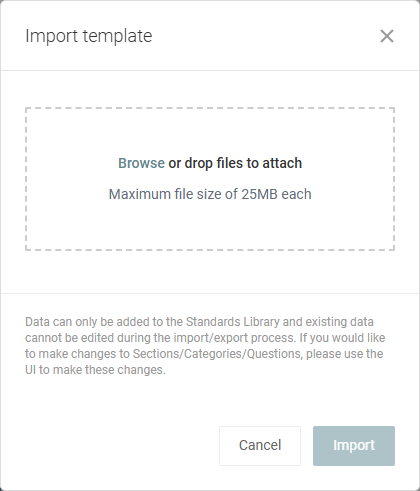
- In the pop-up window, click and drag the file into the upload box or click Browse.
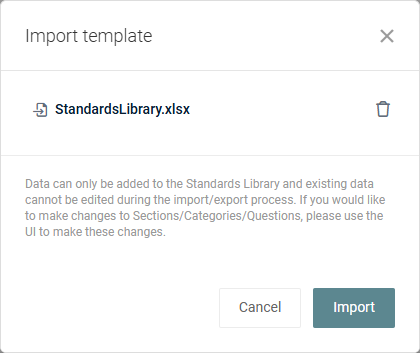
- Once the file is uploaded, click Import.
Once the import is complete, any newly added sections appear below your existing sections in the Standards Library.
If you encounter any issues while importing standards, submit a Kaseya Helpdesk request.


