Managing Standards Library tags
NAVIGATION Standards > (click the three-dot menu  ) > Manage tags
Tags can be applied to sections and categories used in alignment reviews to help organize and group related content. By assigning tags in the Standards Library, you can quickly identify standards that belong to the same topic, process, or review type. This makes it easier to filter, locate, and reuse relevant standards when managing your standards in the Standards Library and organization templates and when creating alignment reviews.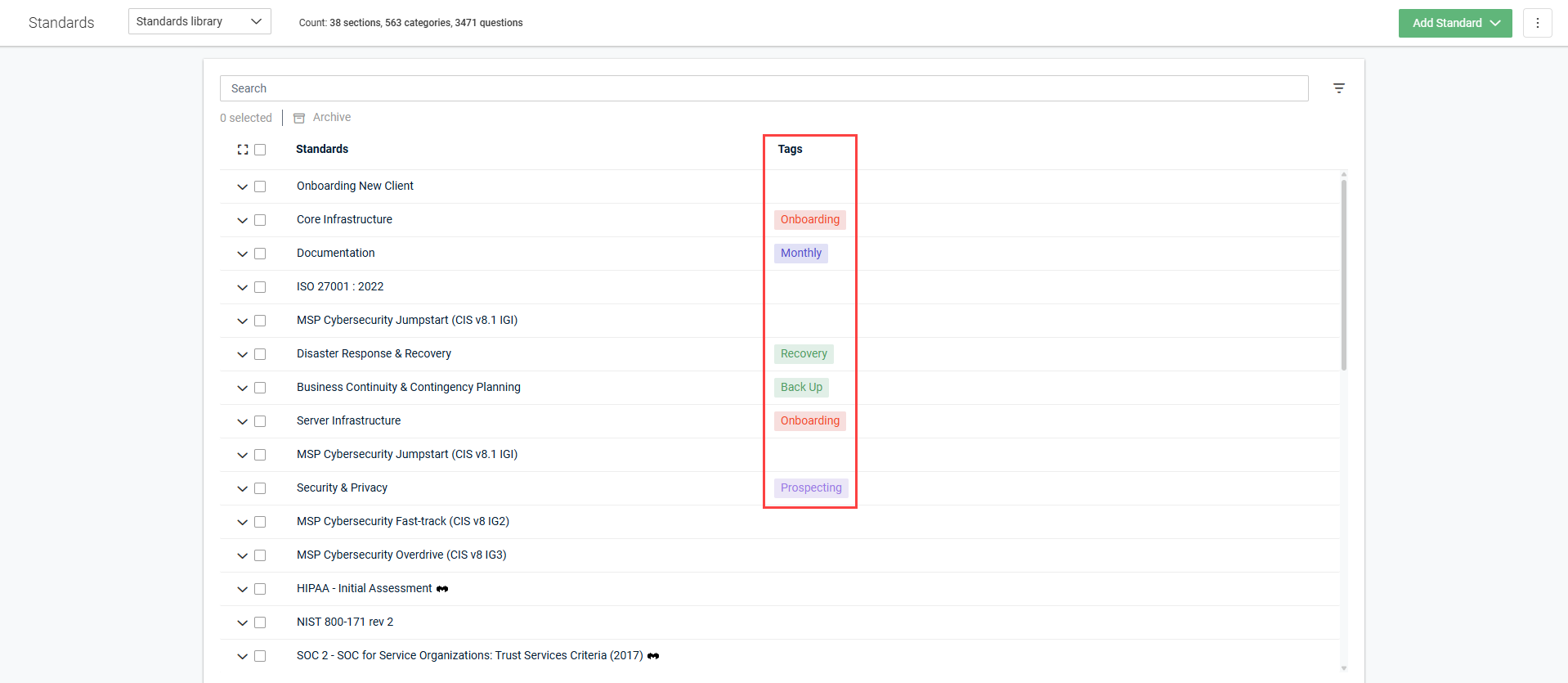
How to...
 Create a new tag
- In the top navigation menu, click Standards. In the drop-down menu in the upper-left corner of the page, Standards library is selected by default.
- From the three-dot menu in the upper-right corner of the page, select Manage tags.
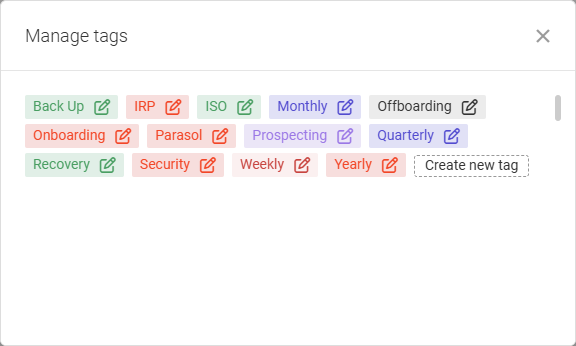
- In the Manage tags pop-up window, click Create new tag.
- Enter the title for the tag, and select the color to apply to the tag.
- Click Create.
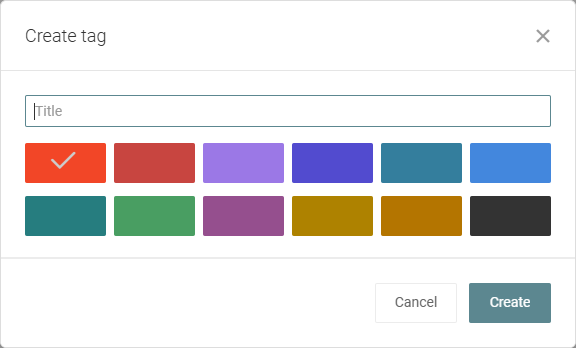
The tag is added to the list of tags and can be applied to any section or category.
Edit an existing tag
- In the top navigation menu, click Standards. In the drop-down menu in the upper-left corner of the page, Standards library is selected by default.
- From the three-dot menu in the upper-right corner of the page, select Manage tags.
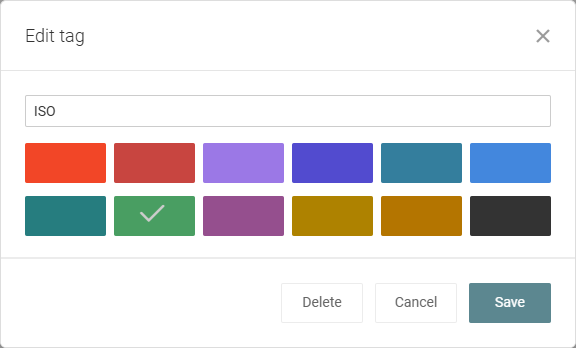
- In the Manage tags pop-up window, click the pencil icon next to the tag you want to edit.
- Change the title and/or color of the tag.
- Click Save.
Delete a tag
- In the top navigation menu, click Standards. In the drop-down menu in the upper-left corner of the page, Standards library is selected by default.
- From the three-dot menu in the upper-right corner of the page, select Manage tags.
- In the Manage tags pop-up window, click the pencil icon next to the tag you want to delete.
- Click Delete.
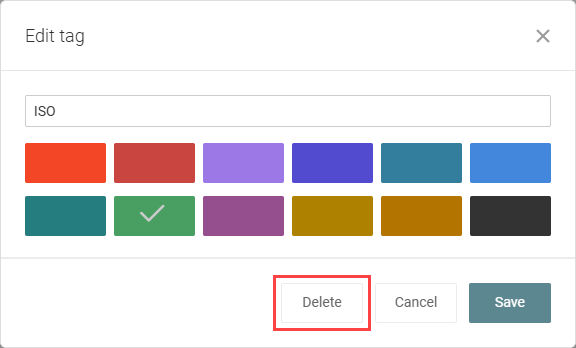
The tag is removed from the list of tags and from any sections or categories it was applied to.
Apply one or more tags to a section or category
After tags are created, they can be applied to sections and categories either upon standards creation or when editing. For complete instructions, refer to the following sections in Using the Standards Library:
If a tag is applied to a section, you can use that tag to surface that section and all of its child categories and questions in filter results. If a tag is applied to a category, you can use that tag to surface that category, its parent section, and its child questions in filter results. Refer to the following instructions:
- Filtering and searching in the Standards Library and organization templates
- Filter standards by tags when creating a review
- Filter reviews by tags
EXAMPLE
Section with no tags applied: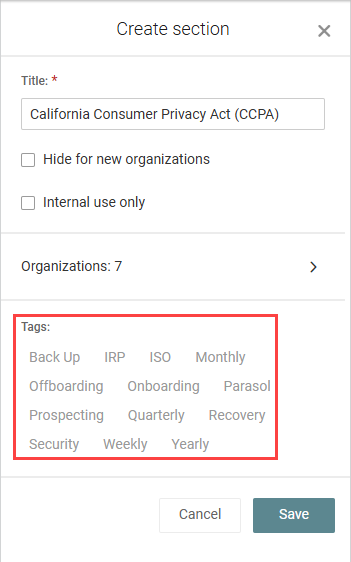
Section with the Security tag applied: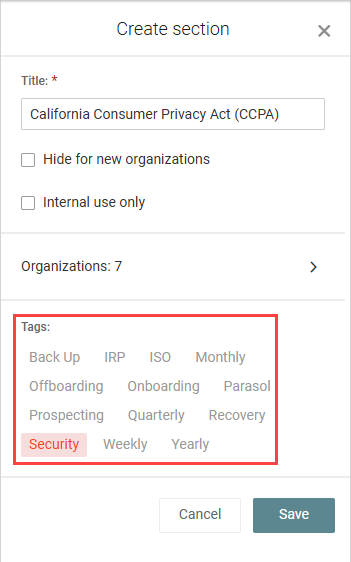
Filter standards by tags when creating a review
When creating a review, you can filter the list of standards available to include in the review by tags. This allows you to narrow the options for selection down to only those that are relevant to the review.
Complete the following steps to filter the list of standards by tags when creating a review:
- In the top navigation menu, click Alignment.
- In the upper-right corner of the page, click Create Review.
- Configure your review details in step 1. For details, refer to Creating reviews.
- In step 2, click the filter icon
 .
. - Select the checkbox(es) for the tag(s) you want to filter by. If a selected tag is applied to a section, that section and all of its child categories and questions are displayed. If a selected tag is applied to a category, that category and its parent section and child questions are displayed.
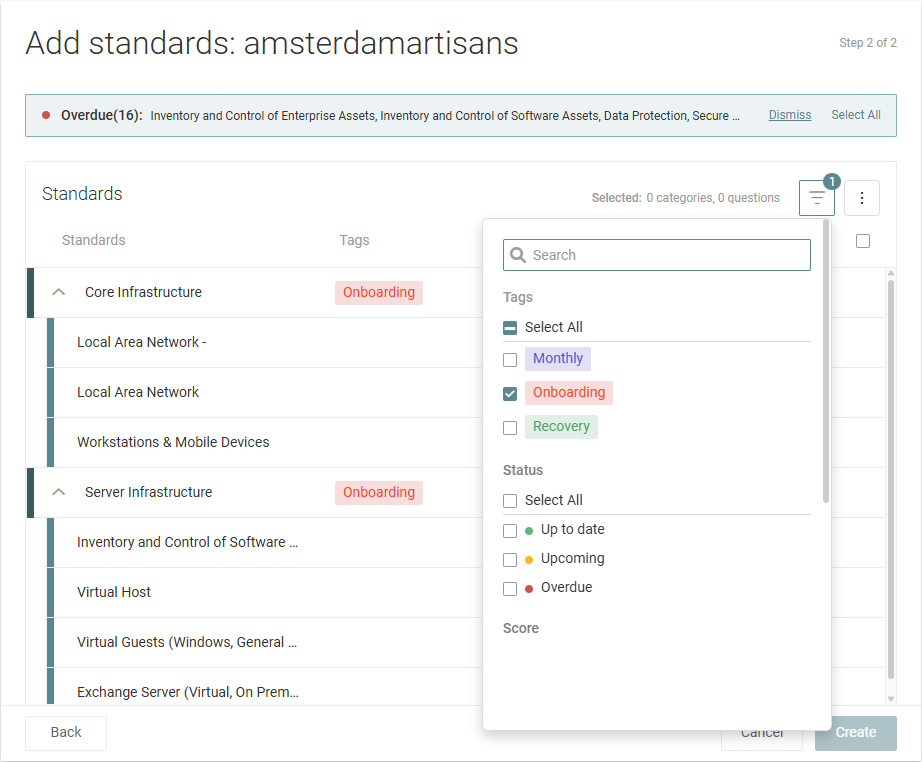
- For sections and categories you want to include in the review, select the checkboxes at the end of their rows, which appear upon hover. To include all standards in the results in the review, select the checkbox in the upper-right corner of the list header. Selecting a section automatically selects all categories in that section.
- Click Create.
Filter reviews by tags
Complete the following steps to filter the list of created reviews by tags:
- In the top navigation menu, click Alignment.
- Click the filter icon in the upper-right corner of the list.
- Select the checkbox(es) for the tag(s) you want to filter by. If a review includes a standard that has a selected tag applied, that review is included in the list of results.
In the row of any review, you can click Details to see any tags that are applied to any standards in the review. If tags are applied, they appear in the Tags section.


