Creating reviews
NAVIGATION Alignment > Create Review
In myITprocess, an alignment review is a set of questions generated from your Standards Library that is used to evaluate an organization's level of compliance. To learn how to formulate standards before you begin creating reviews, refer to Using the Standards Library.
These questions are answered in a yes/no format by an assigned engineer or TAM and then evaluated for business risk by an assigned vCIO.
Complete the following steps to create a new review for an organization:
- In the top navigation menu, click Alignment.
- In the upper-right corner of the page, click Create Review.
- From the Organization drop-down menu, select the organization you want to create the review for.
NOTE A review cannot be created for an organization until its organization template is created. If you attempt to create a review for an organization that does not yet have an organization template set up, you are prompted to create the template before proceeding. Click Create template to navigate to the organization on the Standards page, where you can create its template. Refer to Customizing organization templates.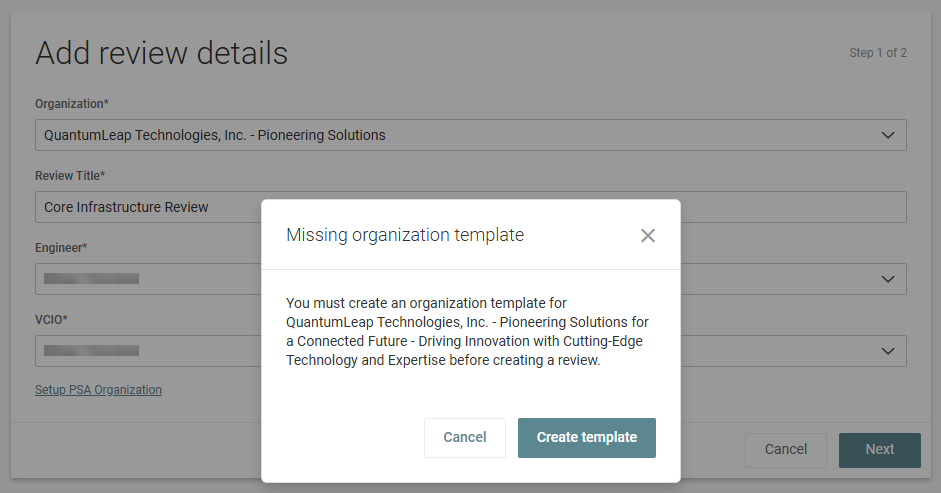
Step 1 of 2: Add review details
Configure the general details of the review as follows:
- In the Review Title field, enter a title that describes the purpose of the review, such as Q2 2026 Review or Security Evaluation.
- From the Engineer drop-down menu, select the user who will complete the engineer portion of the review. Refer to Engineer: Review process.
- From the vCIO drop-down menu, select the user who will complete the vCIO portion of the review. Refer to vCIO: Review process.
- Optionally, from the Engineer Due Date and vCIO Due Date drop-down menus, select the date by which these portions of the review should be completed.
- If the account is integrated with a PSA tool (Autotask, BMS, or ConnectWise), one of the following options is displayed in the lower-left corner of the form, depending on the organization mapping configuration:
- After completing the required fields, click Next.
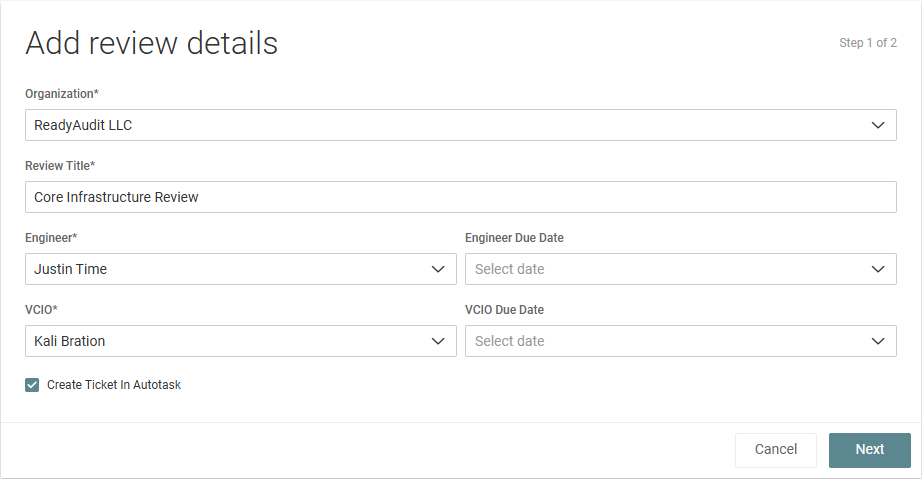
NOTE If default engineer or vCIO assignments are configured for the organization, these fields are automatically populated. To learn how to configure the Assigned Engineer and Assigned vCIO fields in the organization settings, refer to Add an organization or View and edit organization details.
| Field | Description |
|---|---|
| Setup PSA Client | Optionally, click this link to navigate to the Setup Organizations page to map this organization in myITprocess to its matching organization in your integrated PSA tool. Refer to Performing organization mapping. This mapping allows you to create tickets for the review or review questions in your PSA tool. |
| Create Ticket in [integrated PSA tool] | Optionally, select this checkbox to automatically create a ticket for the new review in your integrated PSA tool. The ticket is associated with the PSA organization mapped to this organization in myITprocess. The ticket summary is automatically populated as New Review ['Review Title'] created and the description as New Review ['Review Title'] created by [creator name]. Included categories: [list of categories included in the review] and can be edited in your PSA tool. |
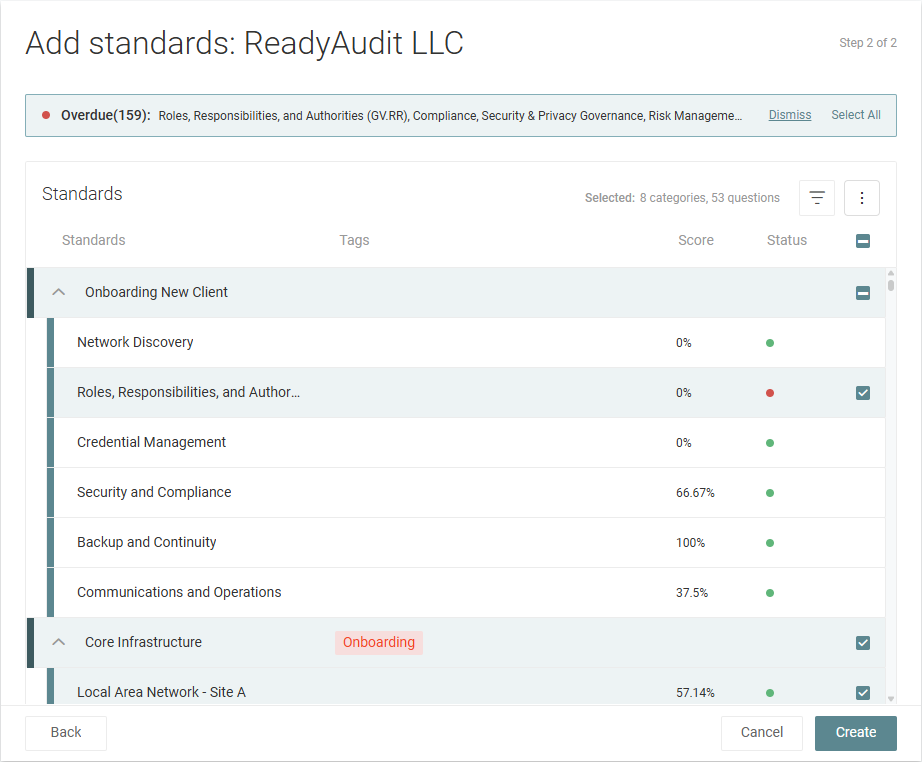
Step 2 of 2: Add standards
Select which standards from the organization template should be included in the review as follows:
- If the organization has overdue standards, they appear in a banner at the top of the page. Overdue standards refer to categories up for review, meaning those categories have passed the reminder date set for them in the Standards Library. Either click Dismiss and manually select sections and categories in the subsequent steps, or click Select All to automatically select those overdue categories and their parent sections to include in the review.

- From the three-dot menu
 , you can expand or collapse all sections to view the categories available to include in the review.
 - From the filter menu
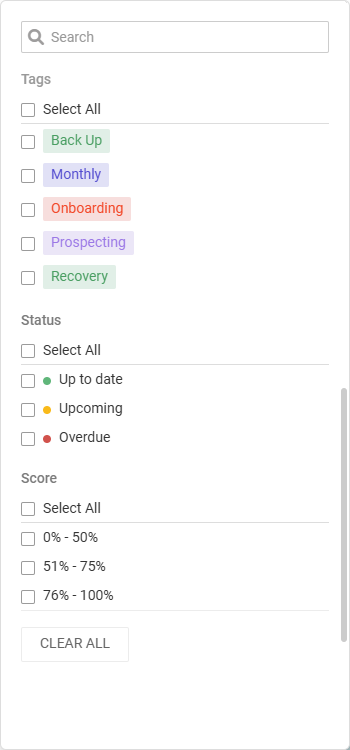
 , you can search for specific categories in the Search bar or filter standards based on the following:
- Tags: Refer to Filter standards by tags when creating a review in Managing Standards Library tags.
- Status:
 Up to date: Select this checkbox to populate categories that have not passed their reminder date.
 Upcoming: Select this checkbox to populate categories that are approaching their reminder date.
 Overdue: Select this checkbox to populate categories that have passed their reminder date (the same categories highlighted in the Overdue banner at the top of the page).
- Score: Select one or more checkboxes to populate categories based on their current alignment score. Refer to How report scoring works.
- For sections and categories you want to include in the review, select the checkboxes at the end of their rows, which appear upon hover. To include all standards in the results in the review, select the checkbox in the upper-right corner of the list header. Selecting a section automatically selects all categories in that section.
- When finished selecting the standards to include in the review, click Create.
The new review is added to the top of the list of reviews on the Alignment page. Refer to Managing reviews.


