Filtering and searching in the Standards Library and organization templates
NAVIGATION Standards > Standards library > (click the filter icon  )
)
NAVIGATION Standards > (select an organization) > (click the filter icon )
If you want to narrow the list of standards shown in the Standards Library or in organization templates, click the filter icon in the upper-right corner of the list and configure the filter as required.
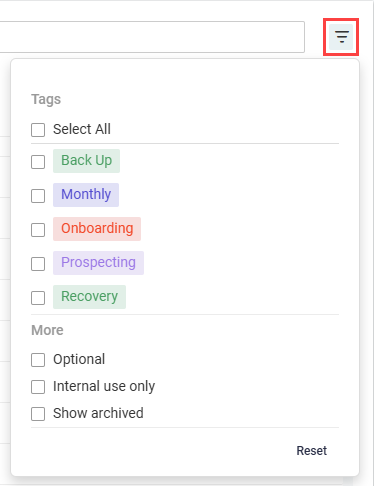
Standards Library filter
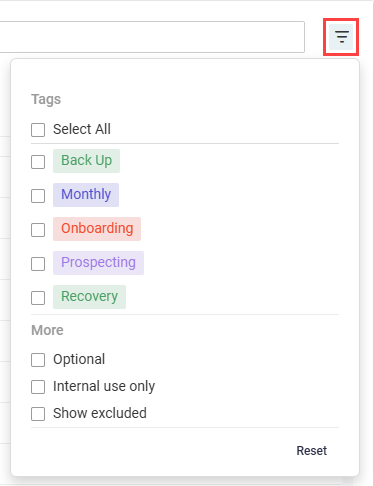
Organization template filter
Filter options
The following fields are included in the filter options:
Tags
Select the checkbox(es) for the tag(s) you want to filter by. This will narrow the list to only the sections and categories that have those tags applied. Click Select All to filter out all sections and categories that do not have any of the listed tags applied.
NOTE A created tag not appearing in the filter means the tag is not currently applied to any section or category.
Refer to Managing Standards Library tags.
Optional
Select this checkbox to filter the list by standards with the Hide for new organizations setting applied, meaning they are excluded in new organization templates by default but can be manually added to individual templates.
Refer to Including or excluding sections and categories in organization templates.
Internal use only
Select this checkbox to filter the list by standards with the Internal use only setting applied, meaning the item is hidden on reports by default. Internal-use items are marked with an orange dot  .
.
Refer to Overview of internal-use sections, categories, and questions.
Show archived (Standards Library only)
Select this checkbox to populate archived standards in the list of results. Non-archived standards that adhere to your filter requirements also appear in the results. Archived standards appear in gray.
Refer to Archiving a section, category, or question in the Standards Library.
Show excluded (organization templates only)
Select this checkbox to populate standards that are excluded from the organization template in the list of results. Non-excluded standards that adhere to your filter requirements also appear in the results. Excluded standards appear in gray.
Refer to Exclude a section or category from an organization template in Customizing organization templates.
Search
To find specific sections, categories, or questions, enter one or more keywords in the Search bar at the top of the list. Search results display items based on where the keyword match occurs:
- Section match: The section, all of its child categories, and all of its child questions appear in the results.
- Category match: The category, its parent section, and its child questions appear in the results.
- Question match: The question, its parent section, and its parent category appear in the results.


