Including or excluding sections and categories in organization templates
NAVIGATION Standards
By default, all sections, categories, and questions added to the Standards Library are included in the organization templates for all organizations. Refer to Using the Standards Library. There are two ways to show or hide sections and categories in organization templates.
This functionality allows you to control which content appears in organization templates, ensuring that only sections and categories relevant to specific clients are included in their alignment reviews.
BEFORE YOU BEGIN You are not able to apply changes to organization templates until they are initially created. Refer to Create an organization template in Customizing organization templates.
NOTE If you choose to include a category in an organization template, all of its questions are also included. You cannot opt to include or exclude individual questions in organization templates. This limitation encourages standardization so that when a technology category applies (for example, a print server), it is evaluated using the same best-practice questions.
Behavior
Standards exclusion behaves as follows in organization templates:
- Excluding a section excludes all of its child categories and questions.
- Excluding a category excludes all questions in that category. The section and other categories are not excluded unless the category being excluded is the only active category in the section. In that case, the section is also excluded.
- A question cannot be excluded.
Standards inclusion behaves as follows in organization templates:
- Re-including an excluded section restores all of its child categories and questions.
- Re-including an excluded category restores its parent section (if it was also excluded) and all questions in that category. If other categories are currently excluded, they are not restored.
Method 1: From the Standards Library
This method allows you to include or exclude sections and categories in multiple organization templates at once. Complete the following steps:
- In the top navigation menu, click Standards. In the drop-down menu in the upper-left corner of the page, Standards library is selected by default.
If you want to narrow the list of standards shown, use the filter
 or Search bar. For full instructions and field definitions, refer to Filtering and searching in the Standards Library and organization templates.
- Locate the section or category you want to include or exclude in organization templates, expanding sections and categories to view nested items, if necessary.
- Click the row of the section or category to open its detail pane.
- From the three-dot menu
 in the upper-right corner of the pane, select Edit section or Edit category.
 - Select the Hide for new organizations checkbox if you want to exclude this section or category in new organization templates by default.
- Click Organizations to select or clear organizations this category does or does not apply to, respectively, which adds or removes the item from those organization templates.
To search for a specific organization, start typing the organization name in the search bar at the top of the pane. The results are narrowed as you type.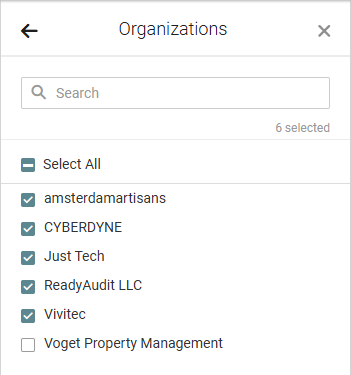
- Click the back arrow in the upper-left corner of the pane when finished.
- Click Save to apply your changes to organization templates.
NOTE In a category, this field is grayed out if the Hide for new organizations checkbox is selected in the section the category belongs to. In that case, this category (and any other categories in the section) are also hidden for new organizations by default.
NOTE A certain organization not appearing in the list means its organization template is not yet created. Refer to Create an organization template in Customizing organization templates.
Method 2: From individual organization templates
This method allows you to include or exclude sections and categories in a single organization template.
 Excluding a section or category from an organization template
Exclude a section or category in a certain organization template as follows:
- In the top navigation menu, click Standards.
- From the drop-down menu in the upper-left corner of the page, select the organization you want to edit the organization template for.
- If you want to narrow the list of standards shown, use the filter or Search bar. For full instructions and field definitions, refer to Filtering and searching in the Standards Library and organization templates.
- Locate the section or category you want to exclude from the template, expanding sections to view nested categories, if necessary.
- In the row of the section or category, click the minus icon
 in the Actions column.
 - In the pop-up confirmation window, click OK.
The item is removed from the organization template (but not from the Standards Library or other organization templates) and does not appear as an option to include in reviews for the organization. The item can be surfaced and re-included any time.
Re-including a section or category in an organization template
Re-include an excluded section or category in a certain organization template as follows:
- In the top navigation menu, click Standards.
- From the drop-down menu in the upper-left corner of the page, select the organization you want to edit the organization template for.
- Click the filter icon in the upper-right corner of the list.
- Select the Show excluded checkbox to populate excluded standards in the list of results. Non-excluded standards that adhere to your filter requirements also appear in the results. Excluded standards appear in gray.
- Locate the item you want to re-include, expanding sections or categories to view all nested items, if necessary.
- In the row of the section or category, click the plus icon
 in the Actions column.
 - In the pop-up confirmation window, click OK.
The item is now included in the organization template and available to include in reviews for the organization.


