Customizing organization templates
NAVIGATION Standards > (select an organization)
Organization templates play a central role in scheduling and completing alignment reviews for your clients. Each organization has its own template based on the best practices a Technology Success Provider (TSP) chooses to deliver.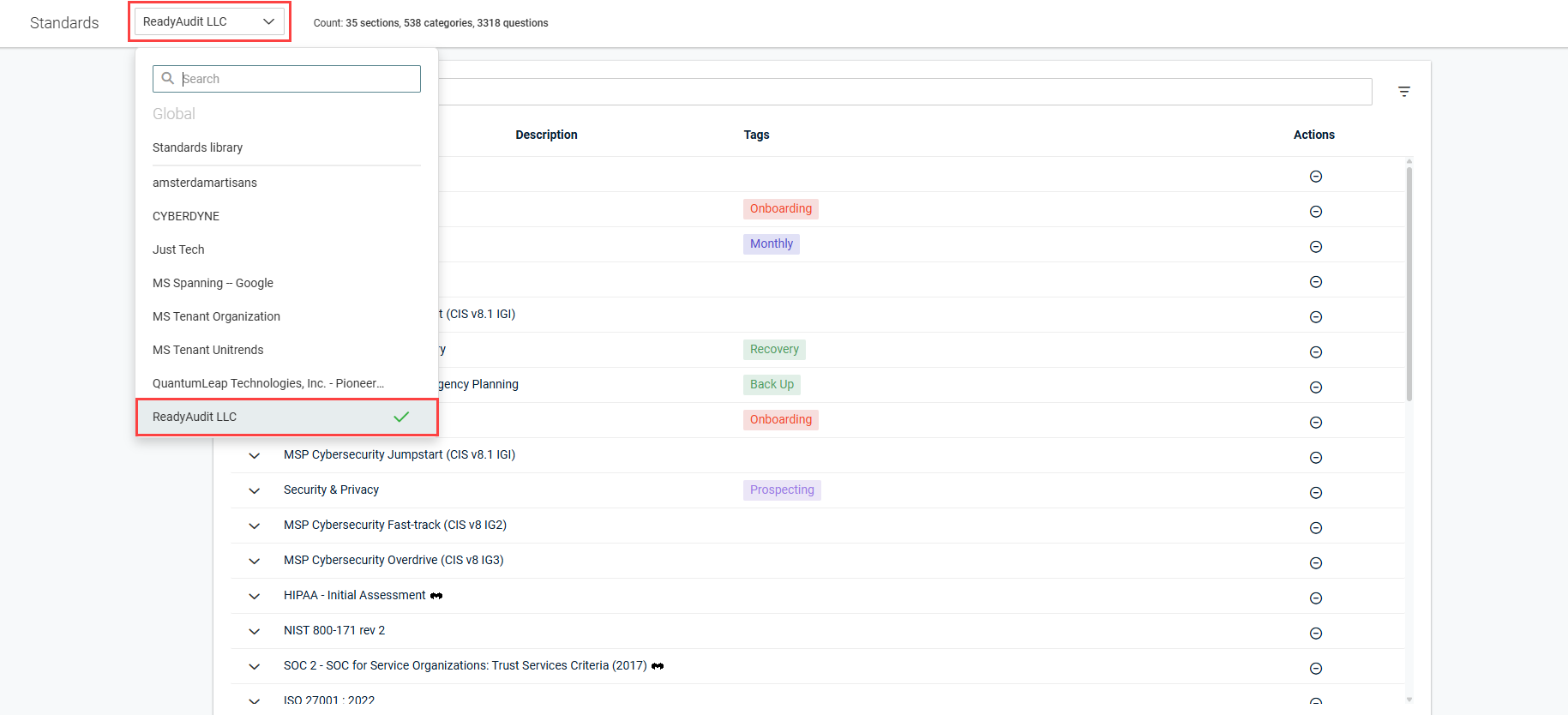
An organization template is a client-specific view of the Standards Library. When an organization template is created, its initial structure is automatically derived from the structure of the Standards Library. Organization templates are designed to mirror the Standards Library for standardization purposes, but the following options are available in organization templates to help you best reflect the client's environment:
- Individual sections and categories derived from the Standards Library can be excluded.
- Categories can be duplicated and modified.
Individual questions within included categories, however, cannot be manually included or excluded. This limitation encourages standardization so that when a technology category applies (for example, a print server), it is evaluated using the same best-practice questions.
Standards Library vs. organization templates
To quickly compare the similarity of organization templates to the Standards Library, reference the Count values in the upper-left corner of the Standards Library view and organization template views.

Changes made to an organization template affect only that organization and do not modify the master Standards Library.
Because myITprocess emphasizes standardization over customization, templates should only be adjusted when necessary. This article explains how to customize the organization template for any organization in your myITprocess account.
Text and settings for sections, categories, and questions cannot be edited at the organization level. If you open the detail pane for a section, category, or question in an organization template and click the three-dot menu  , the only available option is to open the item in the Standards Library, where it can be edited at the global level. Refer to How changes to the Standards Library are reflected in organization templates and reviews.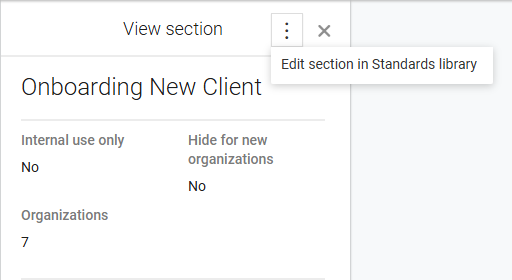
For more information about the master template structure, refer to Using the Standards Library.
TIP To quickly view or hide the full hierarchy of sections, categories, and questions while navigating organization templates, use the expand icon  or collapse icon
  in the upper-left corner of the list to expand or collapse all drop-downs.
How to...
 Create an organization template
BEFORE YOU BEGIN To learn how to create organizations in your myITprocess account, refer to Adding and managing organizations.
A review cannot be created for an organization until its organization template is created. If you attempt to create a review for an organization that does not yet have an organization template set up, you are prompted to create the template before proceeding. Click Create template to navigate to the organization on the Standards page, where you can create its template.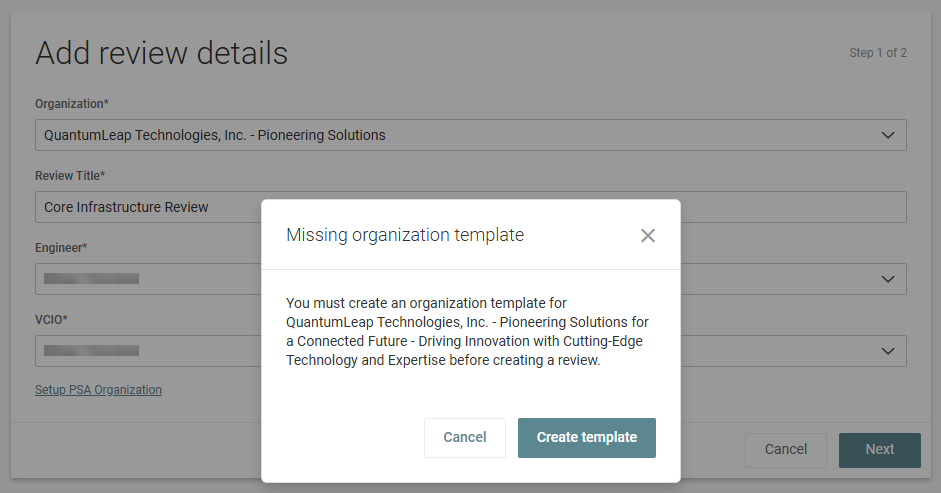
To create a client's organization template, complete the following steps:
- In the top navigation menu, click Standards.
- From the drop-down menu in the upper-left corner of the page, select the organization you want to edit the organization template for.
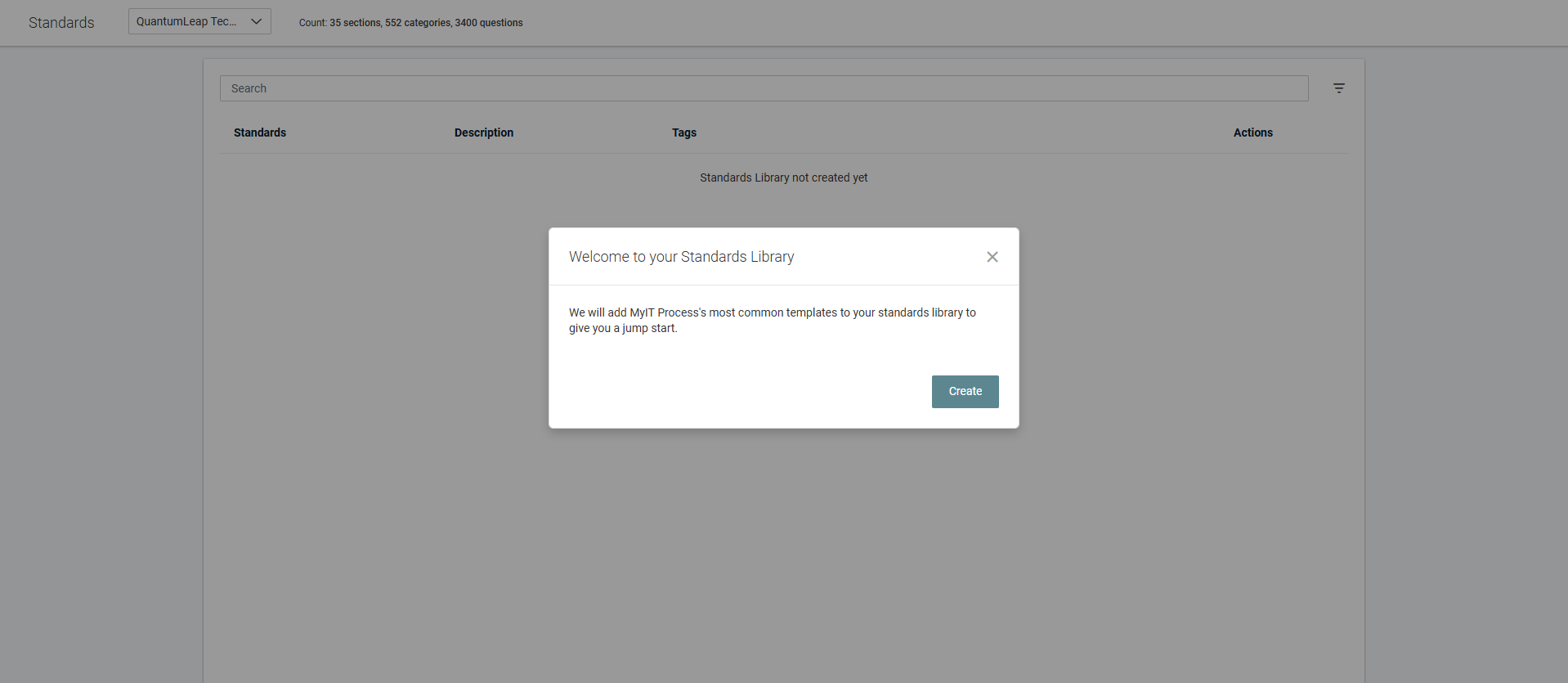
- In the pop-up message, click Create to apply the current configuration of the Standards Library to the organization template.
Duplicate a category in an organization template
In some cases, creating a duplicate category is useful for certain organizations.
EXAMPLE A category containing questions about router configuration may be copied and renamed for different locations or configurations. This is especially helpful for clients with multiple sites or varying setups.
Duplicating a category in an organization template does not duplicate that category in the Standards Library or any other templates.
Duplicate a category in an organization template as follows:
- In the top navigation menu, click Standards.
- From the drop-down menu in the upper-left corner of the page, select the organization you want to edit the organization template for.
- If you want to narrow the list of standards shown, use the filter
 or Search bar. For full instructions and field definitions, refer to Filtering and searching in the Standards Library and organization templates.
 - Locate the category you want to duplicate and then modify in the template, expanding sections to view nested categories.
- In the row of the category, click the copy icon
 in the Actions column. The duplicate category appears below the original category, with a trash can icon
  in the Actions column in case you choose to remove the duplicate in the future.
 - The Description column is editable for categories in organization templates specifically for the purpose of distinguishing duplicated categories. In the Description field for the duplicated category, enter a description that explains the specific difference between the duplicated category and the original. The category title is automatically updated to Original Title – Description, where Original Title is the title of the category that was duplicated and Description is the text you entered to distinguish the new category.
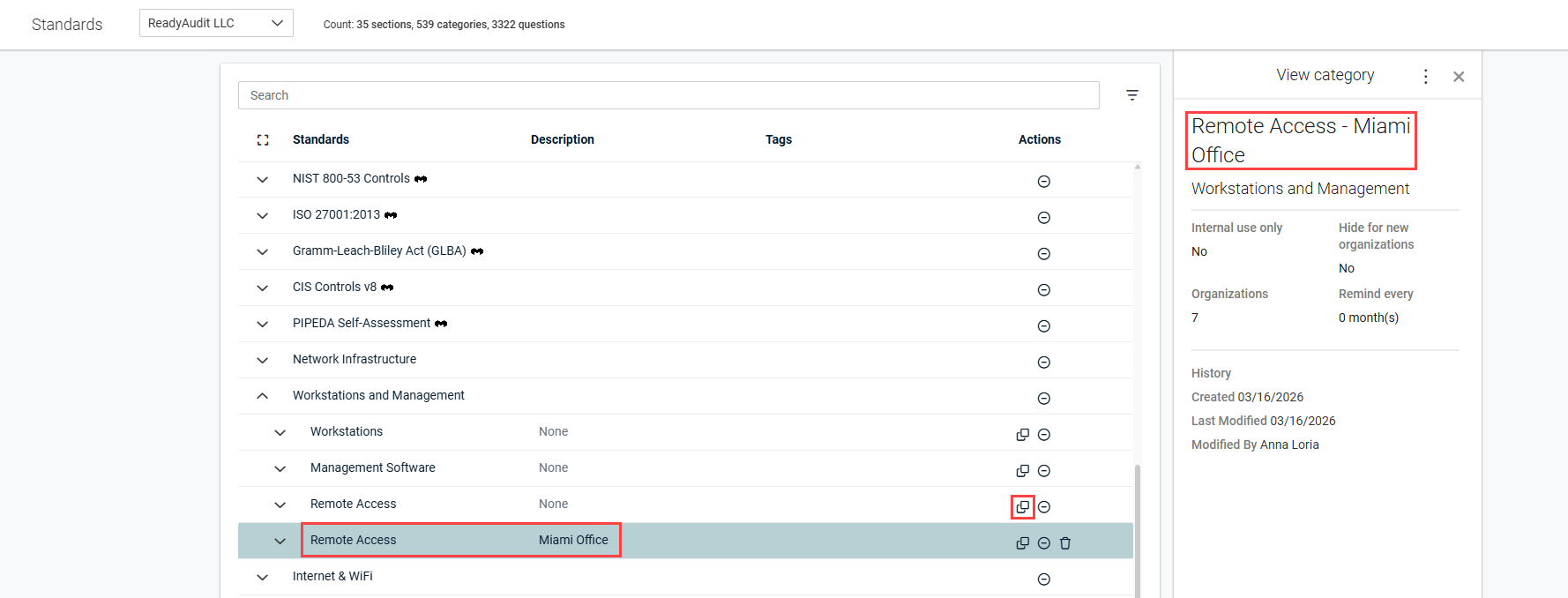
You can also duplicate a category more than once and/or enter a description for the original category to further distinguish duplicated categories.
Add an IT Glue flexible asset to an organization template
The IT Glue integration allows you to associate flexible assets in IT Glue with organization template questions, review questions, and Strategic Roadmap recommendations in myITprocess, providing a single lens to view data.
Refer to Adding flexible assets to organization templates in IT Glue integration.


