Getting started with myITprocess
This article describes how to access your myITprocess instance for the first time and get started with onboarding resources.
Prerequisite
You should have one of the standard authenticator apps, such as Microsoft Authenticator or Google Authenticator, either on your phone or as a browser extension to activate mandatory two-factor authentication (2FA).
 Logging in to myITprocess for the first time
After opening your invitation to create an account in myITprocess, complete the following steps:
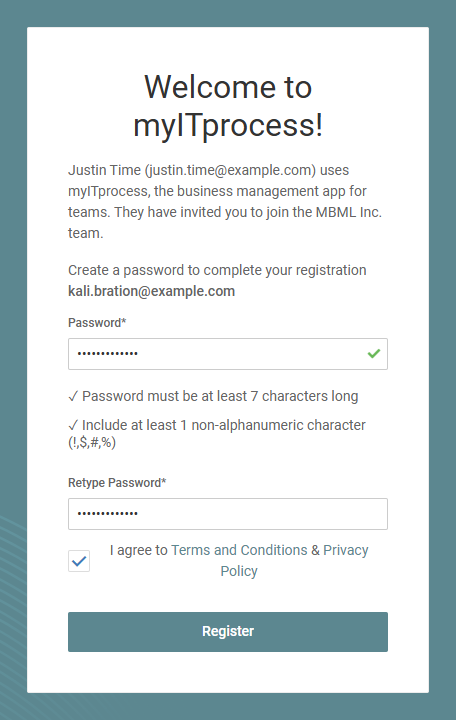
- In the Welcome to myITprocess window, enter a password to use for your account.
- Select the checkbox to agree with the Terms and Conditions and Privacy Policy.
- Click Register.
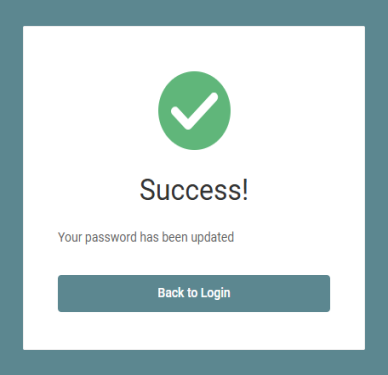
- In the Success window, click Back to Login.
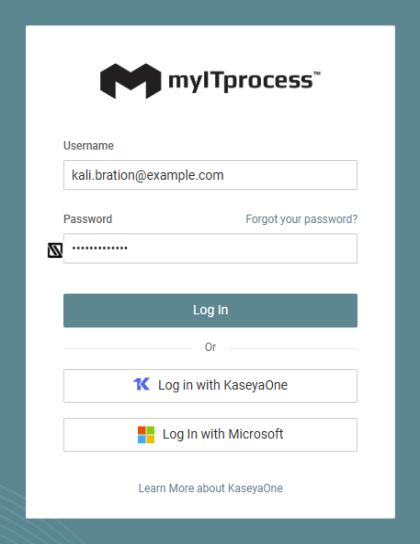
- In the Username field, enter your email address from which you received your invitation.
- Enter the password you just created.
- Click Log In.
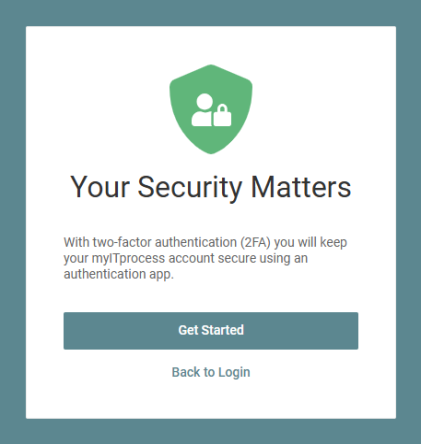
- In the Your Security Matters window, click Get Started.
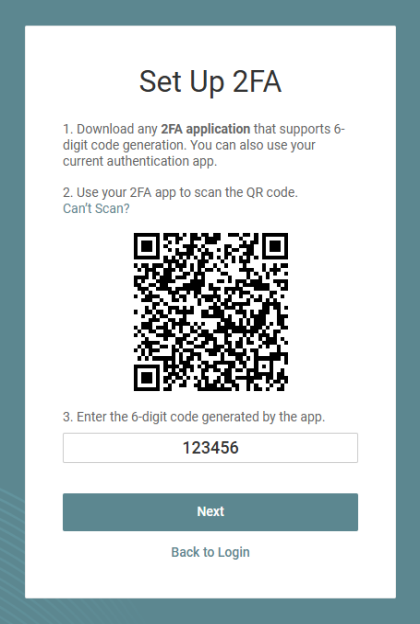
- In the Set Up 2FA window, scan the bar code with an authenticator application on your phone to configure 2FA to keep your account secure.
- Enter the six-digit one-time code generated by your authenticator application.
- Click Next.
- In the Success window, click Done to enter your myITprocess account.
Configuring KaseyaOne Unified Login
KaseyaOne Unified Login allows you and your team to log in to modules directly from KaseyaOne. Each of your users needs to remember only one set of credentials to securely log in to all the modules you own.
NOTE The first task in your self-paced onboarding is setting up KaseyaOne Unified Login. Follow the steps in the myITprocess walk-through to quickly configure this setting. You can also follow the steps outlined in the next section.
Enabling Log In with KaseyaOne
Complete the following steps to enable KaseyaOne Unified Login for your myITprocess account:
- From the My Account drop-down menu in the upper-right corner of the myITprocess header, select Account Settings.
- Click the KaseyaOne tab on the Account Settings page.
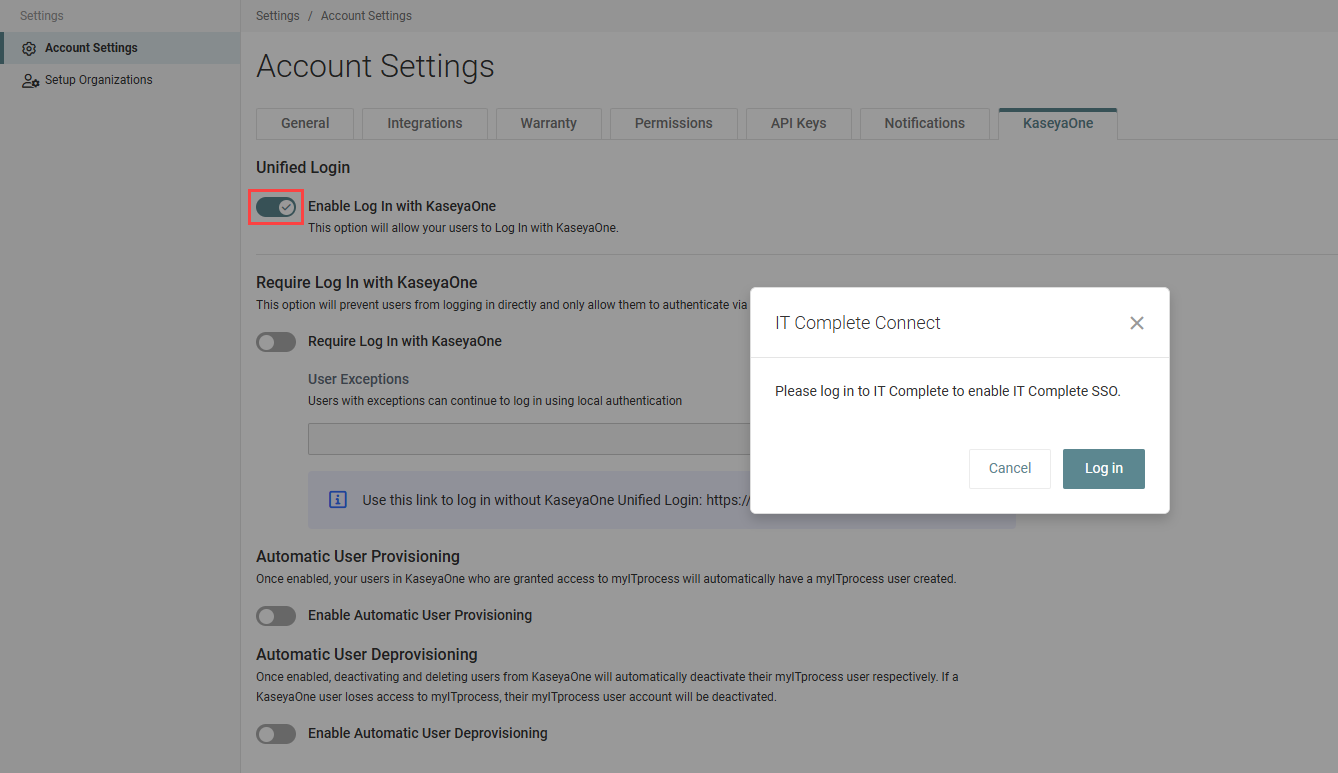
- In the Unified Login section, turn on the Enable Log In with KaseyaOne toggle.
- In the IT Complete Connect window, click Log In.
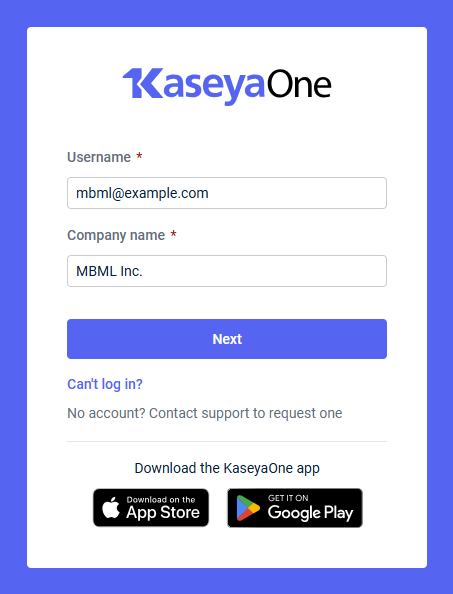
- Enter the username and company name of your KaseyaOne account.
- Click Next.
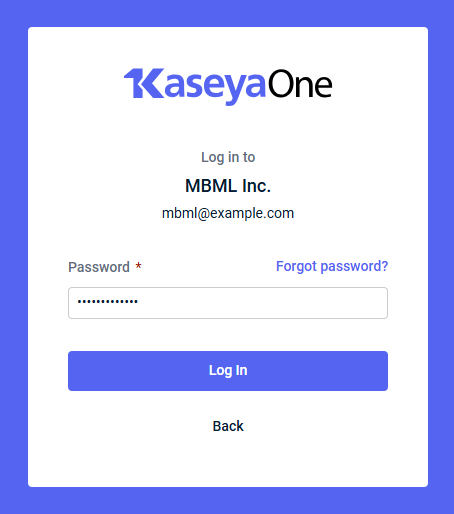
- Enter your KaseyaOne account password.
- Click Next.
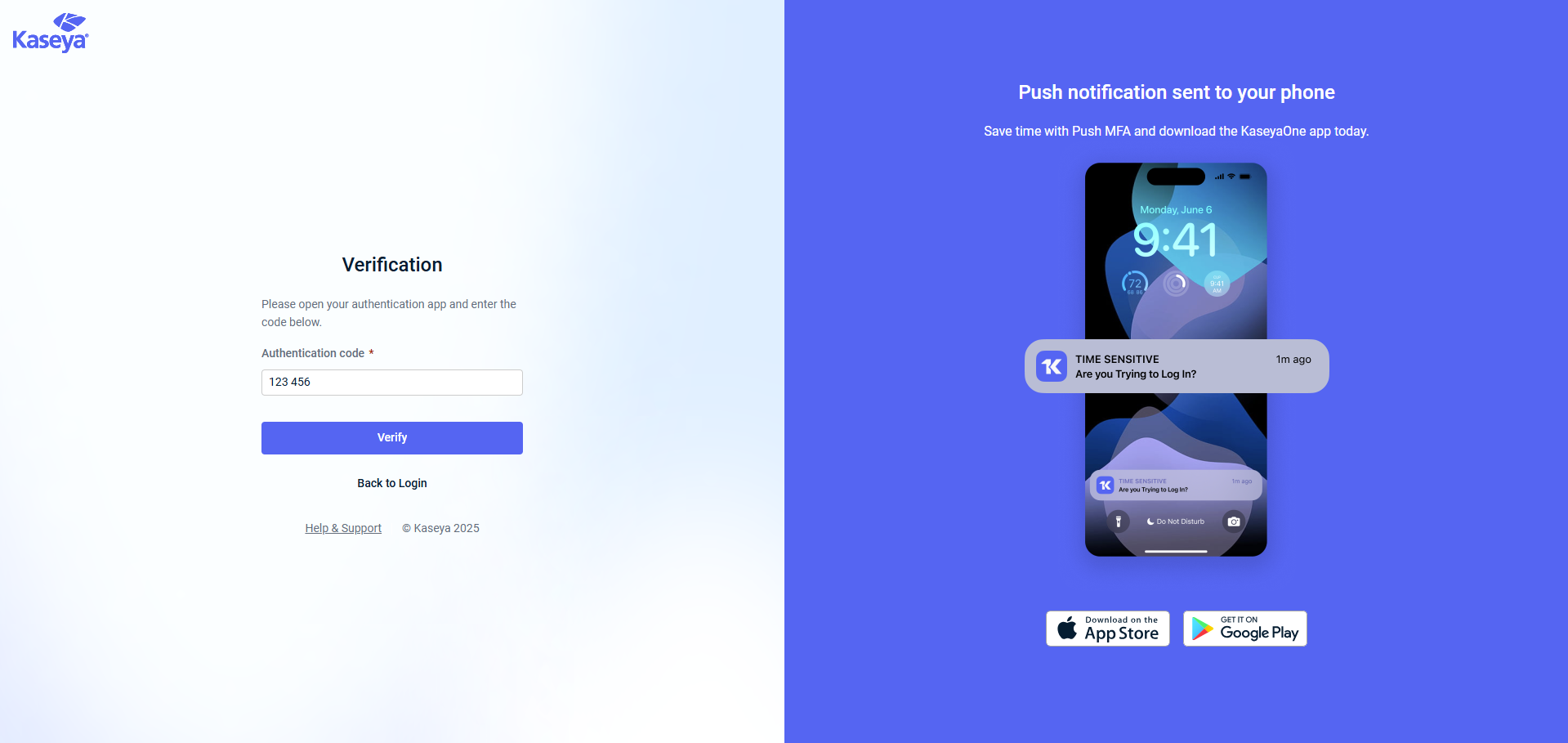
- Enter the six-digit one-time code generated by your authenticator application.
- Click Verify.
You are automatically redirected to the KaseyaOne tab in myITprocess with KaseyaOne Unified Login enabled. Users in your KaseyaOne account now have access to myITprocess through KaseyaOne.
To learn about all of the KaseyaOne login and user management options in this tab, refer to Setting up KaseyaOne Unified Login.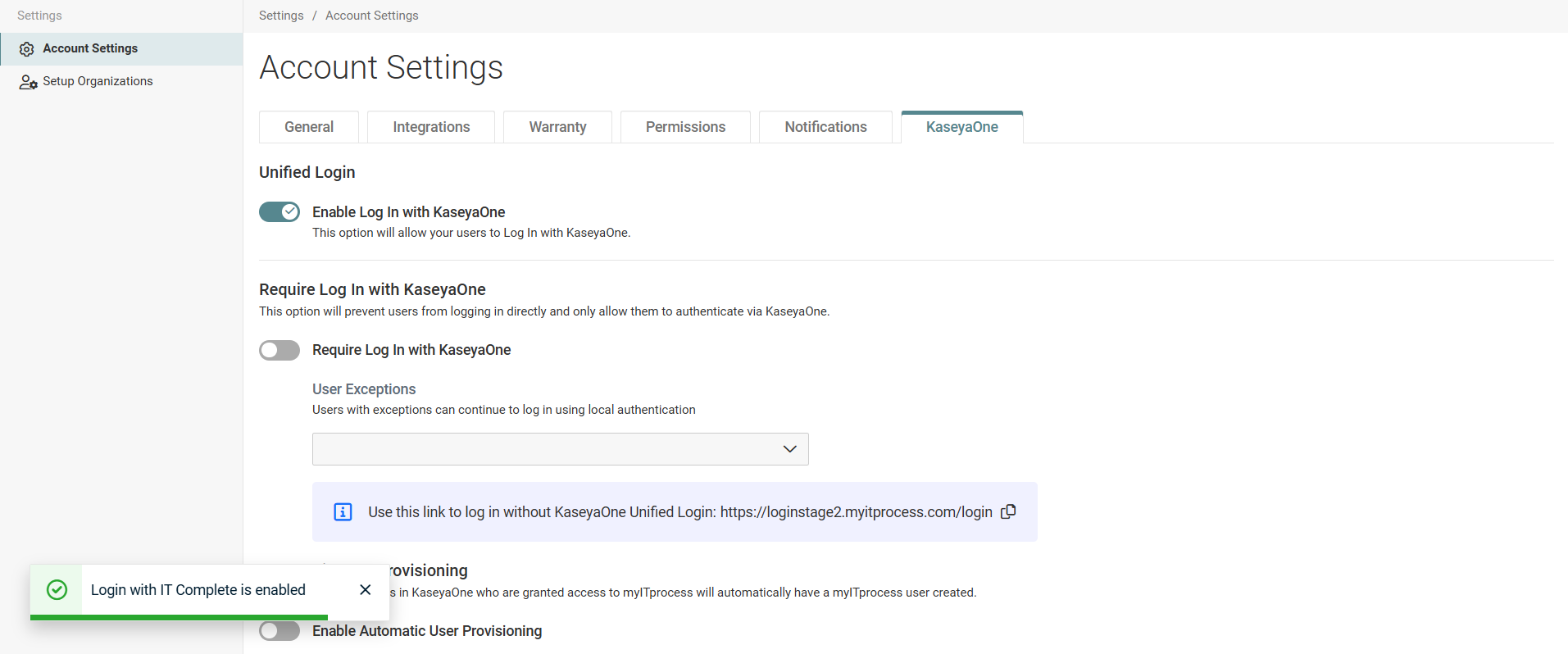
Completing the self-paced onboarding
Self-paced onboarding launches automatically the first time you log in to your new myITprocess instance as an IT Provider Admin user. You can also access the onboarding workflow any time by clicking the graduation cap icon in the myITprocess header.
NOTE A self-paced onboarding exercise also launches for technicians.
Required configurations
The self-paced onboarding walks you through myITprocess and also requires certain configurations. As supplementary material, the following table lists the required configurations and links to the related knowledge base articles.
| Task | Knowledge Base Article |
|---|---|
| Setting up your Account | Configuring global account settings |
| Adding Users | Adding and managing users |
| Getting to know Organizations | Adding and managing organizations |
| Getting to know Standards Library | Using the Standards Library |
| Getting to know Alignments | Alignment Report |
| Getting to know Strategic Roadmap | Getting started with the Strategic Roadmap |
Understanding integrations and automations
myITprocess integrates with several other Kaseya modules, including the following:
These integrations unlock automations that boost efficiency and reduce rework, like syncing clients and data between modules and converting myITprocess recommendations into tickets or opportunities in your PSA tool.
The Integrated Executive Summary report feature in myITprocess allows you to seamlessly present to clients all KPIs and metrics from core services and products, including backup status and storage consumption from Kaseya modules. Ensure and prove client data is secure and quickly recoverable and that devices are updated for optimal performance and security. For a list of all Kaseya modules this myITprocess feature supports and to learn more, refer to Integrated Executive Summary in myITprocess.


