Managing reviews
NAVIGATION Alignment
The Alignment page allows you to view all alignment reviews for the organizations you have access to, including reviews that are assigned to you. To learn how to create reviews, refer to Creating reviews.
Alignment page
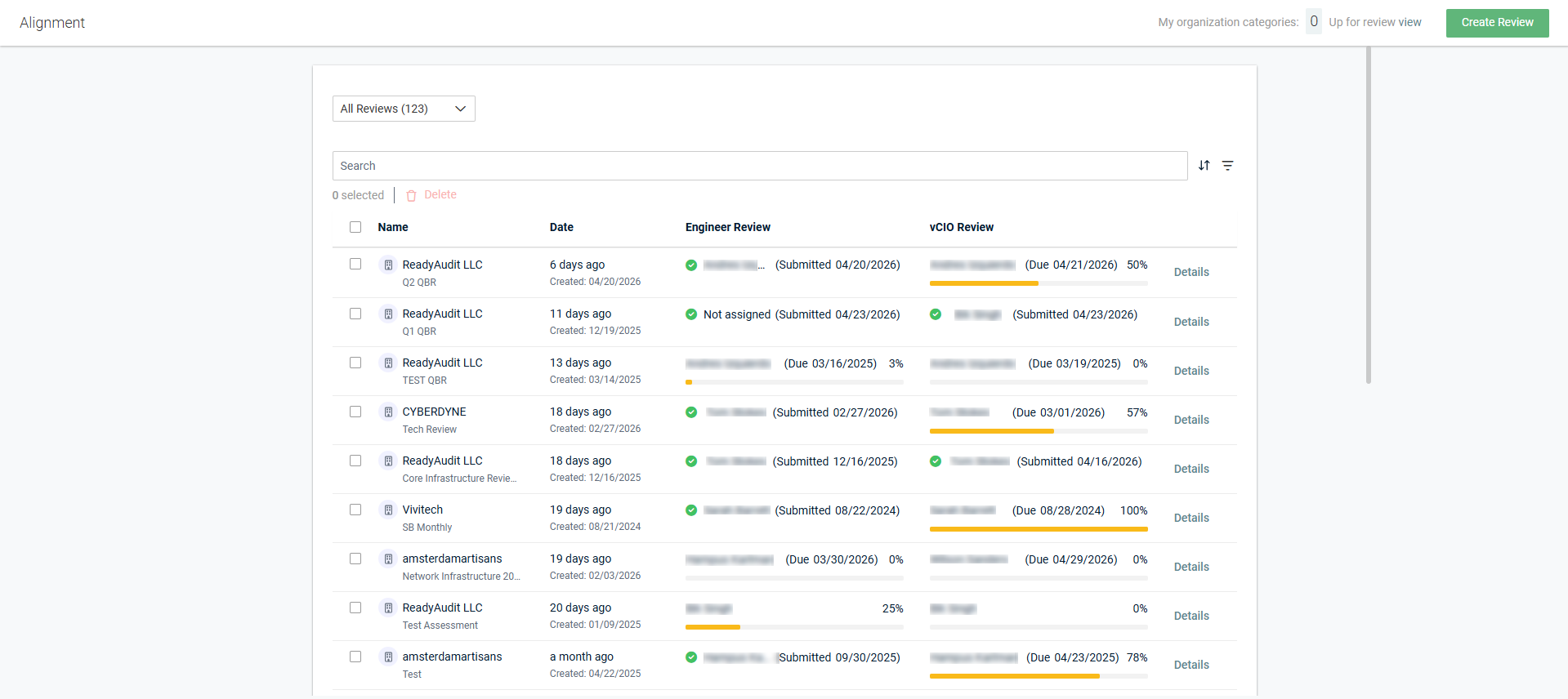
The drop-down menu in the upper-left corner of the page allows you to filter the list of reviews by one of the following:
- All Reviews: View the list of all reviews for the organizations you have access to.
- My Reviews: View the list of reviews to which you are assigned as the engineer or vCIO.
List of reviews
The list of reviews displays the following details:
| Field | Description |
|---|---|
| Name | The name of the organization the review is for followed by the name of the review. |
| Date | When the review was last updated followed by its date of creation. |
| Engineer Review | The name of the assigned engineer, the due date for their portion of the review (if set), and their completion progress. A score of 0% indicates the engineer has not started their portion of the review. A score of 100% indicates the engineer completed their portion (answered all questions). Once the engineer submits their portion, the score and progress bar are replaced by a checkmark icon  and the submission date. and the submission date. |
| vCIO Review | The name of the assigned vCIO, the due date for their portion of the review (if set), and their completion progress. A score of 0% indicates the vCIO has not started their portion of the review. A score of 100% indicates the vCIO completed their portion (answered all questions). Once the vCIO submits their portion, the score and progress bar are replaced by a checkmark icon and the submission date. |
NOTE Internal use only items in reviews may impact the overall review score.
Searching, filtering, and sorting
 Searching
You can search for a specific review in the list by entering the organization name, review name, or first or last name of the assigned engineer or vCIO in the Search bar at the top of the page. The results are narrowed as you type, and other filters are respected.
Filtering
You can filter the list of reviews by organization(s), assigned engineer(s), assigned vCIO(s), review status(es), and tag(s) by clicking the filter icon  in the upper-right corner of the page.
From one or more of the drop-down menus, select the applicable checkboxes to filter by. The results are automatically narrowed after selecting each checkbox. The filter selections persist the next time the page is accessed and can be individually cleared.
To view all reviews or all reviews you are assigned to (depending on whether the list is filtered by All Reviews or My Reviews), clear all filtering by clicking Reset.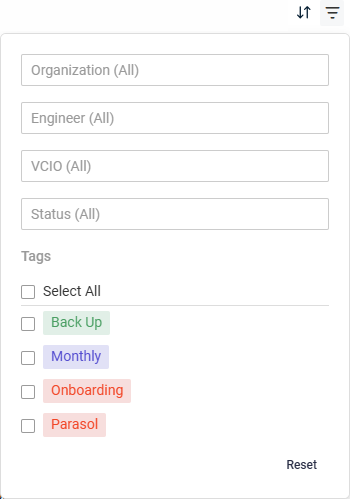
To learn about tags, refer to Managing Standards Library tags.
Status descriptions
The following table provides descriptions for the Status filter:
| Status | Description |
|---|---|
| New | The engineer has not started their portion (answered any questions), meaning both the engineer and vCIO have progress scores of 0%. |
| Engineer In Progress | The engineer has made some percentage of progress (answered some questions), or the engineer has completed their portion (answered all questions) but has not submitted. |
| Engineer Complete | The engineer submitted their completed portion. |
| vCIO In Progress | The vCIO has made some percentage of progress (answered some questions), or the vCIO has completed their portion (answered all questions) but has not submitted. |
| Complete | The vCIO submitted their completed portion, completing the review. |
Sorting
You can sort by one column at a time in ascending or descending order by clicking the sort icon  in the upper-right corner of the page.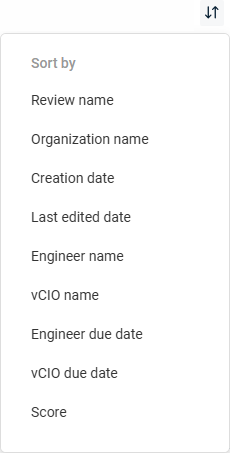
By default, the selected item is sorted in ascending order  . Click the item a second time to sort in descending order
  .
.
The following table provides sorting option descriptions:
| Sorting Option | Description |
|---|---|
| Review name | Sort alphabetically by the review name in the Name column. |
| Organization name | Sort alphabetically by the organization name in the Name column. |
| Creation date | Sort chronologically by the review creation date in the Date column. |
| Last edited date | Sort chronologically by when the review was last updated in the Date column. |
| Engineer name | Sort alphabetically by the engineer's first name in the Engineer Review column. Unassigned reviews are first in the order. |
| vCIO name | Sort alphabetically by the vCIO's first name in the vCIO Review column. Unassigned reviews are first in the order. |
| Engineer due date | Sort chronologically by the engineer's due date/submission date in the Engineer Review column. |
| vCIO due date | Sort chronologically by the vCIO's due date/submission date in the vCIO Review column. |
| Score | Sort by progress score. |
You can select the number of results displayed per page and cycle through those pages using the pagination control in the lower-right corner of the page.
Review details pane
Clicking the Details link for a review opens the Review details pane.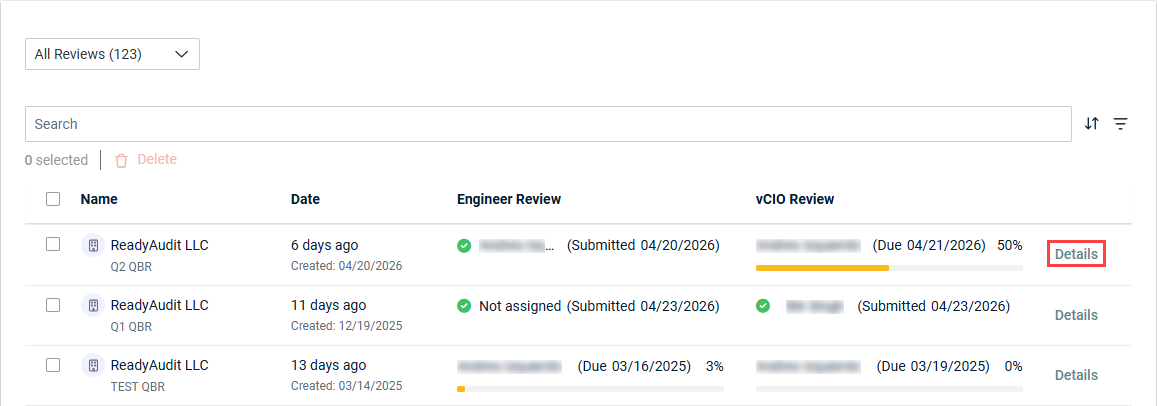
The top of the pane displays the review name and the organization the review is for. The pane includes the following sections:
Additional options
- Tickets: View or create PSA tickets for the review or review questions. Refer to Create and manage PSA tickets for a review and Create and manage PSA tickets for a question.
NOTE This option is displayed only if the organization the review is for is mapped to its matching organization in your PSA tool. Refer to Performing organization mapping.
If the Create Ticket in [integrated PSA tool] option was selected upon creating the review, that New Review ticket is linked here. Refer to Step 1 of 2: Add review details in Creating reviews.EXAMPLE- Tickets (0/0) indicates no PSA tickets are created for the review or for any review questions.
- Tickets (1/0) indicates one PSA ticket is created for the review, and no tickets are created for any review questions.
- Tickets (0/1) indicates no PSA tickets are created for the review, and one ticket is created for a review question.
- Alignment Report: Automatically generate an Alignment Report for the review. Refer to Generate an Alignment Report for a review.
- Send reminder: Send a reminder email for the review to the engineer, vCIO, and/or another user. Refer to Send a reminder email for a review.
Team members
Displays the names of the assigned engineer and vCIO, including their roles in the myITprocess account.
Tags
Displays a read-only list of any tags that are applied to any standards included in the review. Refer to Managing Standards Library tags.
Categories
Displays the categories included in the review. If applicable, click Show more to see all categories.
Summary
Displays the review status, ID, date of creation, engineer and vCIO due dates (if set)/engineer and vCIO completion dates, and date of the latest update. Once an engineer or vCIO submits their portion, their due date is replaced by their completion date. 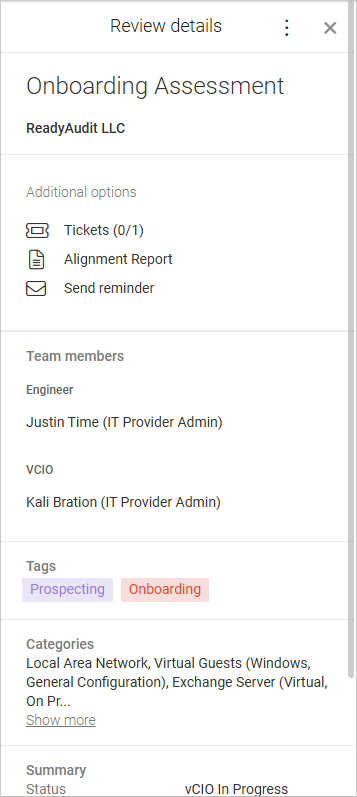
From this pane, you can edit the review details. Refer to Edit review details.
Viewing and working on reviews
Clicking anywhere in the row of a review opens the review page. To learn how to complete a review as one of its assignees, refer to Engineer: Review process and vCIO: Review process.
How to...
Edit review details
To edit the title, status, assignees, or due dates for a review, complete the following steps:
- In the top navigation menu, click Alignment.
- From the drop-down menu in the upper-left corner of the page, filter the list of reviews by All Reviews or My Reviews.
- Search, filter, and sort as necessary to find the applicable review. Refer to Searching, filtering, and sorting.
- In the row of the review, click the Details link.
- From the three-dot menu
 in the upper-right corner of the Review details pane, select Edit review details.
Create and manage PSA tickets for a review
BEFORE YOU BEGIN The organization the review is for must be mapped to its matching organization in your integrated PSA tool. Refer to Performing organization mapping.
To create a PSA ticket for a review, complete the following steps:
- In the top navigation menu, click Alignment.
- From the drop-down menu in the upper-left corner of the page, filter the list of reviews by All Reviews or My Reviews.
- Search, filter, and sort as necessary to find the applicable review. Refer to Searching, filtering, and sorting.
- In the row of the review, click the Details link.
- In the Review details pane, click Tickets (#/#).
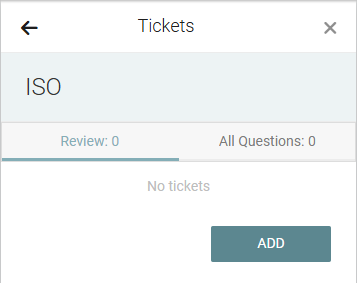
- In the Review tab, which is selected by default, click Add to create a ticket for the review in its entirety.
- Enter a custom summary and description that will appear in the ticket.
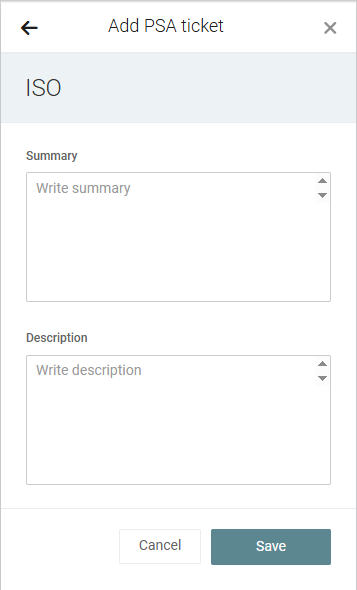
- Click Save to create the ticket.
NOTE This option is also available if you open the review and click the menu in the upper-right corner of the page.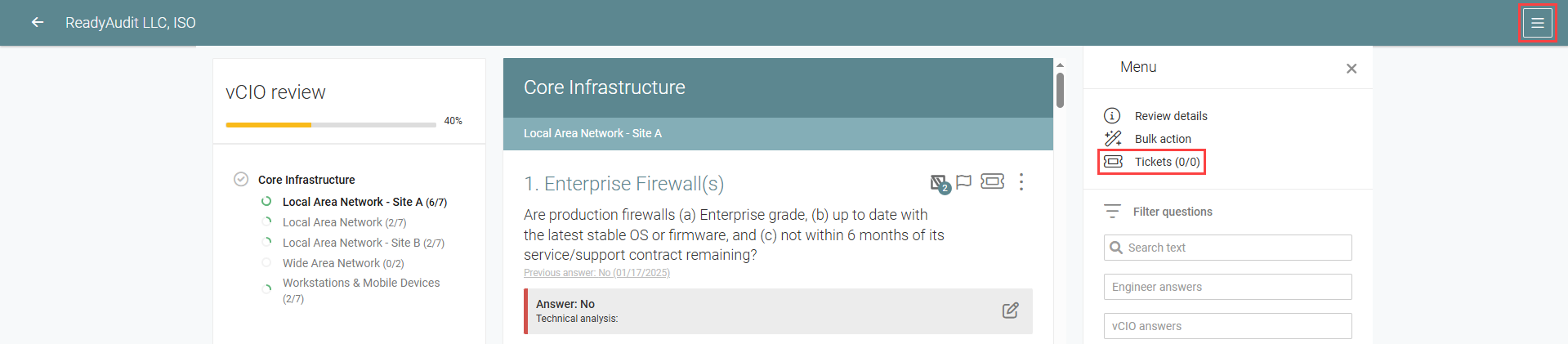
NOTE You have the option to create more than one ticket for a single review. To do so, click + in the Review tab of the Tickets pane.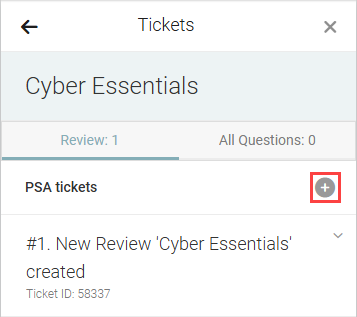
NOTE PSA tickets for individual review questions can be created within the review. Refer to Create and manage PSA tickets for a question in Engineer: Review process.
Once a ticket is created, you can view the ticket details and open the ticket in your PSA tool directly from the review Tickets pane. Expand the ticket summary to see the ticket details, including the summary, ticket ID, date created, status, board, and description. You can edit these details from the PSA ticket.
To open the ticket in your PSA tool, click View ticket.
To sync the latest ticket updates from your PSA tool to myITprocess, click the refresh icon ⟳.
To archive the ticket from within myITprocess, click Archive, and you will be prompted to confirm this action.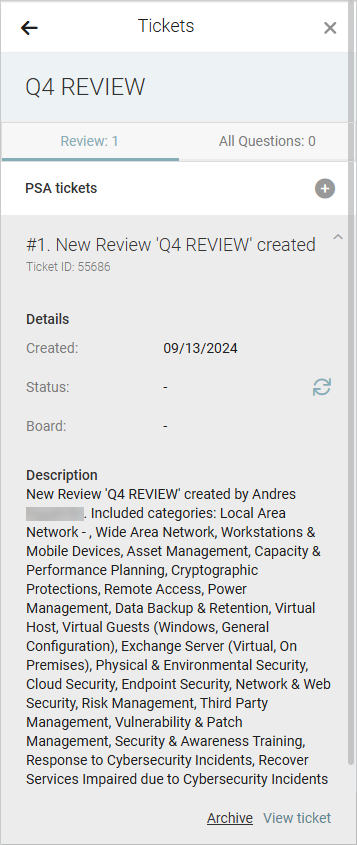
Generate an Alignment Report for a review
For an overview of the Alignment Report in myITprocess, refer to Alignment Report.
To generate an automatically configured Alignment Report reflective of a specific review, complete the following steps:
- In the top navigation menu, click Alignment.
- From the drop-down menu in the upper-left corner of the page, filter the list of reviews by All Reviews or My Reviews.
- Search, filter, and sort as necessary to find the applicable review. Refer to Searching, filtering, and sorting.
- In the row of the review, click the Details link.
- In the Review details pane, click Alignment Report.
You are redirected to the Alignment Report page, where the report is automatically configured for the review and generated as a downloadable PDF.
Send a reminder email for a review
For any review, you can send reminder emails to the assigned engineer, vCIO, and/or another user in the myITprocess account.
The subject line indicates that the review still needs work, and the body of the email includes a link to navigate directly to the review in myITprocess. The email is sent from myITprocess and does not include your name.
Complete the following steps to send reminder emails for a review:
- In the top navigation menu, click Alignment.
- From the drop-down menu in the upper-left corner of the page, filter the list of reviews by All Reviews or My Reviews.
- Search, filter, and sort as necessary to find the applicable review. Refer to Searching, filtering, and sorting.
- In the row of the review, click the Details link.
- In the Review details pane, click Send reminder.
- Optionally, enter a custom message to include in the body of the email.
- By default, the email is sent to both the engineer and vCIO. If you do not wish to send one or both of them the email, clear the respective checkboxes.
- To send the email to any additional user, select the user from the Other drop-down menu and select the checkbox next to it.
- Click Send to send the reminder email.
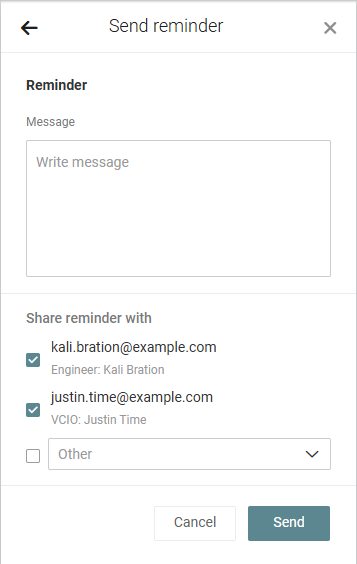
NOTE The default email message indicates that the review needs the user's attention to be completed.
TIP If one user is assigned as both the engineer and vCIO, they receive only one email, so clearing one of the checkboxes next to their name is not necessary. The user's assignment is not displayed in the email message.
Reopen a completed review
To reopen a completed review, complete the following steps:
- In the top navigation menu, click Alignment.
- From the drop-down menu in the upper-left corner of the page, filter the list of reviews by All Reviews or My Reviews.
- Search, filter, and sort as necessary to find the applicable review. Refer to Searching, filtering, and sorting.
- In the row of the review, click the Details link.
- From the three-dot menu in the upper-right corner of the Review details pane, select Edit review details.
- In the Status drop-down menu, change the review status to vCIO In Progress or Engineer In Progress.
- Click Save.
The engineer and vCIO progress scores remain 100%, but the review is no longer considered submitted and must be resubmitted for Completed status.
Delete one or more reviews
To delete a review or to delete reviews in bulk, complete the following steps:
- In the top navigation menu, click Alignment.
- From the drop-down menu in the upper-left corner of the page, filter the list of reviews by All Reviews or My Reviews.
- Search, filter, and sort as necessary to find the applicable review. Refer to Searching, filtering, and sorting.
- Select the checkbox(es) in the row(s) of the review(s) you want to delete. To select all reviews in the list, select the checkbox in the list header.
- In the upper-left corner of the list, click Delete.
- In the confirmation dialog box, click OK to execute the deletion.
Alternatively, you can delete a review by clicking its Details link and selecting Delete review from the three-dot menu in the upper-right corner of the Review details pane.


