Alignment Report
NAVIGATION Reports > Alignment Report
NAVIGATION QBR Report Builder > (add or edit a report) > Add > Alignment Report
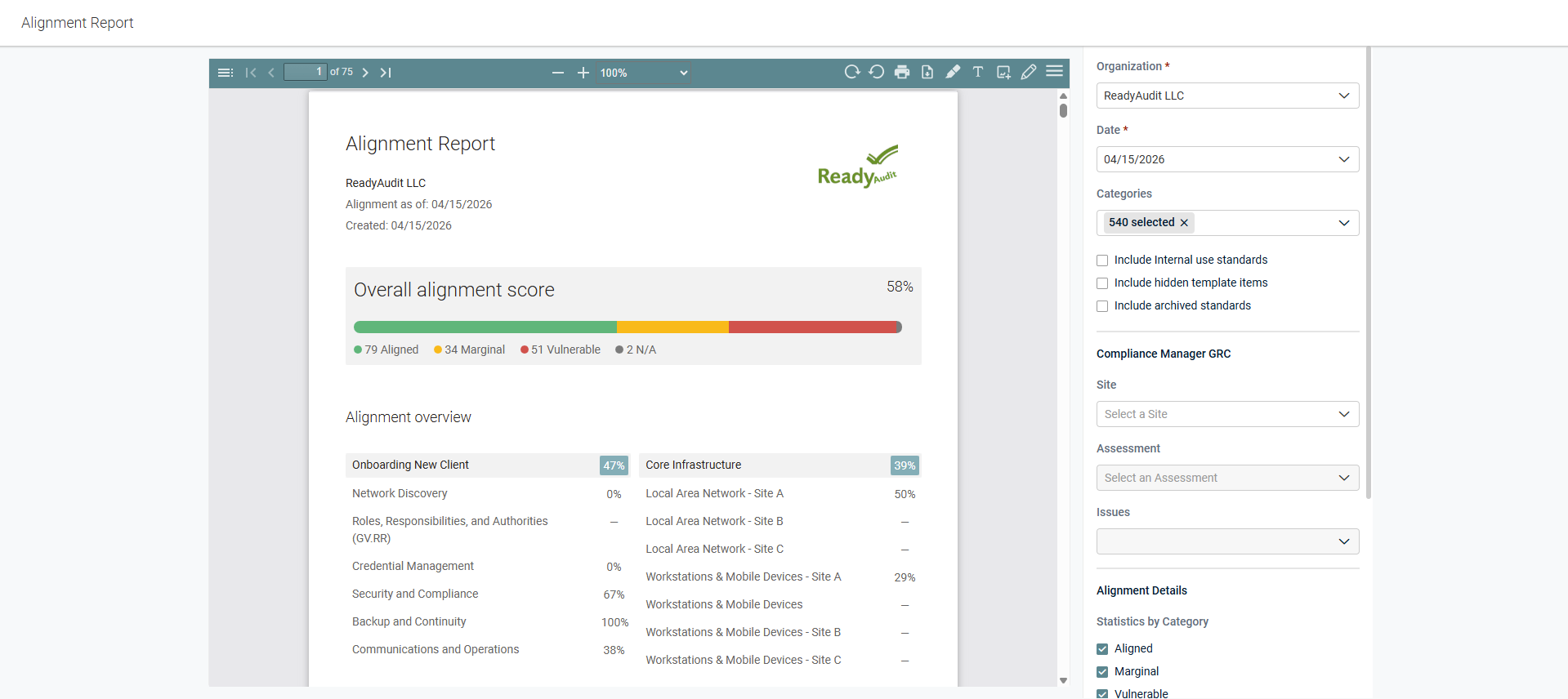
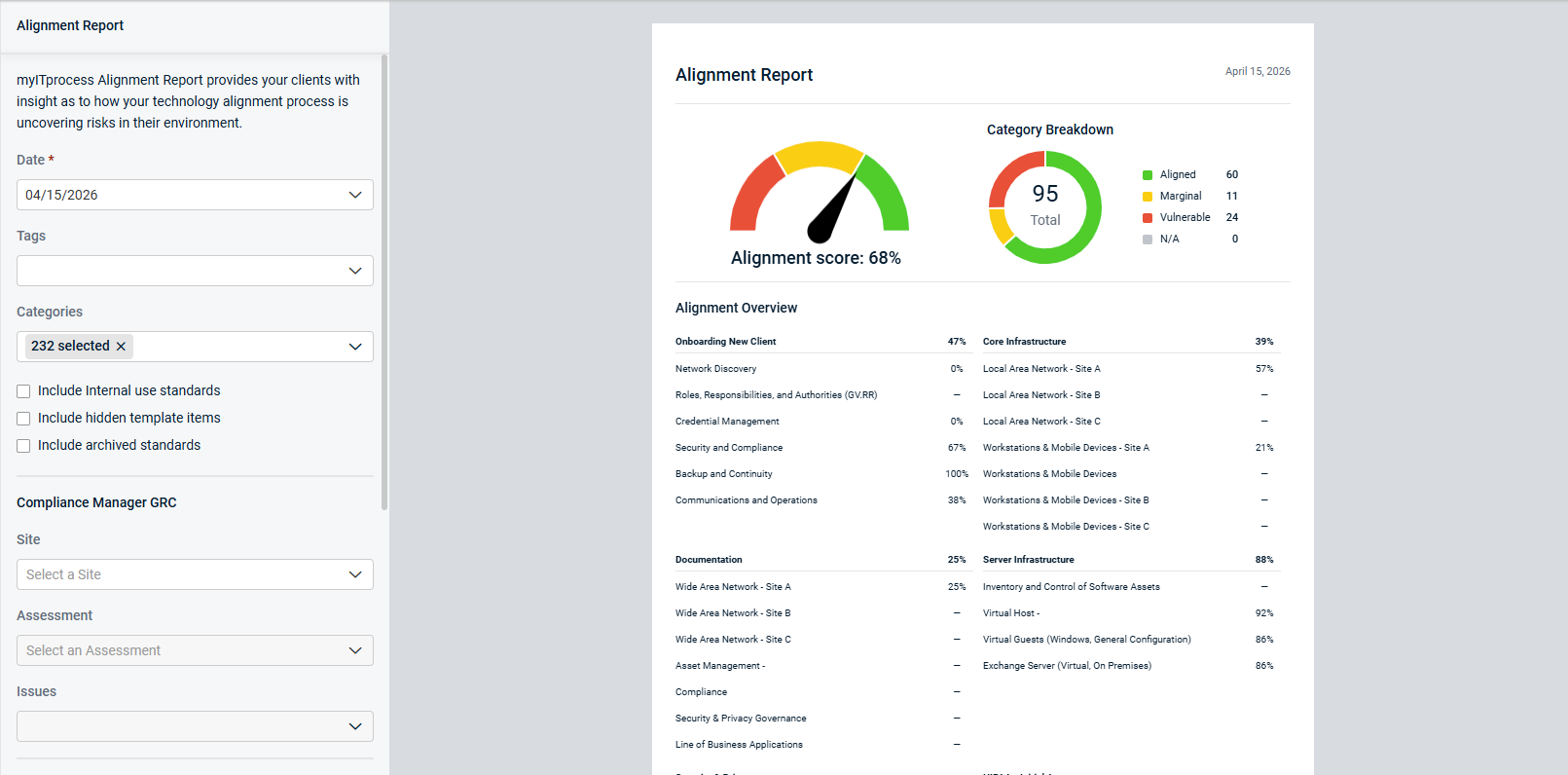
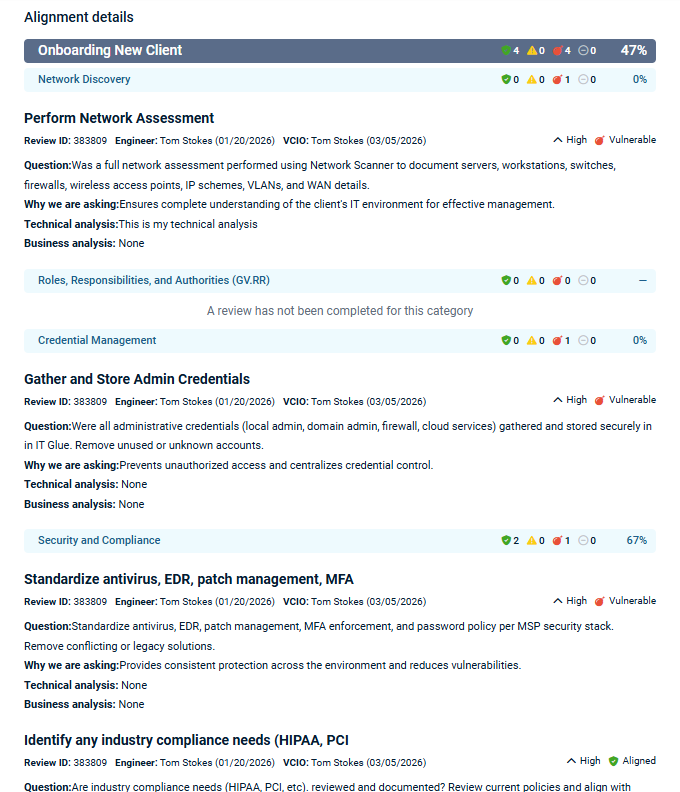
The Alignment Report provides your clients with clear insight into how your technology alignment process is uncovering risks within their environment.
BEFORE YOU BEGIN Refer to Using the Standards Library and Customizing organization templates.
You can generate this report as a standalone PDF or as part of a QBR report. Refer to Using the QBR Report Builder.
Standalone Alignment Report
Alignment Report in QBR Report Builder
Configuring Alignment Report settings
On the Alignment Report page or in the Alignment Report section in the QBR Report Builder, configure the report using the following settings:
| Field | Availability by Report Type (if applicable) | Description |
|---|---|---|
| Organization | Standalone report only, as the organization is selected in the general QBR report settings | From the drop-down menu, select the client for whom you are generating the report. |
| Date |
From the calendar date selector, choose the cutoff date for the report. Dates on which an alignment review was completed for the organization are marked with a green dot NOTE A later setting provides you the option to include in-progress review data (not only data from completed reviews). Refer to Include in progress data. |
|
| Tags | QBR report only | The drop-down menu contains all active section and category tags. Refer to Managing Standards Library tags. To be able to include untagged sections and categories in the report, leave this field blank. To include only tagged sections and categories in the report, select the tag(s) you want to include. |
| Categories | The drop-down menu organizes categories by section. Select any number of categories to include in the report. Selecting a section checkbox (top-level) automatically selects all categories within that section, and category checkboxes can be individually cleared as needed. If a selected section or category has not yet been included in any reviews for the organization, the section or category appears in the report with a note that a review has not yet been completed for it. In the QBR Report Builder settings, the sections and categories available for selection are limited to those with the tag(s) selected in the Tags drop-down menu. If no tags are selected (or if you are generating a standalone report), all active categories are available for selection. |
|
| Include Internal use standards | Select this checkbox to include standards marked for internal use in the report. Refer to Overview of internal-use sections, categories, and questions. | |
| Include hidden template items | Select this checkbox to include standards hidden from the organization template in the report. Refer to Including or excluding sections and categories in organization templates. | |
| Include archived standards | Select this checkbox to include archived standards in the report. Refer to Archiving a section, category, or question in the Standards Library. | |
| Compliance Manager GRC This section is visible only if the selected myITprocess organization is mapped to a Compliance Manager GRC organization. Refer to Compliance Manager integration. |
||
| Site | From the drop-down menu, select the relevant site from the Compliance Manager GRC organization to filter report data. | |
| Assessment | From the drop-down menu, select a past assessment for the site or Current Assessment for the site to include in the report. | |
| Issues | From the drop-down menu, select any number of issues to include in the report. | |
| Alignment Details | ||
| Aligned |
|
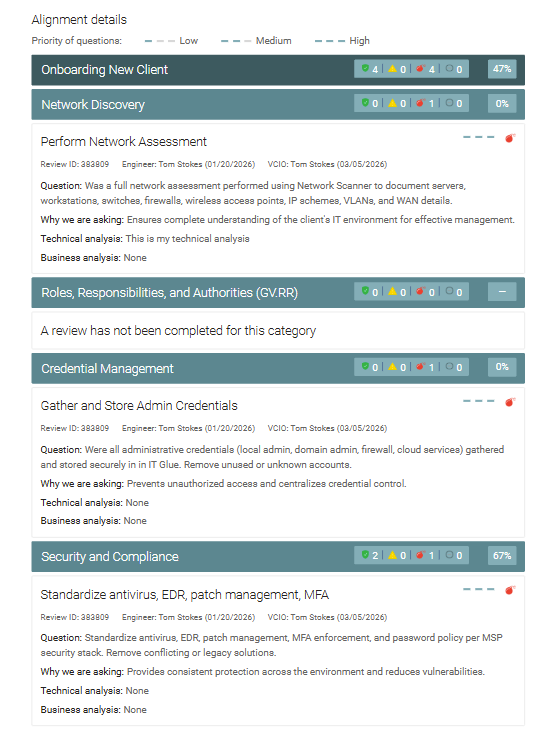
Clear this checkbox to hide the details of items marked as Aligned by the review's assigned vCIO from the report. When this checkbox is cleared, aligned items are still included in the overall alignment score at the top of the report and in the total counts for each section and category (denoted by the aligned icon  ), but the individual questions/aligned answers are not displayed underneath their categories in the report. ), but the individual questions/aligned answers are not displayed underneath their categories in the report. |
| Marginal |
|
Clear this checkbox to hide the details of items marked as Marginal by the review's assigned vCIO from the report. When this checkbox is cleared, marginal items are still included in the overall alignment score at the top of the report and in the total counts for each section and category (denoted by the marginal icon  ), but the individual questions/marginal answers are not displayed underneath their categories in the report. ), but the individual questions/marginal answers are not displayed underneath their categories in the report. |
| Vulnerable |
|
Clear this checkbox to hide the details of items marked as Vulnerable by the review's assigned vCIO from the report. When this checkbox is cleared, vulnerable items are still included in the overall alignment score at the top of the report and in the total counts for each section and category (denoted by the vulnerable icon  ), but the individual questions/vulnerable answers are not displayed underneath their categories in the report. ), but the individual questions/vulnerable answers are not displayed underneath their categories in the report. |
| N/A |
|
Select this checkbox to include the details of items marked as N/A by the review's assigned vCIO from the report. When this checkbox is selected, in addition to N/A items being included in the overall alignment score at the top of the report and in the total counts for each section and category (denoted by the N/A icon  ), the individual questions/N/A answers are displayed underneath their categories in the report. ), the individual questions/N/A answers are displayed underneath their categories in the report. |
| Question text |
|
Clear this checkbox to hide the Question Text field (populated in the Standards Library) for each question included in the report. |
| Why are we asking |
|
Clear this checkbox to hide the Why Are We Asking? field (populated in the Standards Library) for each question included in the report. |
| Business Analysis |
|
Clear this checkbox to hide the Business Analysis field (populated in the review) for each question included in the report. |
| Technical Analysis |
|
Clear this checkbox to hide the Technical Analysis field (populated in the review) for each question included in the report. |
| Include in progress data | Select this checkbox to include data from reviews that have not yet been completed (submitted by the vCIO). The report will reflect the data most recently configured on or before the date selected in the Date field. Refer to Date. | |
| Include client sign-off | Standalone report only | Select this checkbox to include Client Signature and Date boxes at the bottom of the report, where the client can sign and date the report to sign off on it. |
 . The report reflects data from the review that was most recently completed on or before that date (when the vCIO clicked Submit), even if it was completed several months ago.
Generating the standalone Alignment Report
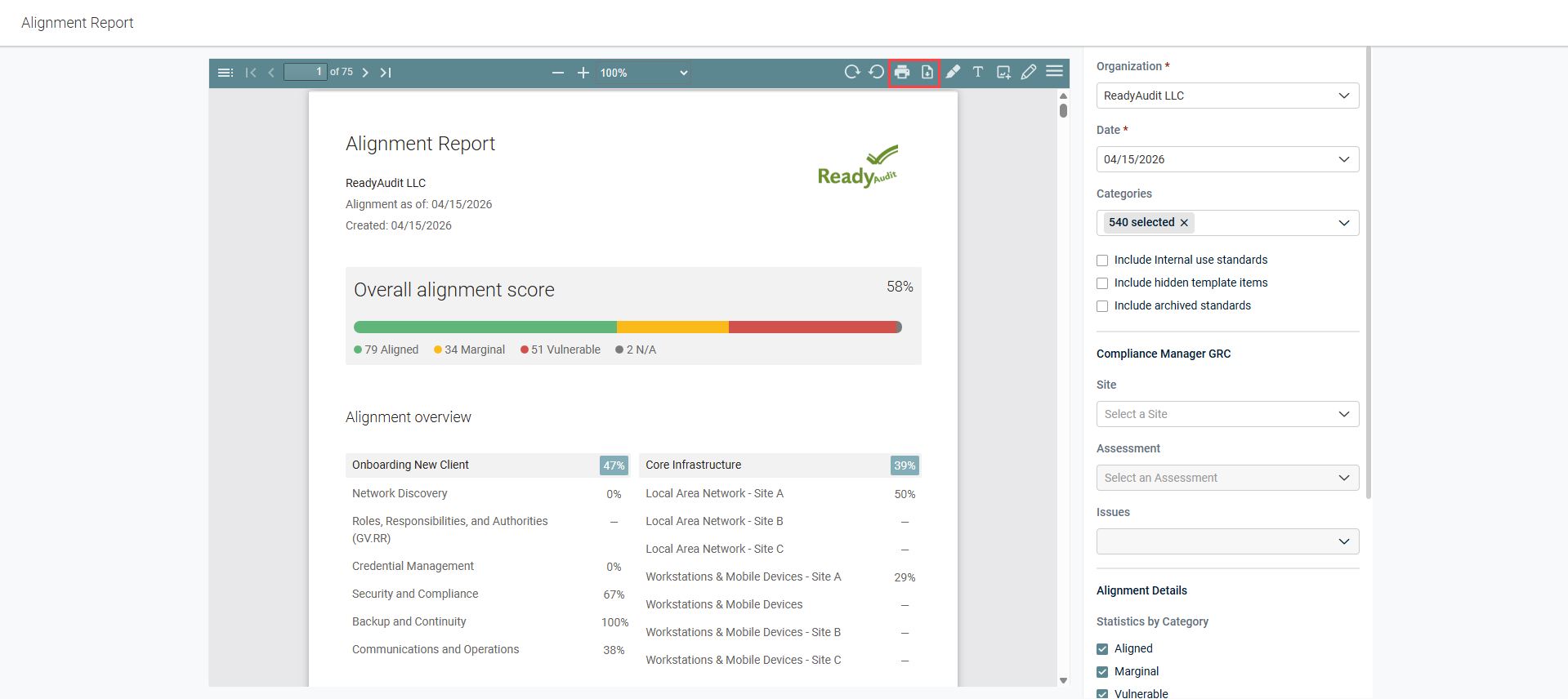
When you are ready to generate the report with your configured settings on the Alignment Report page, click Build in the lower-right corner of the page.
The generated PDF is embedded on the page for your review, including a toolbar with markup and display options. If you use the toolbar to add images, text, markings, and so forth in the PDF, those elements will appear in the downloaded or printed PDF. To print the PDF or download it to the default download location on your device, click the print icon or download icon in the toolbar.